Updating user information in Microsoft 365 is a common administrative task. The Update-MgUser cmdlet in the Microsoft Graph PowerShell module provides a powerful way to update user properties. This article will cover the Update-MgUser cmdlet basics like the cmdlet prerequisites, cmdlet syntax with parameter explanations, various usage examples, helpful tips, common errors involved with solutions.
Prerequisites
-
Microsoft Graph PowerShell Module: Install the module if you haven't already.
Install-Module -Name Microsoft.Graph -Scope CurrentUser - Required Permissions: Ensure your account has the necessary permissions to update user information. The minimum required permissions are User.ReadWrite.All.
-
Authentication: Connect to Microsoft Graph using the following command:
Connect-MgGraph -Scopes "User.ReadWrite.All"
Cmdlet Syntax
Update-MgUser -UserId <String> [-AccountEnabled <Boolean>] [-DisplayName <String>] [-JobTitle <String>] [-MobilePhone <String>] [-OfficeLocation <String>] [-OtherMails <String[]>] [-PreferredLanguage <String>] [-Surname <String>] [-UserPrincipalName <String>] [] -UserId:The unique identifier of the user to update. This can be the user's Id, UserPrincipalName, or Email.-AccountEnabled:Specifies whether the user's account is enabled or disabled.-DisplayName:The user's display name.-JobTitle:The user's job title.-MobilePhone:The user's mobile phone number.-OfficeLocation:The user's office location.-OtherMails:Additional email addresses for the user.-PreferredLanguage:The user's preferred language.-Surname:The user's last name.-UserPrincipalName:The user's principal name (user's sign-in name).
Usage Examples
Example 1: Update a User's Display Name and Job Title
Update-MgUser -UserId "john.doe@contoso.com" -DisplayName "Johnathan Doe" -JobTitle "Senior Developer"Example 2: Enable a User's Account
Update-MgUser -UserId "jane.smith@contoso.com" -AccountEnabled $trueExample 3: Update Multiple User Properties
Update-MgUser -UserId "alex.wang@contoso.com" -MobilePhone "+1 555 555 5555" -OfficeLocation "Building 4" -PreferredLanguage "en-US"Example 4: Add Additional Email Address
Update-MgUser -UserId "mary.jones@contoso.com" -OtherMails @("mary.jones@otherdomain.com")Example 5: Update User Principal Name
Update-MgUser -UserId "old.username@contoso.com" -UserPrincipalName "new.username@contoso.com"Example 6: Update the City and Country of a User
Useful for updating physical location information for directory accuracy or compliance.
Update-MgUser -UserId "alex.wilson@yourdomain.com" -BodyParameter @{
    city = "Seattle"
    country = "United States"
}
Example 7: Update a User’s Office Location
This updates the officeLocation property for the user alex.johnson@yourdomain.com to "HQ-Block B" — useful for reflecting seating changes or facility updates in the directory.
Update-MgUser -UserId "alex.johnson@yourdomain.com" -BodyParameter @{
    officeLocation = "HQ-Block B"
}
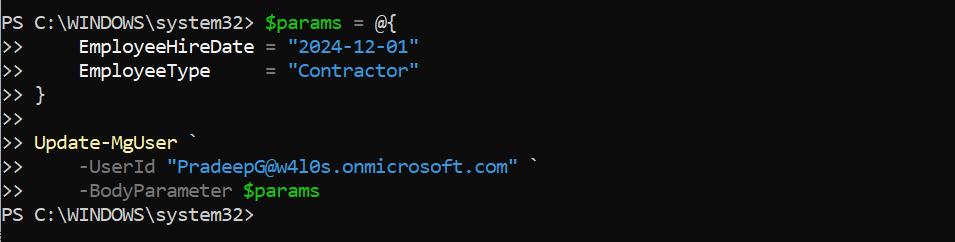
Example 8: Update a User with EmployeeHireDate and EmployeeType
EmployeeHireDate and EmployeeTypeare often overlooked, but extremely useful for HR-driven automations. This is how you can update them.
$params = @{
    EmployeeHireDate = "2024-12-01"
    EmployeeType     = "Contractor"
}
Update-MgUser `
-UserId "user@domain.com" `
-BodyParameter $params
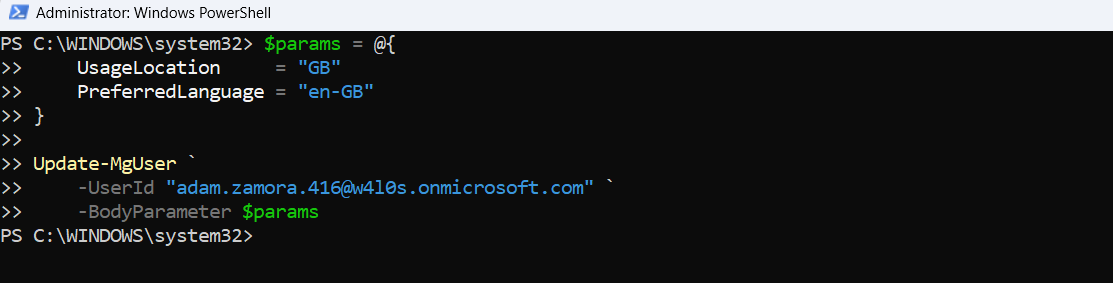
Example 9: Update user location and language settings
This updates the UsageLocation and PreferredLanguage properties for the user@domain.com user. UsageLocation is essential for assigning user licenses.
$params = @{
    UsageLocation     = "GB"
    PreferredLanguage = "en-GB"
}
Update-MgUser `
-UserId "user@domain.com" `
-BodyParameter $params
Example 10: Update a User’s Manager
$UserId = "adam.gibson@7xh7fj.onmicrosoft.com"
$ManagerId = "PradeepG@7xh7fj.onmicrosoft.com"
$BodyParameter = @{
    "@odata.id" = "https://graph.microsoft.com/v1.0/users/$ManagerId"
}
Set-MgUserManagerByRef -UserId $UserId -BodyParameter $BodyParameter
Write-Host "Manager updated successfully for $UserId"
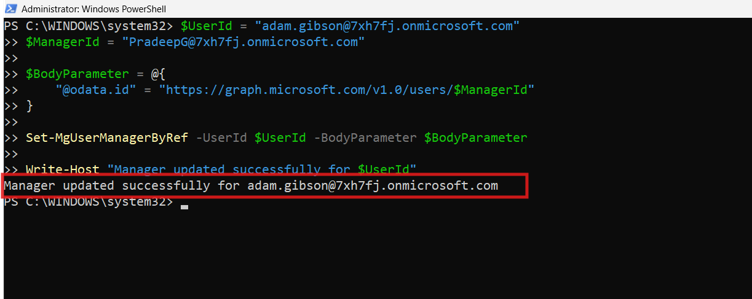
What this script does
This script updates the manager relationship for a Microsoft 365 user. While Update-MgUser handles profile fields like department, city, job title, and office location, manager assignment is handled using Set-MgUserManagerByRef.
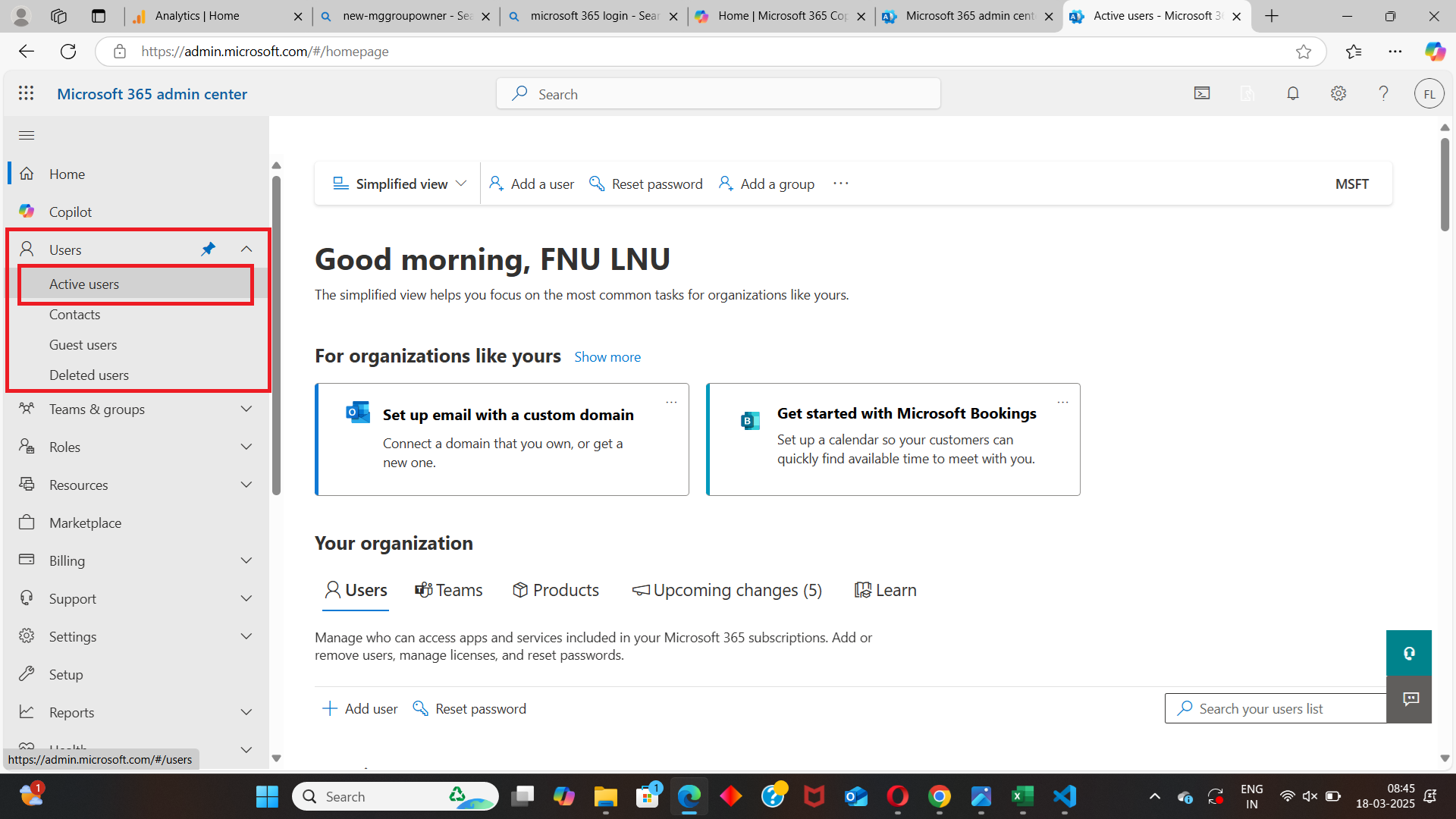
Updating Microsoft 365 User Using Admin Center
- Login into Microsoft 365 Admin Center
- Select Users >> Active Users page.
- Select User to be updated >> go to Accounts tab >> Update the required details >> Save the User .

Cmdlet Tips
- Batch Updates: For updating multiple users, consider using a loop to process a list of users from a CSV file.
- Backup Data: Always back up current user data before making bulk updates to avoid accidental data loss.
- Error Handling: Use try-catch blocks to handle potential errors gracefully in your scripts.
- Use -WhatIf Alternative for Testing Logic While Update-MgUser doesn't support -WhatIf, you can preview changes by first retrieving the user's current properties with Get-MgUser -UserId and comparing the intended values before updating. This minimizes mistakes during bulk updates.
Use Cases
- Updating User Information Post-Onboarding
- Scenario: After new employees have been onboarded, there may be a need to update their profile information, such as adding job titles, departments, or mobile phone numbers.
- Implementation: Use Update-MgUser to quickly update these details for individual users.
- Benefit: Ensures that employee profiles are kept up-to-date with accurate information, which is crucial for internal communications and organizational structure.
- Enforcing Naming Conventions:
- Scenario: Organizations may enforce specific naming conventions for UserPrincipalName, DisplayName, or MailNickname to maintain consistency across the directory.
- Implementation: Use Update-MgUser to modify these properties in bulk, aligning user profiles with the organization's naming standards.
- Benefit: Helps in maintaining a professional and consistent directory, making it easier to manage and search for users.
- Bulk Updating User Information
- Scenario: HR or IT departments need to make changes to multiple users’ profiles, such as updating job titles after a company-wide reorganization or changing office locations.
- Implementation: Use a CSV file to manage bulk updates, where each row represents a user and their updated properties.
- Benefit: Streamlines the process of making large-scale changes, saving time and reducing the potential for errors.
CSV File Example:
UserPrincipalName,JobTitle,Department,OfficeLocation
johndoe@domain.com,Manager,Sales,New York
janedoe@domain.com,Engineer,IT,San Francisco
$users = Import-Csv -Path "C:\Path\To\Users.csv"
foreach ($user in $users) {
    $userParams = @{
    JobTitle = $user.JobTitle
    Department = $user.Department
    OfficeLocation = $user.OfficeLocation
}
    Update-MgUser -UserId $user.UserPrincipalName -BodyParameter $userParams
}
Common Errors and Solutions
| Error Message | Solution |
| Insufficient Permissions Error: You might encounter an error indicating insufficient permissions. | Ensure your account has the User.ReadWrite.All permission. Reconnect with the required scopes if necessary. |
| Invalid UserId Error: Specifying an incorrect or non-existent UserId will result in an error. | Verify UserId exists using Get-MgUser cmdlet before performing the update operation. |
| Incorrect Parameter Values Error: Providing invalid values for parameters (e.g., improperly formatted email addresses). | Ensure all parameter values are correctly formatted and valid. Double-check the input data. |
Frequently Asked Questions
- What is Update-MgUser used for?
Update-MgUser is a Microsoft Graph PowerShell cmdlet used to modify user attributes in a Microsoft 365 tenant. It allows updating various properties, such as display name, department, job title, and phone numbers. - How can I update a user’s display name using Update-MgUser?
To update a user’s display name, use the following script:Update-MgUser -UserId "<UserPrincipalName>" -BodyParameter @{ "displayName" = "New Display Name" }Can I update multiple users at once using Update-MgUser?
Yes, bulk updates can be performed using a CSV file. Prepare the file with the following format:
UserPrincipalName,DisplayName,Department
user1@domain.com,New Display Name 1,Sales
user2@domain.com,New Display Name 2,Marketing
Use this script to update user properties:$Users = Import-Csv -Path "C:\Path\To\File.csv" foreach ($User in $Users) { $Body = @{ "displayName" = $User.DisplayName "department" = $User.Department } Update-MgUser -UserId $User.UserPrincipalName -BodyParameter $Body } - What should I do if I get a "Request_BadRequest" error while using Update-MgUser?
This error usually means you're trying to update an unsupported or improperly formatted property.
Double-check
- That the property name is correct (e.g., use jobTitle not JobTitle)
- That the value is in the correct format (e.g., don't pass numbers in a string-only field)
- You're not trying to update a read-only property like userPrincipalName without special permissions.
try { Update-MgUser -UserId "user@domain.com" -BodyParameter $params } catch { $_.Exception.Message } - Can I update a user’s manager using Update-MgUser?
No. The manager relationship is not updated directly using Update-MgUser. Use Set-MgUserManagerByRef instead.
$BodyParameter = @{
    "@odata.id" = "https://graph.microsoft.com/v1.0/users/manager@domain.com"
}

Set-MgUserManagerByRef -UserId "user@domain.com" -BodyParameter $BodyParameter
Yes. You can update the UsageLocation property using Update-MgUser, and this is often required before assigning a Microsoft 365 license.
Update-MgUser -UserId "user@domain.com" -BodyParameter @{
    usageLocation = "US"
}
This helps avoid license assignment errors caused by missing usage location.
The
Update-MgUser cmdlet can only modify certain properties of a user object. Attempting to update read-only or system-managed fields (like UserPrincipalName for synced users) will result in errors.
Always refer to the Microsoft Graph user schema to confirm which fields are writable.
If your tenant uses Azure AD Connect, many user attributes are managed from on-prem Active Directory. Trying to modify synced properties via
Update-MgUser will fail with a Property is read-only error.In such cases, update the attribute in AD and let it sync to Azure AD.
Get-MgUser for Targeted UpdatesYou can pipe results from
Get-MgUser into Update-MgUser to update specific user accounts based on conditions like department, city, or usage.This is a powerful method for bulk user updates while ensuring precision.
Get-MgUser -Filter "department eq 'Sales'" -All |
ForEach-Object {
Update-MgUser -UserId $_.Id -BodyParameter @{ city = "Chicago" }
}
Conclusion
The Update-MgUser cmdlet is a versatile tool for updating user information in Microsoft 365. By understanding its parameters and usage, you can efficiently manage user properties. Remember to handle errors gracefully and verify your input data to avoid common pitfalls. With these practices, you can ensure smooth and effective updates to your organization's user information.
If You Prefer the Graph API Way
Note: Updating a user via Graph API requires a PATCH request to /users/{id}. You only need to send the fields that need to be modified in the request body.
Update a Single User
# Replace with actual UPN or user ID
$userId = "john.sample@yourtenant.onmicrosoft.com"
# Define the update payload
$updatePayload = @{
    jobTitle   = "Project Manager"
    department = "IT"
    city       = "Seattle"
}
# Send the PATCH request using Graph API
Invoke-MgGraphRequest -Method PATCH -Uri "https://graph.microsoft.com/v1.0/users('$userId')" -Body ($updatePayload | ConvertTo-Json -Depth 10)
Update Users in Bulk from CSV
# Sample CSV headers: userPrincipalName,jobTitle,department,city
$users = Import-Csv -Path "C:\Users\admin\Documents\update-users.csv"

foreach ($user in $users) {
$updatePayload = @{
    jobTitle   = $user.jobTitle
    department = $user.department
    city       = $user.city
}

# Send PATCH request for each user
$uri = "https://graph.microsoft.com/v1.0/users('$($user.userPrincipalName)')"
Invoke-MgGraphRequest -Method PATCH -Uri $uri -Body ($updatePayload | ConvertTo-Json -Depth 10)
}
CSV Format Example
userPrincipalName,jobTitle,department,city
john.sample@yourtenant.onmicrosoft.com,Project Manager,IT,Seattle
jane.admin@yourtenant.onmicrosoft.com,System Analyst,Finance,New York
💡 Only include the fields you want to update. Any omitted fields will remain unchanged.
Required Permissions
To update user profile properties, you need one of the following:
Graph API Documentation
👉 PATCH /users/{id} - Microsoft Graph v1.0
Suggested Reading