What Does "Disabled User" Mean in Microsoft 365?
In Microsoft 365, a disabled user refers to an account that has been deactivated, preventing it from accessing any services. This status is often achieved by:
- Blocking sign-ins for active accounts.
- Leaving accounts inactive for a long time without deletion
- Temporarily disabling accounts that are soft-deleted, such as those in a "Recycle Bin" state post-deletion.
Common Scenarios for Disabling Users
Disabled users can arise from various situations, such as:
- Employee Offboarding: When employees leave the organization, their accounts may be disabled as a preliminary step before permanent deletion.
- Security Concerns: Accounts may be disabled if there’s suspicion of unauthorized access or potential compromise.
- Inactive Accounts: Accounts that haven’t been used for a specific period may be flagged for deactivation.
- Soft-Deleted Users: Accounts that are deleted but not permanently purged remain in a disabled state temporarily.
Why Managing Disabled Users Matters
Ignoring disabled accounts can lead to several problems:
- Security Risks: A disabled account with residual permissions can become an entry point for attackers.
- Compliance Issues: Regulatory requirements often mandate clear visibility and accountability of user accounts.
- Tenant Cleanup : Over time, a buildup of disabled accounts can clutter the directory, complicating user management and reporting.
- License Optimization : Disabled accounts consuming licenses unnecessarily inflate operational costs.
How to Identify Disabled Users?
Microsoft 365 provides multiple ways to identify disabled users. Two common methods are:
- Using the Admin Center: Admins can manually review user statuses in the Microsoft 365 Admin Center. However, this approach can be tedious for larger organizations.
- Using PowerShell Scripts: For admins familiar with scripting, commands like the following can list disabled accounts:
Get-MgUser -Filter "accountEnabled eq false" -All
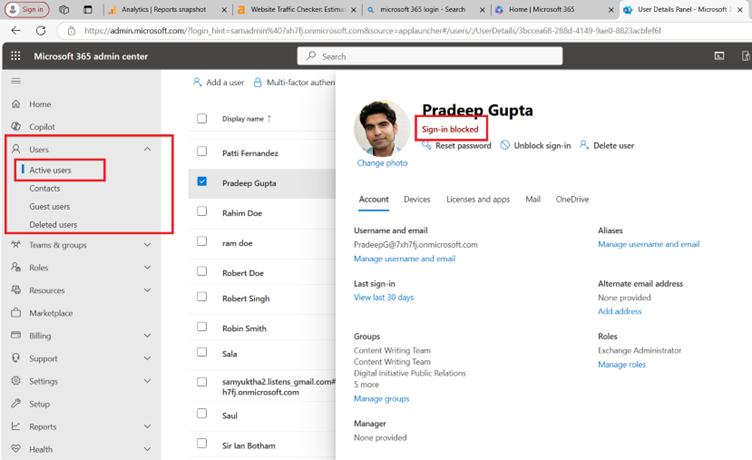
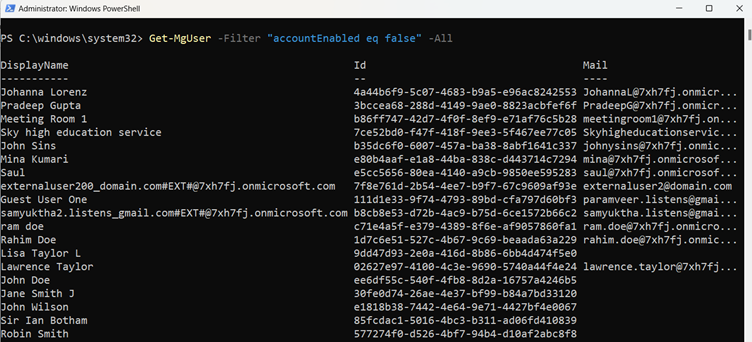
While powerful, PowerShell scripts require technical expertise and manual effort to extract and analyze data.
Simplify Management with the Disabled Users Report Tool
Managing disabled users doesn't have to be complex or time-consuming. The Disabled Users Report tool simplifies this process by offering:
- Comprehensive Filtering: Easily search for disabled users by Display Name or User Principal Name (UPN). You can also filter based on license status (licensed or unlicensed).
- Detailed Reporting: Generate and share reports via email with other admins, ensuring smooth collaboration.
- Export Capability: Download user reports as CSV files for further analysis or archival purposes.
This tool eliminates manual guesswork and ensures you have clear, actionable insights into your tenant’s disabled users.
Take Control of Disabled Users in Your Tenant
Managing disabled users is essential for maintaining a secure, compliant, and well-organized Microsoft 365 environment. Why waste time navigating complex scripts or manual processes?
🚀 Community Edition Released!
Try the M365Corner Microsoft 365 Reporting Tool — your DIY pack with 20+ out-of-the-box M365 reports for Users, Groups, and Teams.
Get it on GitHub Know More