Cmdlet Syntax
The basic syntax for the New-MgUserContact cmdlet is as follows:
New-MgUserContact -UserId $UserId -BodyParameter - -UserId: This parameters specifies the UserId for whom the contact is going to be created.
- -BodyParameter: This parameter specifies the properties of the contact to be created. It accepts a hashtable or a custom object containing contact details such as GivenName, Surname, EmailAddresses, etc.
Usage Examples
Example 1: Creating a Single Contact
$contact = @{
GivenName = "John"
Surname = "Doe"
EmailAddresses = @(
    @{
        Address = "john.doe@example.com"
        Name = "John Doe"
    }
)
BusinessPhones = @("123-456-7890")
MobilePhone = "098-765-4321"
CompanyName = "Contoso"
}

New-MgUserContact -UserId “user@example.com” -BodyParameter $contact
In this example, a new contact named John Doe is created with specified email addresses and phone numbers for the user user@example.com and becomes available in the user's address book.

Note: You can check whether contact got added by running Get-MgUserContact. The newly added contact should appear in the list.

Example 2: Bulk Contact Addition from CSV
To add multiple contacts in bulk, you can use a CSV file with the required contact details. Prepare the CSV file (contacts.csv) with the following headers: GivenName, Surname, Email, BusinessPhone, MobilePhone, CompanyName
Example:
GivenName,Surname,Email,BusinessPhone,MobilePhone,CompanyName
John,Doe,john.doe@example.com,123-456-7890,098-765-4321,Contoso
Jane,Smith,jane.smith@example.com,234-567-8901,123-456-7890,Fabrikam
Use the following script to read the CSV file and create contacts:
$contacts = Import-Csv -Path "contacts.csv"

foreach ($contact in $contacts) {
    $contactParams = @{
    GivenName = $contact.GivenName
    Surname = $contact.Surname
    EmailAddresses = @(
        @{
            Address = $contact.Email
            Name = "$($contact.GivenName) $($contact.Surname)"
        }
    )
    BusinessPhones = @($contact.BusinessPhone)
    MobilePhone = $contact.MobilePhone
    CompanyName = $contact.CompanyName
    }

    New-MgUserContact -UserId “user@example.com” -BodyParameter $contactParams
}
Example 3: Create a Contact with Multiple Email Addresses and Phone Numbers
$params = @{
    displayName = "Fabrikam Support"
    givenName   = "Support"
    surname     = "Team"
    companyName = "Fabrikam Ltd"
    emailAddresses = @(
    @{
        address = "support@fabrikam.com"
        name    = "Fabrikam Support"
    },
    @{
        address = "helpdesk@fabrikam.com"
        name    = "Fabrikam Helpdesk"
    }
    )
    businessPhones = @(
    "+1 425 555 0100",
    "+1 425 555 0101"
    )
    mobilePhone = "+1 425 555 0199"
}
New-MgUserContact -UserId "john.doe@contoso.com" -BodyParameter $params
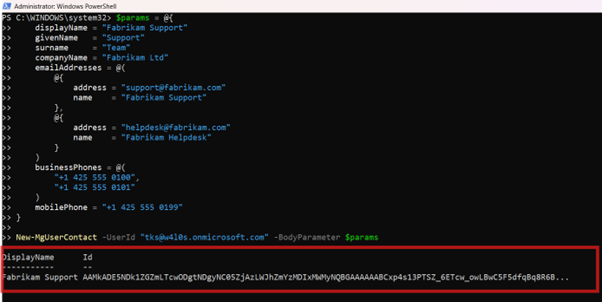
Example 4: Create a Contact with Physical Address Details
$params = @{
displayName = "Contoso Legal Advisor"
emailAddresses = @(
@{
    address = "legal@contoso-partner.com"
    name    = "Contoso Legal Advisor"
}
)
businessAddress = @{
street          = "123 Legal Street"
city            = "Seattle"
state           = "WA"
postalCode      = "98101"
countryOrRegion = "USA"
}
jobTitle = "External Legal Consultant"
}

New-MgUserContact -UserId "john.doe@contoso.com" -BodyParameter $params
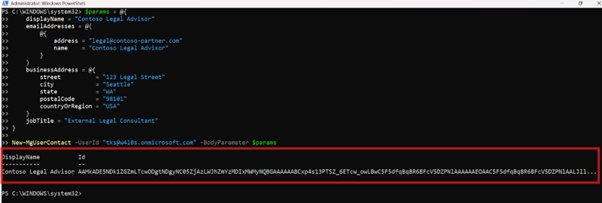
Example 5: Create a Contact with Birthday and Personal Notes
Connect-MgGraph -Scopes "Contacts.ReadWrite"
$params = @{
    displayName = "Adele Valcorie"
    givenName   = "Adele"
    surname     = "Valcorie"
    companyName = "Fabrikam Ltd"
    jobTitle    = "Vendor Relationship Manager"
    birthday    = "1988-05-14T00:00:00Z"
    personalNotes = "Primary contact for Fabrikam licensing renewals."
    emailAddresses = @(
        @{
            address = "adele.vance@fabrikam.com"
            name    = "Adele Vance"
        }
    )
    businessPhones = @(
        "+1 425 555 0112"
    )
}
New-MgUserContact -UserId "samadmin@7xh7fj.onmicrosoft.com" -BodyParameter $params
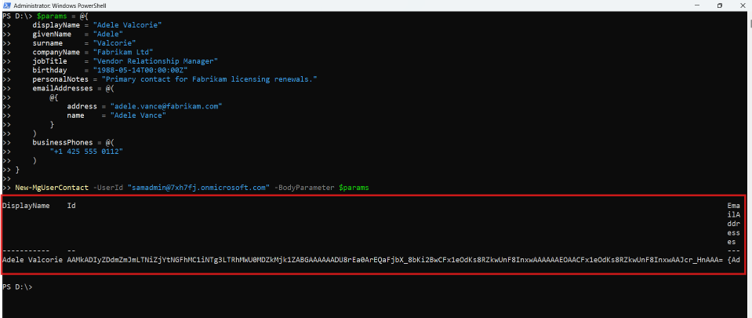
What this script does
This script creates a mailbox contact with additional relationship details such as birthday and personal notes.
Why this example is useful
This is useful for users who maintain vendor, customer, consultant, or partner contacts in Outlook and want richer contact records instead of just name, email, and phone number.
Possible Errors & Solutions
| Error | Solution |
|---|---|
| New-MgUserContact: Cannot bind parameter 'BodyParameter' to the target. |
Ensure the -BodyParameter is correctly structured as a hashtable or custom object.
Verify that all required fields are included and correctly spelled.
|
| New-MgUserContact: The remote server returned an error: (403) Forbidden. | This error typically occurs due to insufficient permissions. Ensure that the account running the cmdlet has the necessary permissions to create contacts in Microsoft 365. |
| New-MgUserContact: The remote server returned an error: (400) Bad Request. | Verify the format and content of the contact details. Ensure that email addresses and phone numbers are in valid formats. |
Use Cases
- Automating Contact Creation: Organizations can automate the creation of contacts for new employees, partners, or customers, ensuring up-to-date and accurate contact lists.
- Bulk Operations: The cmdlet is highly useful for bulk operations, such as importing contacts from legacy systems or other data sources into Microsoft 365.
- Integration with HR Systems: Integrate with HR management systems to automatically add new hires' contact details to the organization's directory.
Frequently Asked Questions
- What is New-MgUserContact used for?
- Can I specify additional contact properties?
- What permissions are required to create contacts?
- Is New-MgUserContact used for mailbox contacts or organizational contacts?
- Can I add notes to a contact using New-MgUserContact?
New-MgUserContact is a Microsoft Graph PowerShell cmdlet used to add new contacts to a user’s mailbox, including properties like name, email, and phone numbers.
Yes, you can include other properties like businessPhones or companyName in the body parameter.
$Body = @{
    displayName = "Jane Doe"
    emailAddresses = @(@{address = "janedoe@example.com"})
    businessPhones = @("987-654-3210")
    companyName = "Contoso Ltd"
}
New-MgUserContact -UserId "<UserPrincipalName>" -BodyParameter $Body
You need the Contacts.ReadWrite permission in Microsoft Graph PowerShell. Ensure these permissions are granted in Azure AD.
New-MgUserContact creates contacts inside a specific user’s mailbox contact folder. These are personal Outlook contacts for that mailbox.
It is different from New-MgContact, which creates organizational contacts in the tenant directory.
Yes. Use the personalNotes property in the -BodyParameter hashtable.
\$params = @{
   displayName = "Vendor Contact"
   emailAddresses = @(
    @{
      address = "vendor@domain.com"
      name    = "Vendor Contact"
    }
  )
  personalNotes = "Primary contact for quarterly vendor review."
}
New-MgUserContact -UserId "user@domain.com" -BodyParameter $params
Conclusion
The New-MgUserContact cmdlet is a powerful tool for administrators looking to manage contacts within their Microsoft 365 environment efficiently. With its ability to handle bulk operations and automation, it can save time and reduce the potential for human error. By understanding its syntax, usage examples, and handling potential errors, administrators can leverage this cmdlet to streamline their contact management processes.
Use the New-MgUserContact cmdlet to enhance your organization's contact management and ensure that your directory is always up-to-date with the latest information.
Related Articles:
Using Get-MgDirectoryRole in Graph PowerShellUsing Get-MgUserLicenseDetail in Graph PowerShell
Using Find-GraphMgCommand in Graph PowerShell
Connect to Microsoft 365 Using PowerShell
How to Create Bulk Users in Office 365 Using Graph PowerShell?
Create Microsoft 365 Group Using Microsoft Graph PowerShell
Block Microsoft 365 User Using Microsoft Graph PowerShell
Assign Microsoft 365 License Using Graph PowerShell
Microsoft 365 User Management Using Graph PowerShell
Checking Group Membership in Microsoft 365
Bulk Assign Microsoft 365 License
Find Inactive Users in Microsoft 365
Using Powershell Graph Search Query
Using Powershell Graph Filter Query
Using Where-Object In Graph PowerShell
Using Expand Property In Graph PowerShell
Using Select Object In Graph PowerShell
Using -Contains Operator In Graph PowerShell
Add User to Multiple Microsoft 365 Groups Using Graph PowerShell
Get Microsoft 365 User Location Using Graph PowerShell
Import Microsoft 365 Groups from CSV File Using Graph PowerShell
Microsoft 365 Group User Import Using Graph PowerShell