Prerequisites
Before diving into the New-MgDirectoryRole cmdlet, ensure you meet the following prerequisites:
- Microsoft Graph PowerShell Module: Install the module if you haven't already. Run:
Install-Module Microsoft.Graph -Scope CurrentUser- Permissions: Ensure you have the necessary permissions to create directory roles in AAD. Typically, you need to be a Global Administrator or have a role with similar permissions.
- Authentication: Authenticate to Microsoft Graph using:
Connect-MgGraph -Scopes "Directory.ReadWrite.All"Cmdlet Syntax
New-MgDirectoryRole -RoleTemplateId <String> [-InformationAction <ActionPreference>] [-InformationVariable <String>] [<CommonParameters>]Parameters:
-RoleTemplateId:Specifies the template ID of the role you want to create.-InformationAction:Specifies how to respond to an information event (optional).-InformationVariable:Specifies an information variable (optional).
Usage Examples
Example 1: Creating a New Directory Role
$roleTemplateId = "your-role-template-id"
New-MgDirectoryRole -RoleTemplateId $roleTemplateId
Note: The New-MgDirectoryRole cmdlet helps you create an instance of Azure Active Directory (AAD) roles (like Global admin, Exchange admin, etc.) via Graph PowerShell in your tenant. You need to pass in the RoleTemplateId parameter value to create the new directory role. To find out the RoleTemplateID you require, you should execute Get-MgDirectoryRoleTemplate cmdlet.
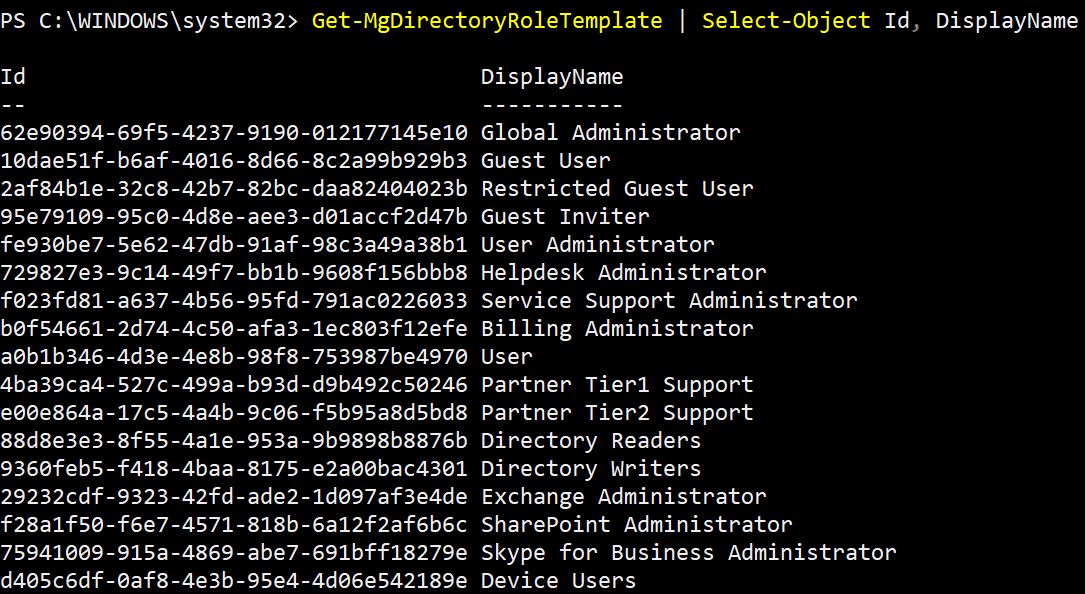
Note: You can verify whether the selected directory role has been added to your tenant by executing Get-MgDirectoryRole cmdlet.

Example 2: Activate a Directory Role by Display Name
Connect-MgGraph -Scopes "Directory.ReadWrite.All"
$RoleDisplayName = "Privileged Role Administrator"
$RoleTemplate = Get-MgDirectoryRoleTemplate |
Where-Object {
    $_.DisplayName -eq $RoleDisplayName
}
if ($RoleTemplate) {
    $ActiveRole = Get-MgDirectoryRole |
    Where-Object {
        $_.RoleTemplateId -eq $RoleTemplate.Id
    }
    if (-not $ActiveRole) {
        New-MgDirectoryRole -RoleTemplateId $RoleTemplate.Id
        Write-Host "$RoleDisplayName role activated successfully."
    }
    else {
        Write-Host "$RoleDisplayName role is already active."
    }
}
else {
    Write-Host "Role template not found."
}
What this script does
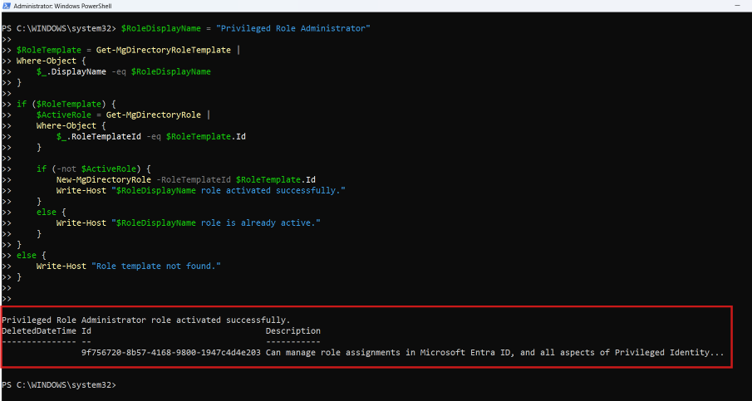
This script finds a directory role template by display name, checks whether the role is already active, and activates it only if needed.
Why this example is useful
Admins usually know the role name, not the RoleTemplateId. This example makes the cmdlet easier to use and prevents duplicate activation errors.
Example 3: Bulk User Addition to a Directory Role
To add multiple users to a directory role, you can first create the role and then use the New-MgDirectoryRoleMemberByRef cmdlet to add members to that role.
# Create a new directory role
$roleTemplateId = "your-role-template-id"
$directoryRole = New-MgDirectoryRole -RoleTemplateId $roleTemplateId

# Add multiple users to the role
$userIds = @("user1-object-id", "user2-object-id", "user3-object-id")
foreach ($userId in $userIds) {
    New-MgDirectoryRoleMemberByRef -DirectoryRoleId $directoryRole.Id -UserId $userId
}
Example 4: Adding Users from a CSV File
You can add users to a directory role from a CSV file. Ensure your CSV file has column headers UserPrincipalName and RoleTemplateId.
CSV File Structure
UserPrincipalName,RoleTemplateId
user1@example.com,62e90394-69f5-4237-9190-012177145e10
user2@example.com,62e90394-69f5-4237-9190-012177145e10
user3@example.com,62e90394-69f5-4237-9190-012177145e10
PowerShell Script
# Import users and roles from the CSV file
$users = Import-Csv -Path "path-to-your-csv-file.csv"

foreach ($user in $users) {
    # Activate the directory role if not already activated
    $role = Get-MgDirectoryRole | Where-Object { $_.RoleTemplateId -eq $user.RoleTemplateId }
    if (-not $role) {
        $role = New-MgDirectoryRole -RoleTemplateId $user.RoleTemplateId
    }

    # Get the user's object ID
    $userId = (Get-MgUser -UserPrincipalName $user.UserPrincipalName).Id

    # Add the user to the directory role
    New-MgDirectoryRoleMemberByRef -DirectoryRoleId $role.Id -PrincipalId $userId
}
Use Cases
- Custom Role Creation: Create custom directory roles tailored to your organization's needs.
- Role Management: Manage and assign roles to users in bulk, enhancing productivity and reducing manual efforts.
- Automation: Automate the creation and assignment of roles using scripts, ensuring consistency and accuracy.
Possible Errors & Solutions
| Error | Solution |
|---|---|
| Insufficient Privileges to Complete the Operation | Ensure you have the necessary permissions (e.g., Global Administrator) to create directory roles. Get-MgDirectoryRoleTemplate |
| Invalid Role Template ID | Verify that the role template ID is correct and exists in your directory. Use Get-MgDirectoryRoleTemplate to list available templates. |
| User Not Found | Ensure that the user IDs you are adding to the directory role are correct and exist in your directory. You can verify user IDs using Get-MgUser. Get-MgUser -UserId "user-principal-name" |
Frequently Asked Questions
- Why does Get-MgDirectoryRole return only a few roles, not the full list?
- What’s the difference between Role Id and RoleTemplateId?
- Id = the tenant-specific activated role instance. This value is unique per tenant.
- RoleTemplateId = the immutable ID of the built-in role template (same across all tenants).
Get-MgDirectoryRoleworks with activated roles (Id/RoleTemplateId).Get-MgDirectoryRoleTemplateworks with templates only.- How do I get members of a specific directory role?
Because it only lists roles that are activated in your tenant.
Many built-in Entra roles are not activated until you assign them the first time (activation happens automatically in the portal). So the cmdlet output is a subset of all possible roles.
Fix / Alternative:
Use Get-MgDirectoryRoleTemplate to view the complete catalog of role templates, then activate what you need with New-MgDirectoryRole.
So:
First retrieve the role, then fetch members:
$role = Get-MgDirectoryRole | Where-Object DisplayName -eq "User Administrator"
Get-MgDirectoryRoleMember -DirectoryRoleId $role.Id
Get-MgDirectoryRoleMember is the supported way to list users/apps assigned to a role.
You need directory-level read permissions. Common working scopes are:
- Delegated:
Directory.Read.AllorRoleManagement.Read.Directory - Application:
Directory.Read.AllorRoleManagement.Read.Directory
Least-privilege is preferred; higher scopes also work if already granted
Not directly. New-MgDirectoryRole requires the RoleTemplateId. However, you can first retrieve the template by display name using Get-MgDirectoryRoleTemplate, then pass its ID to New-MgDirectoryRole.
Directory roles are activated from role templates. The RoleTemplateId uniquely identifies the built-in role template, while the display name is only a readable label and may not be ideal for automation.
No. New-MgDirectoryRole is used to activate built-in directory role templates. Custom role creation and assignment are handled through role management cmdlets, not by activating directory role templates.
A lot of admins assume this cmdlet grants roles to users. It doesn’t. It only activates the directory role in your tenant (i.e., makes it available for assignment). After activation, you still need:
- New-MgDirectoryRoleMemberByRef to add users/apps
- or Get-MgDirectoryRoleMember to audit members
Running New-MgDirectoryRole -RoleTemplateId ... on a role that’s already active often results in a 409 Conflict / “Role already exists” style error.
So in automation, first check active roles before activating:
$active = Get-MgDirectoryRole | Where-Object RoleTemplateId -eq $roleTemplateId
if (-not $active) {
New-MgDirectoryRole -RoleTemplateId $roleTemplateId
}
This matches Graph’s “activate only if not present” model
Conclusion
The New-MgDirectoryRole cmdlet is an essential tool for Azure AD administrators, providing the ability to create and manage directory roles efficiently. By understanding its prerequisites, syntax, usage examples, and potential errors, you can leverage this cmdlet to enhance your directory management capabilities. Whether you're creating custom roles or automating role assignments, New-MgDirectoryRole can significantly streamline your administrative tasks.
Related Articles:
Using Get-MgDirectoryRole in Graph PowerShellUsing Get-MgUserLicenseDetail in Graph PowerShell
Using Find-GraphMgCommand in Graph PowerShell
Connect to Microsoft 365 Using PowerShell
How to Create Bulk Users in Office 365 Using Graph PowerShell?
Create Microsoft 365 Group Using Microsoft Graph PowerShell
Block Microsoft 365 User Using Microsoft Graph PowerShell
Assign Microsoft 365 License Using Graph PowerShell
Microsoft 365 User Management Using Graph PowerShell
Checking Group Membership in Microsoft 365
Bulk Assign Microsoft 365 License
Find Inactive Users in Microsoft 365
Using Powershell Graph Search Query
Using Powershell Graph Filter Query
Using Where-Object In Graph PowerShell
Using Expand Property In Graph PowerShell
Using Select Object In Graph PowerShell
Using -Contains Operator In Graph PowerShell
Add User to Multiple Microsoft 365 Groups Using Graph PowerShell
Get Microsoft 365 User Location Using Graph PowerShell
Import Microsoft 365 Groups from CSV File Using Graph PowerShell
Microsoft 365 Group User Import Using Graph PowerShell