Using Match Operator in Graph PowerShell
In the context of Graph PowerShell and querying a Microsoft 365 tenant, the -match operator is used to perform regular expression matching on strings. This operator is useful when you need to filter or find specific patterns within your data, such as filtering user accounts, groups, or any other entities retrieved from your Microsoft 365 environment.
Basic Syntax
The general syntax for using the -match operator: $string -match "pattern".
- Pattern Matching: The -match operator uses regular expressions (regex) to search for a pattern in a string.
- Boolean Result: It returns $true if the pattern is found in the string, otherwise it returns $false
Note: When working with Microsoft Graph PowerShell, you typically retrieve data using cmdlets like Get-MgUser, Get-MgGroup, etc. You can then use the -match operator to filter the results based on specific patterns.
Matching Users by Email Domain
Suppose you want to find all users whose email address contains a specific domain, say "7xh7fj.onmicrosoft.com". You can use the Get-MgUser cmdlet in combination with Where-Object and -match operator to fetch the required domain users.
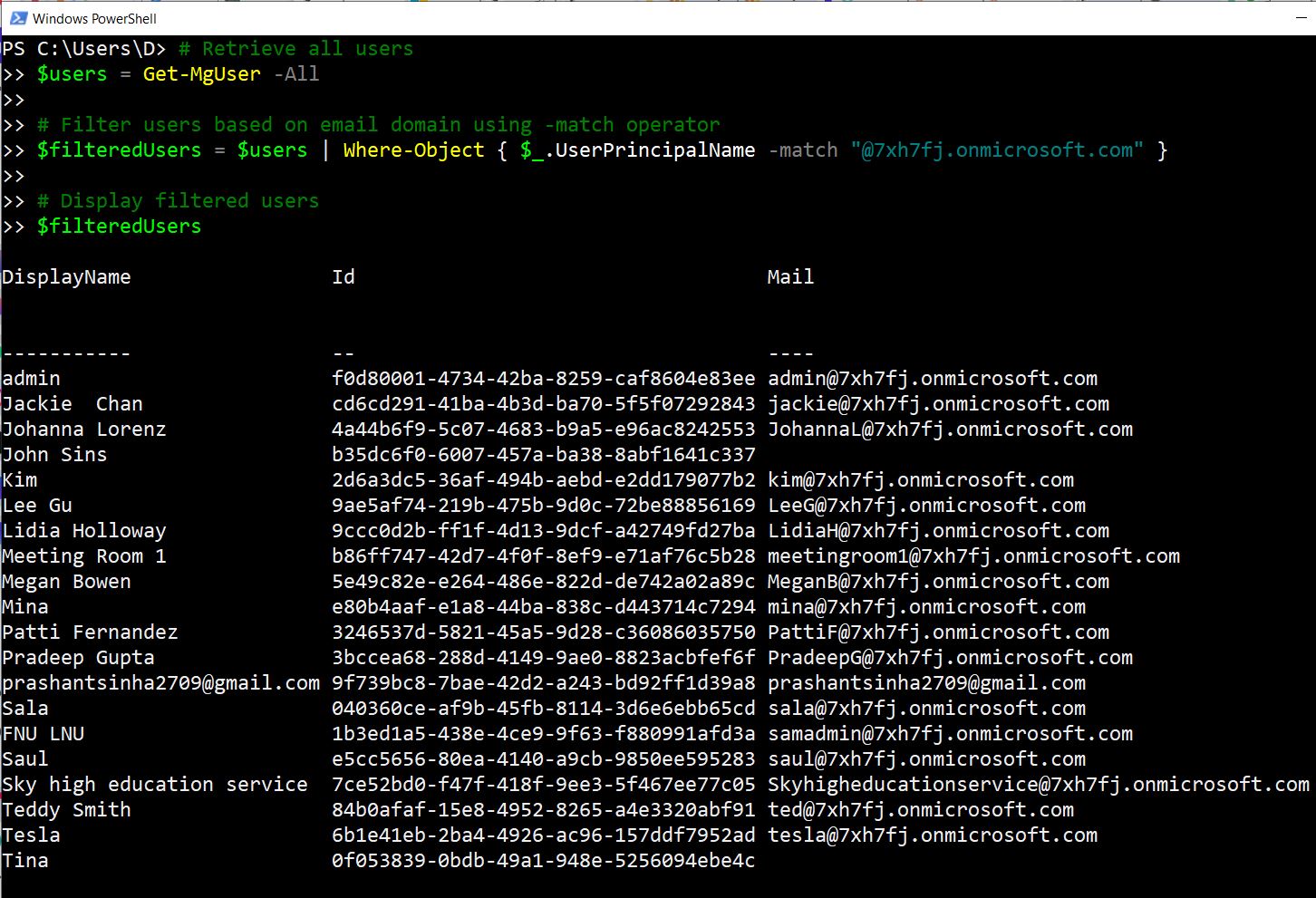
In this example,
- Get-MgUser -All retrieves all users from the tenant.
- Where-Object { $_.UserPrincipalName -match "@7xh7fj.onmicrosoft.com" } filters users where the UserPrincipalName ends with @7xh7fj.onmicrosoft.com.
Finding Groups with a Specific Name Pattern
If you want to find all groups whose names start with "Project", then you can use -match operator in combination with Get-MgGroup cmdlet and Where-Object and pass in "^Project" regex pattern to -match operator.
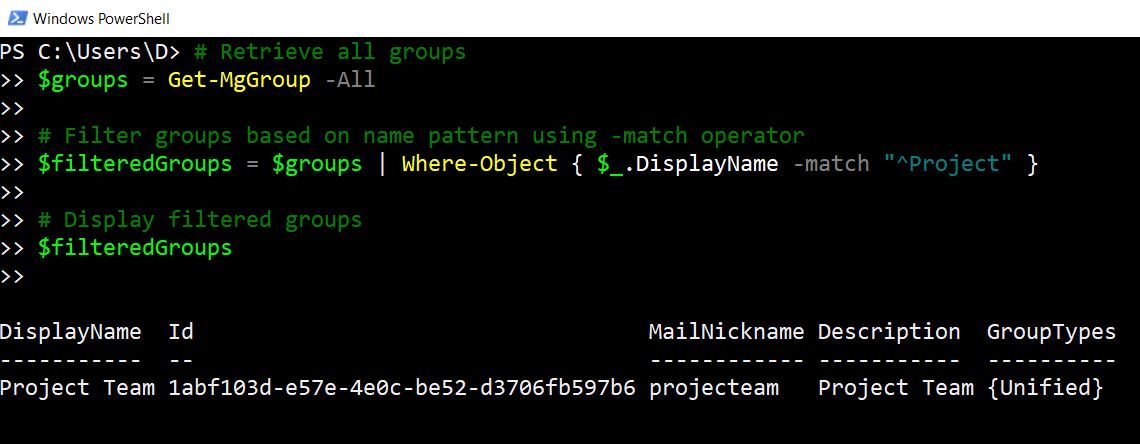
In this example,
- Get-MgGroup -All retrieves all groups from the tenant.
- Where-Object { $_.DisplayName -match "^Project" } filters groups where the DisplayName starts with "Project".
- The regex pattern ^Project looks for strings that start with "Project".
Retrieve Team Channels Matching Specific Pattern
To retrieve multiple channels across teams that have a specific matching pattern, you need to use Get-MgTeam cmdlet in combination with Get-MgTeamChannel as shown in the script.
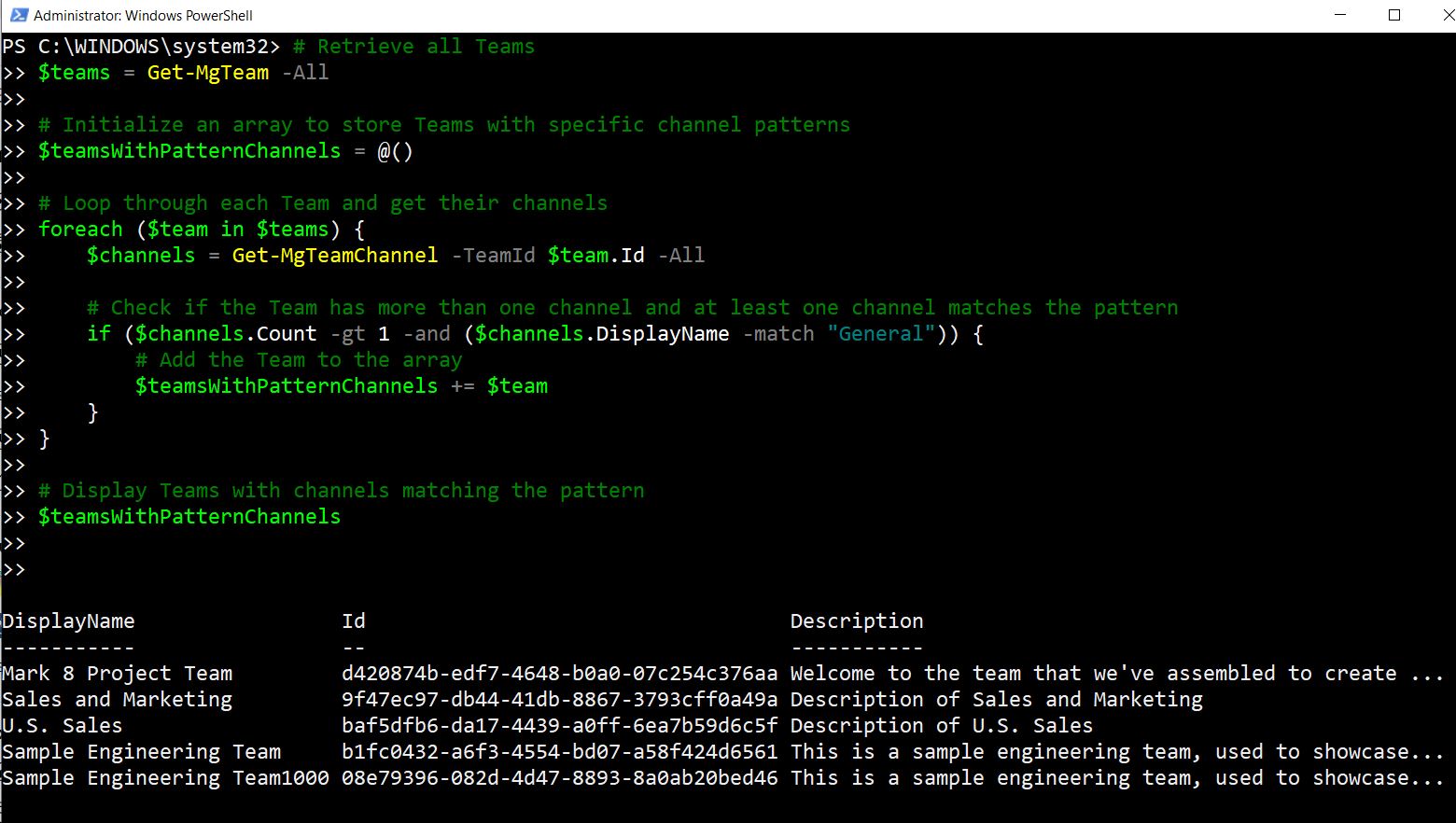
In this example,
- The Get-MgTeam -All command fetches all Teams from your Microsoft 365 tenant.
- A foreach loop is used to iterate through each Team.
- The Get-MgTeamChannel -TeamId $team.Id -All command retrieves all channels for the current Team.
- An if statement checks if the number of channels is greater than one ($channels.Count -gt 1).
- If the Team has more than one channel, it is added to the $teamsWithMultipleChannels array.
- The array $teamsWithMultipleChannels contains all Teams with more than one channel and is displayed.
Filter for Email-Enabled Security Groups with Specific Name Pattern
You can use the -match operator to filter for mail-enabled security groups by creating and executing a script like the one shown here.
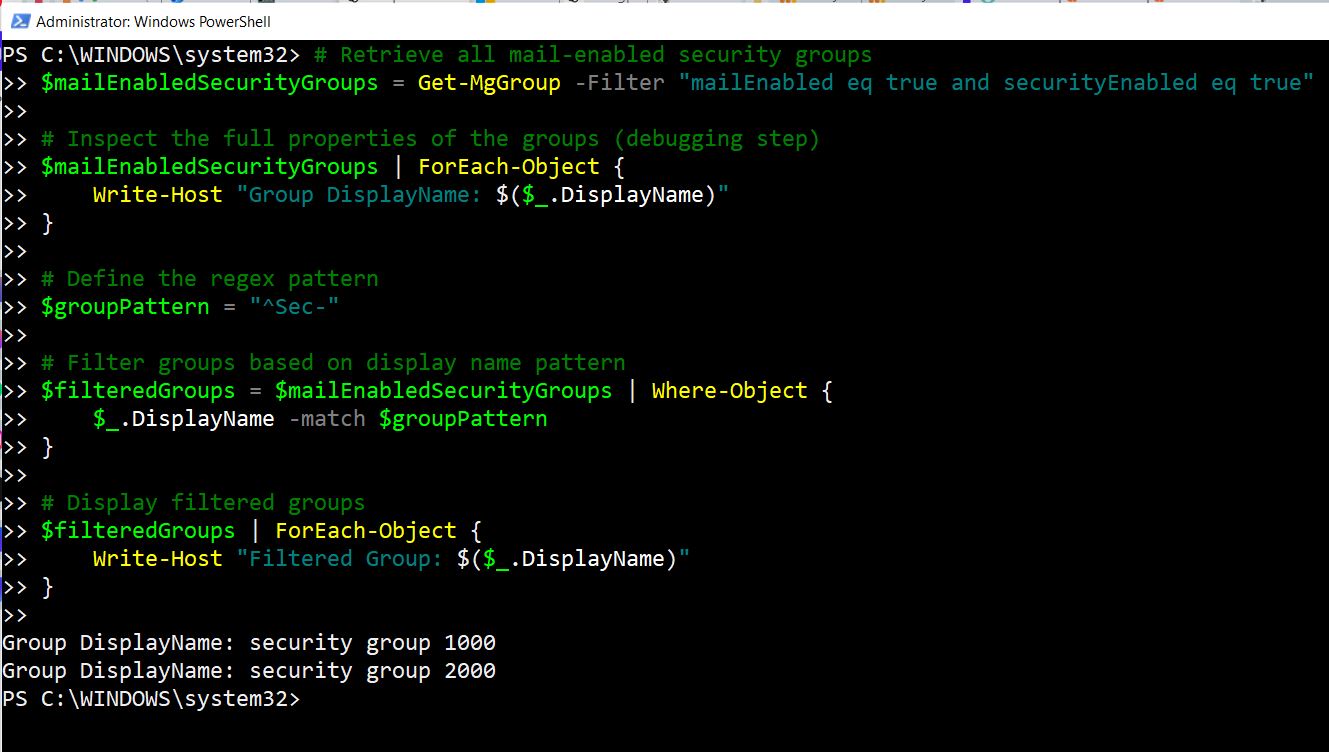
In this example,
- You first connect to Graph PowerShell with the required permission.
- Then the script retrieves all mail-enabled security groups.
- Then the script loop through and displays the displayNames of all the mail enabled security groups.
- Then the script takes up the regex pattern you have defined or provided.
- Finally the list of mail enabled security groups are looped through and those groups that match the regex pattern are outputted.
Understanding Regular Expressions
Regular expressions can be powerful but also complex. Here are some basic elements:
- . -- Matches any single character except newline.
- * -- Matches 0 or more of the preceding element.
- + -- Matches 1 or more of the preceding element.
- ? -- Matches 0 or 1 of the preceding element.
- ^ -- Matches the beginning of the string.
- $ -- Matches the end of the string..
- \ -- Escape character (used to escape special characters like .).
Usage Considerations
- Use Clear and Descriptive Patterns: Ensure your regex patterns are clear and descriptive. Use anchors (^ for start, $ for end) to precisely match the desired part of the string. powershell
- Escape Special Characters: Remember to escape special characters in your regex patterns using backslashes (\).
- Test Patterns with Sample Data: Before applying patterns to large datasets, test them with sample data to ensure they match as expected.
- Combine with Other Filters: Combine -match with other filtering criteria using Where-Object for more refined results.
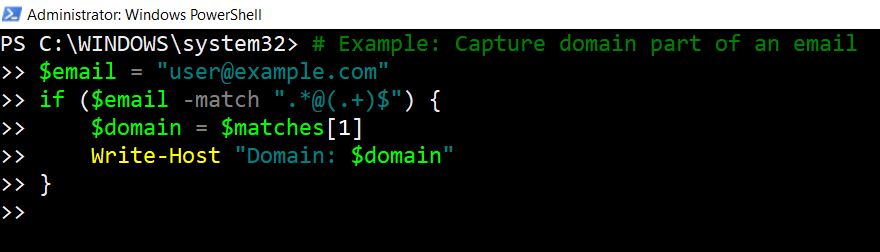
- Use $matches for Capturing Groups: When using -match, the automatic $matches variable stores matched groups. Utilize this for more detailed data extraction.




Related Articles:
Connect to Microsoft 365 Using PowerShellHow to Create Bulk Users in Office 365 Using Graph PowerShell?
Create Microsoft 365 Group Using Microsoft Graph PowerShell
Block Microsoft 365 User Using Microsoft Graph PowerShell
Assign Microsoft 365 License Using Graph PowerShell
Microsoft 365 User Management Using Graph PowerShell
Checking Group Membership in Microsoft 365
Bulk Assign Microsoft 365 License
Find Inactive Users in Microsoft 365
Using Powershell Graph Search Query
Using Powershell Graph Filter Query
Using Where-Object In Graph PowerShell
Using Expand Property In Graph PowerShell
Using Select Object In Graph PowerShell
Using -Contains Operator In Graph PowerShell
Add User to Multiple Microsoft 365 Groups Using Graph PowerShell
Get Microsoft 365 User Location Using Graph PowerShell
Import Microsoft 365 Groups from CSV File Using Graph PowerShell
Microsoft 365 Group User Import Using Graph PowerShell