Efficient mailbox management often requires retrieving and managing mail folders within user mailboxes. The Get-MgUserMailFolder cmdlet in Microsoft Graph PowerShell enables administrators to retrieve mail folders with ease. This article covers the cmdlet's syntax, usage examples, tips, use cases, possible errors, and their solutions.
Cmdlet Syntax
Get-MgUserMailFolder -UserId <String> [-MailFolderId <String>] [-Property <String[]>] [-Filter <String>]- UserId: The unique identifier of the user. It can be the user's UPN or User ID.
- MailFolderId: (Optional) The unique identifier of the mail folder.
- Property: (Optional) Specifies which properties to include in the response.
- Filter: (Optional) OData filter to limit the results.
Usage Examples
Get All Mail Folders
Pass the User ID or UserPrincipalName to -UserId parameter.
Get-MgUserMailFolder -UserId "user@domain.com"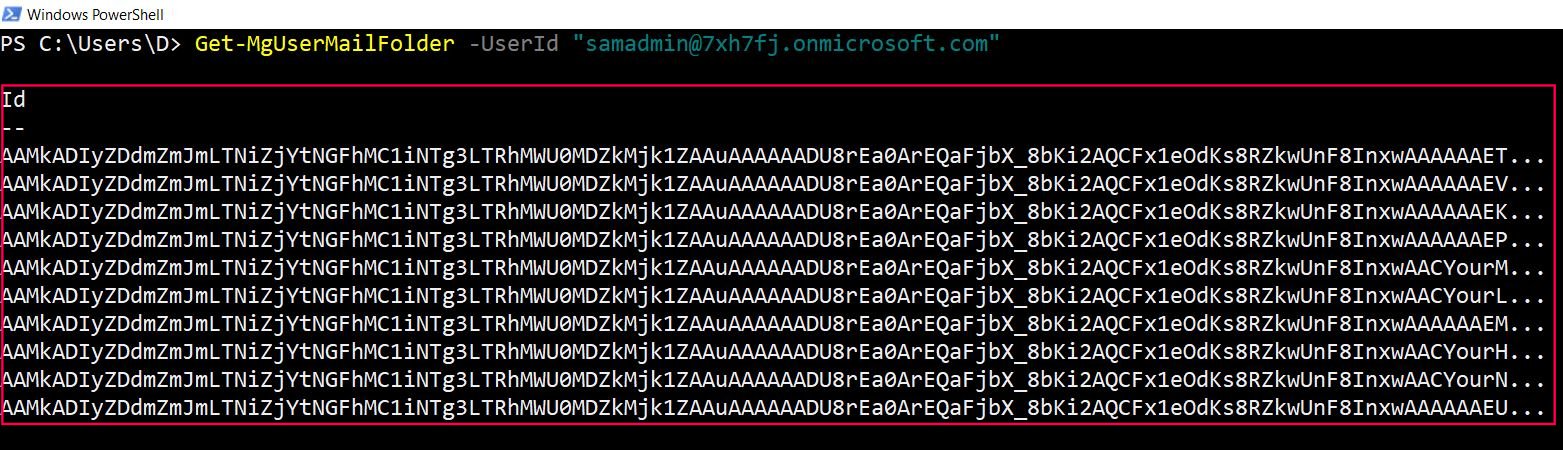
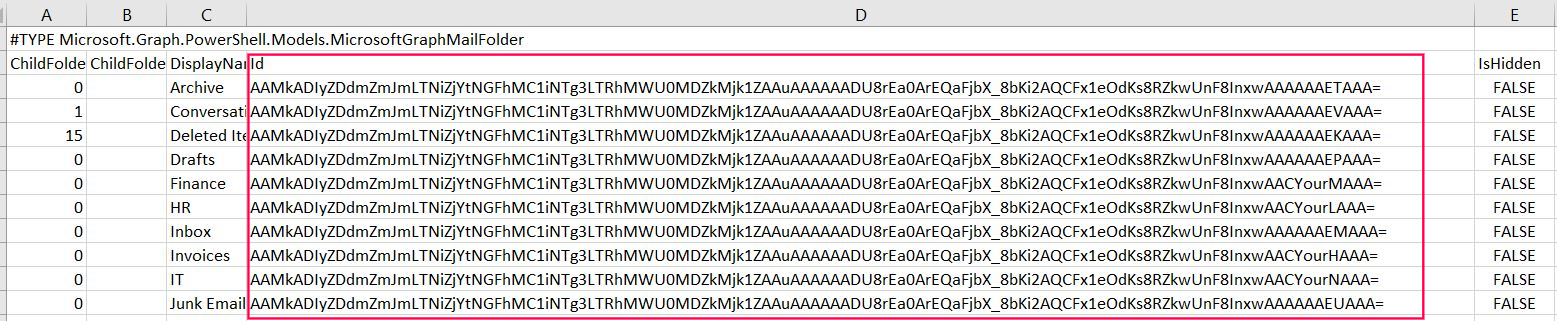
Best way to work with Folder IDs would be to export the details.

Get a Single Mail Folder by ID
To get the details of a single mail folder, you should pass the MailFolderId along with the UserId.
Get-MgUserMailFolder -UserId "user@domain.com" -MailFolderId "AQMkAGI2TAAA="
Select Specific Properties
Use the -Property parameter to select specific mail folder properties.
Get-MgUserMailFolder -UserId "user@domain.com" -Property @("Id", "DisplayName", "ChildFolderCount")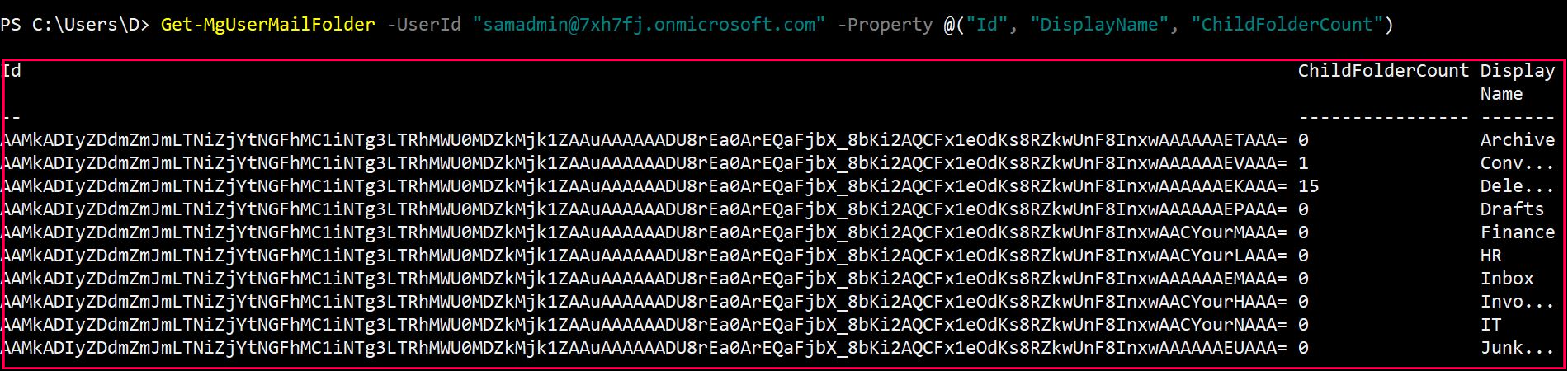
Filter Folders by Display Name
You can also use -Filter while working with the mail folders being retrieved.
Get-MgUserMailFolder -UserId "user@domain.com" -Filter "displayName eq 'Inbox'"
Find Mail Folders with High Item Count
Use this example to identify folders that may need cleanup, archiving, or retention review.
    Connect-MgGraph -Scopes "Mail.Read"

    $UserId = "user@domain.com"

    Get-MgUserMailFolder -UserId $UserId -All -Property "id,displayName,totalItemCount,unreadItemCount,childFolderCount" |
    Select-Object DisplayName, TotalItemCount, UnreadItemCount, ChildFolderCount, Id |
    Sort-Object TotalItemCount -Descending |
    Format-Table -AutoSize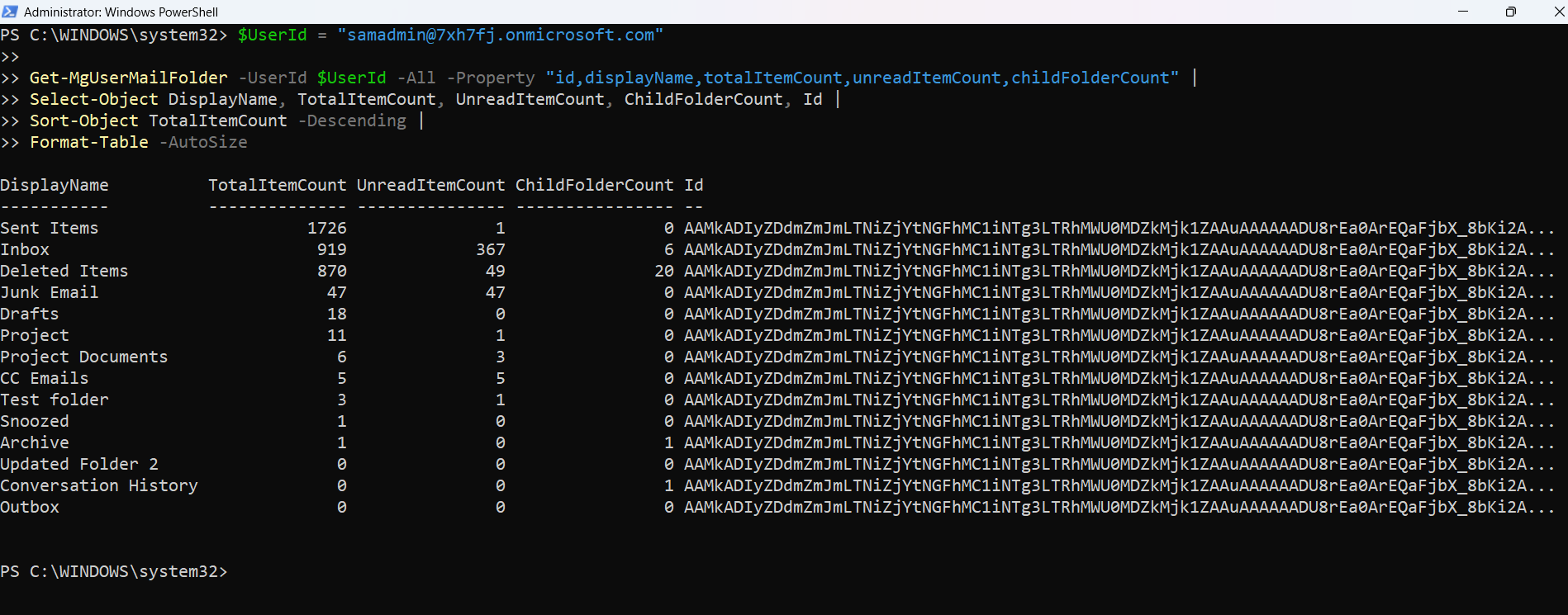
What this script does
This script retrieves the user’s mail folders and sorts them by TotalItemCount in descending order. It helps quickly identify folders with large volumes of emails.
Why this example is useful
This is helpful when investigating mailbox bloat, user complaints about Outlook performance, or folders that may require cleanup before migration.
Export Mail Folder Report to CSV
Use this example to create a mailbox folder inventory report for auditing or documentation.
    Connect-MgGraph -Scopes "Mail.Read"

    $UserId = "user@domain.com"
    $ExportPath = "C:\Reports\MailFolderReport.csv"

    $Folders = Get-MgUserMailFolder -UserId $UserId -All -Property "id,displayName,totalItemCount,unreadItemCount,childFolderCount"

    $Folders |
    Select-Object DisplayName, TotalItemCount, UnreadItemCount, ChildFolderCount, Id |
    Export-Csv -Path $ExportPath -NoTypeInformation

    Write-Host "Mail folder report exported to $ExportPath"
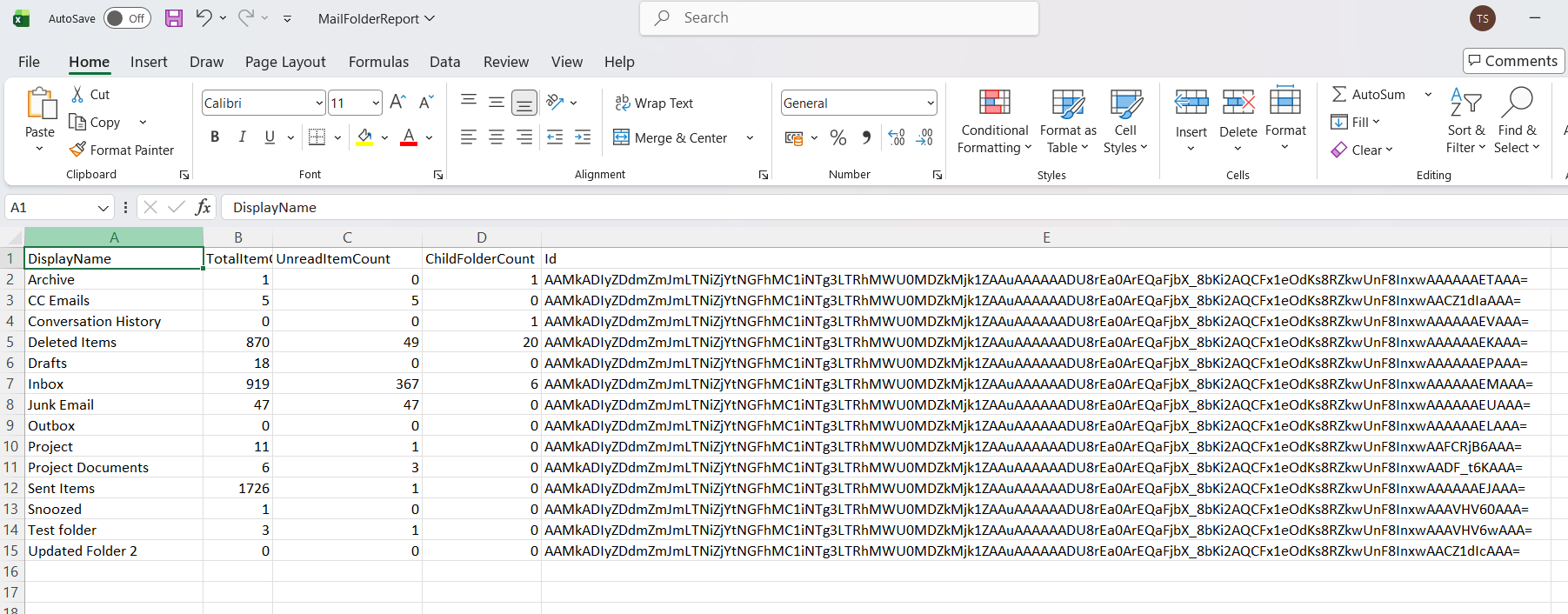
What this script does
This script retrieves the user’s mail folders and exports folder details such as folder name, total item count, unread item count, child folder count, and folder ID to a CSV file.
Why this example is useful
This is useful for mailbox audits, migration planning, and documenting folder structure before performing cleanup or automation tasks.
Cmdlet Tips
- Use UserPrincipalName: You can use the user's email address as the UserId.
- Combine Properties: Use the
-Propertyparameter to retrieve only the necessary properties, improving performance. - Utilize Filters: Use the
-Filterparameter to narrow down results based on specific criteria. - Use export-csv and out-gridview: Utilize these cmdlets to work with folder IDs easily.
Use Cases
- Mailbox Auditing: Retrieve all mail folders to audit mailbox structure and contents.
- Folder Management: Identify and manage specific folders within a user's mailbox.
- Automated Reports: Generate reports on mailbox folder structures and usage.
Possible Errors & Solutions
| Error | Cause | Solution |
|---|---|---|
| "Authentication_IdentityNotFound" | The specified UserId does not exist. | Verify the UserId and ensure the user exists in the tenant. |
| "ResourceNotFound" | The specified MailFolderId does not exist. | Verify the MailFolderId and ensure the folder exists in the user's mailbox. |
| "InvalidFilter" | The OData filter syntax is incorrect. | Ensure the filter syntax follows OData conventions and the property names are correct. |
| "ErrorAccessDenied" | Insufficient permissions to access the user's mailbox. | Ensure the executing account has the necessary permissions to access the mailbox. |
Frequently Asked Questions
- What is Get-MgUserMailFolder used for?
- How can I list all folders in a user’s mailbox?
- How can I retrieve a specific folder by its ID?
- Can I filter folders by display name?
- How can I export mailbox folder details to a CSV file?
Get-MgUserMailFolder is a Microsoft Graph PowerShell cmdlet used to retrieve folders from a user’s mailbox, including default folders like Inbox, Sent Items, and custom folders.
Use the following command to list all folders:
Get-MgUserMailFolder -UserId "<UserPrincipalName>"Use the -MailFolderId parameter to retrieve a specific folder:
Get-MgUserMailFolder -UserId "<UserPrincipalName>" -MailFolderId "<FolderId>"Yes, you can filter folders after retrieval using Where-Object. Example:
$Folders = Get-MgUserMailFolder -UserId "<UserPrincipalName>"
$FilteredFolders = $Folders | Where-Object { $_.DisplayName -eq "Important" }
Use this script to export folder details:
$Folders = Get-MgUserMailFolder -UserId "<UserPrincipalName>"
$Folders | Select-Object DisplayName, ParentFolderId, TotalItemCount | Export-Csv -Path "C:\Path\To\MailboxFolders.csv" -NoTypeInformationBy default,
Get-MgUserMailFolder returns only visible mail folders accessible by email clients.
If you're auditing or targeting folders like Sync Issues or Recoverable Items, remember to use the -IncludeHiddenFolders parameter to ensure they’re included in the output.
The cmdlet only retrieves the immediate child folders of the root by default. To access nested folders — such as subfolders under Inbox or Sent Items — you’ll need to recursively traverse each level to get a complete view of a user’s mailbox.
Conclusion
The Get-MgUserMailFolder cmdlet is a versatile tool for managing mail folders within Microsoft 365 mailboxes. By understanding its syntax, usage examples, and potential errors, IT administrators can efficiently retrieve and manage mail folders, streamlining mailbox management tasks and enhancing productivity.
If You Prefer the Graph API Way
You can retrieve and filter mail folders using the Microsoft Graph API's /users/{id}/mailFolders endpoint. The following examples demonstrate how to list all folders, fetch a specific folder by ID, select key properties, and apply filters like display name — all directly via Invoke-MgGraphRequest.
- Get All Mail Folders for a User
- Get a Single Mail Folder by Folder ID
- Select Specific Properties (Id, DisplayName, ChildFolderCount)
- Filter Folders by Display Name (e.g., Inbox)
$userId = "user@domain.com"
$uri = "https://graph.microsoft.com/v1.0/users/$userId/mailFolders"

$response = Invoke-MgGraphRequest -Method GET -Uri $uri

foreach ($folder in $response.value) {
Write-Output "Folder ID      : $($folder.id)"
Write-Output "Display Name   : $($folder.displayName)"
Write-Output "Child Folders  : $($folder.childFolderCount)"
Write-Output "Total Items    : $($folder.totalItemCount)"
Write-Output "`n"
}
✅ Equivalent to: Get-MgUserMailFolder -UserId "user@domain.com"
$userId = "user@domain.com"
$mailFolderId = "AQMkAGI2TAAA="  # Replace with actual folder ID

$uri = "https://graph.microsoft.com/v1.0/users/$userId/mailFolders/$mailFolderId"

$response = Invoke-MgGraphRequest -Method GET -Uri $uri

Write-Output "Folder ID      : $($response.id)"
Write-Output "Display Name   : $($response.displayName)"
Write-Output "Is Hidden      : $($response.isHidden)"
Write-Output "Total Items    : $($response.totalItemCount)"
✅ Equivalent to: Get-MgUserMailFolder -UserId "user@domain.com" -MailFolderId "AQMkAGI2TAAA="
$userId = "user@domain.com"
$uri = "https://graph.microsoft.com/v1.0/users/$userId/mailFolders?$select=id,displayName,childFolderCount"

$response = Invoke-MgGraphRequest -Method GET -Uri $uri

foreach ($folder in $response.value) {
Write-Output "ID             : $($folder.id)"
Write-Output "Display Name   : $($folder.displayName)"
Write-Output "Child Folders  : $($folder.childFolderCount)"
Write-Output "`n"
}
✅ Equivalent to:
Get-MgUserMailFolder -UserId "user@domain.com" -Property @("Id", "DisplayName", "ChildFolderCount")
$userId = "user@domain.com"
$filter = "displayName eq 'Inbox'"
$uri = "https://graph.microsoft.com/v1.0/users/$userId/mailFolders?$filter=$filter"

$response = Invoke-MgGraphRequest -Method GET -Uri $uri

foreach ($folder in $response.value) {
Write-Output "Folder ID      : $($folder.id)"
Write-Output "Display Name   : $($folder.displayName)"
}
✅ Equivalent to:
Get-MgUserMailFolder -UserId "user@domain.com" -Filter "displayName eq 'Inbox'"
Required Permissions
- Delegated:
Mail.Read, Mail.ReadWrite - Application:
Mail.Read, Mail.ReadWrite
Graph API Documentation
Additional Resources:
Microsoft Graph PowerShell Module DocumentationMicrosoft Graph API Documentation
Related Articles:
Using Get-MgDirectoryRole in Graph PowerShellUsing Get-MgUserLicenseDetail in Graph PowerShell
Using Find-GraphMgCommand in Graph PowerShell
Connect to Microsoft 365 Using PowerShell
How to Create Bulk Users in Office 365 Using Graph PowerShell?
Create Microsoft 365 Group Using Microsoft Graph PowerShell
Block Microsoft 365 User Using Microsoft Graph PowerShell
Assign Microsoft 365 License Using Graph PowerShell
Microsoft 365 User Management Using Graph PowerShell
Checking Group Membership in Microsoft 365
Bulk Assign Microsoft 365 License
Find Inactive Users in Microsoft 365
Using Powershell Graph Search Query
Using Powershell Graph Filter Query
Using Where-Object In Graph PowerShell
Using Expand Property In Graph PowerShell
Using Select Object In Graph PowerShell
Using -Contains Operator In Graph PowerShell
Add User to Multiple Microsoft 365 Groups Using Graph PowerShell
Get Microsoft 365 User Location Using Graph PowerShell
Import Microsoft 365 Groups from CSV File Using Graph PowerShell
Microsoft 365 Group User Import Using Graph PowerShell