The Get-MgUserEvent cmdlet is a powerful tool in Microsoft Graph PowerShell that allows administrators to access and manage calendar events for users in Microsoft 365. In this article, we'll explore the syntax, usage examples, tips, use cases, possible errors, and solutions related to this cmdlet.
Cmdlet Syntax
Get-MgUserEvent -UserId <String> [-EventId <String>]- -UserId: UPN or User Id of the user whose calendar events you wish to query.
- -EventId: Event Id of the calendar event you wish to view in detail.
Usage Examples
Querying All Events for a User
$userId = "user@example.com"
$events = Get-MgUserEvent -UserId $userId
$events | ForEach-Object {
[PSCustomObject]@{
    Subject = $_.Subject
    Start   = $_.Start.DateTime
    End     = $_.End.DateTime
    Id      = $_.Id
}
} | Select-Object Subject, Start, End, Id
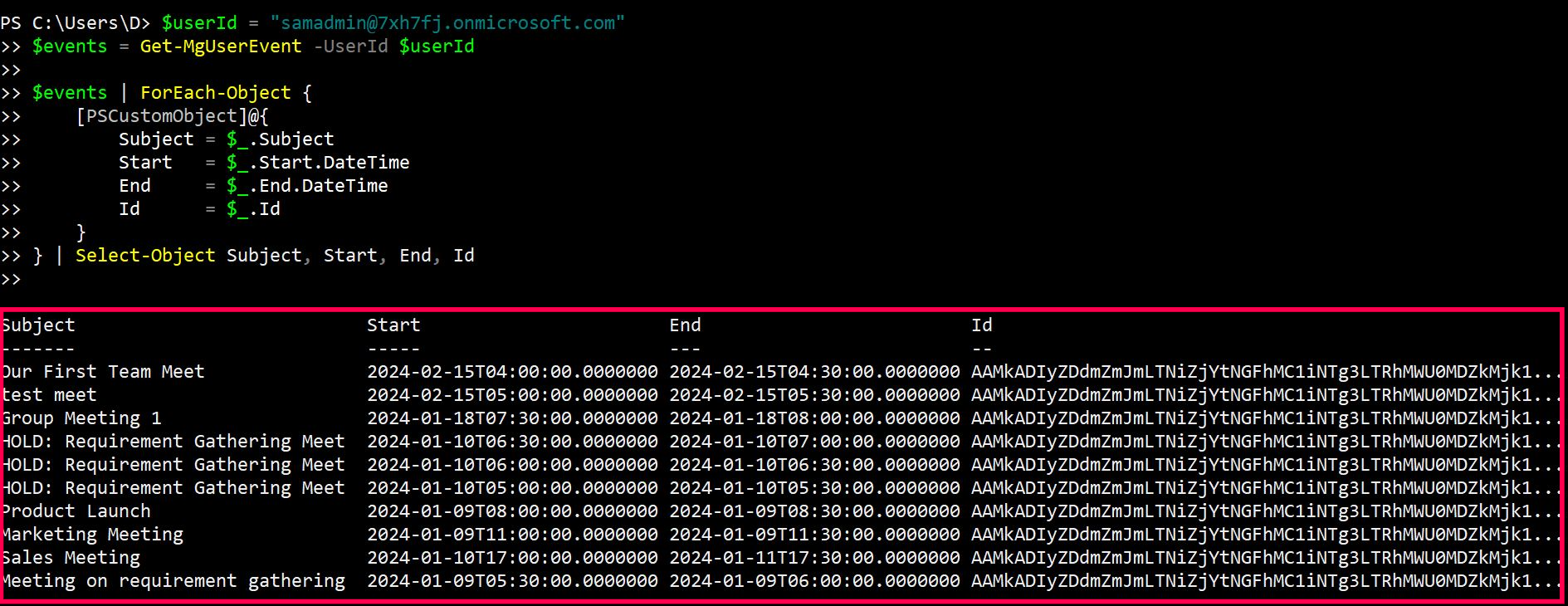
This command lists all events in a user's default calendar. Replace "user@example.com" with the actual User UPN.
Querying a Specific Event
$userId = "samadmin@7xh7fj.onmicrosoft.com"
$eventId = "event-id"
$event = Get-MgUserEvent -UserId $userId -EventId $eventId
$eventDetails = [PSCustomObject]@{
    Subject    = $event.Subject
    Start      = $event.Start.DateTime
    End        = $event.End.DateTime
    Location   = $event.Location.DisplayName
    Attendees  = ($event.Attendees | ForEach-Object { $_.EmailAddress.Address }) -join " "
}
$eventDetails | Format-List
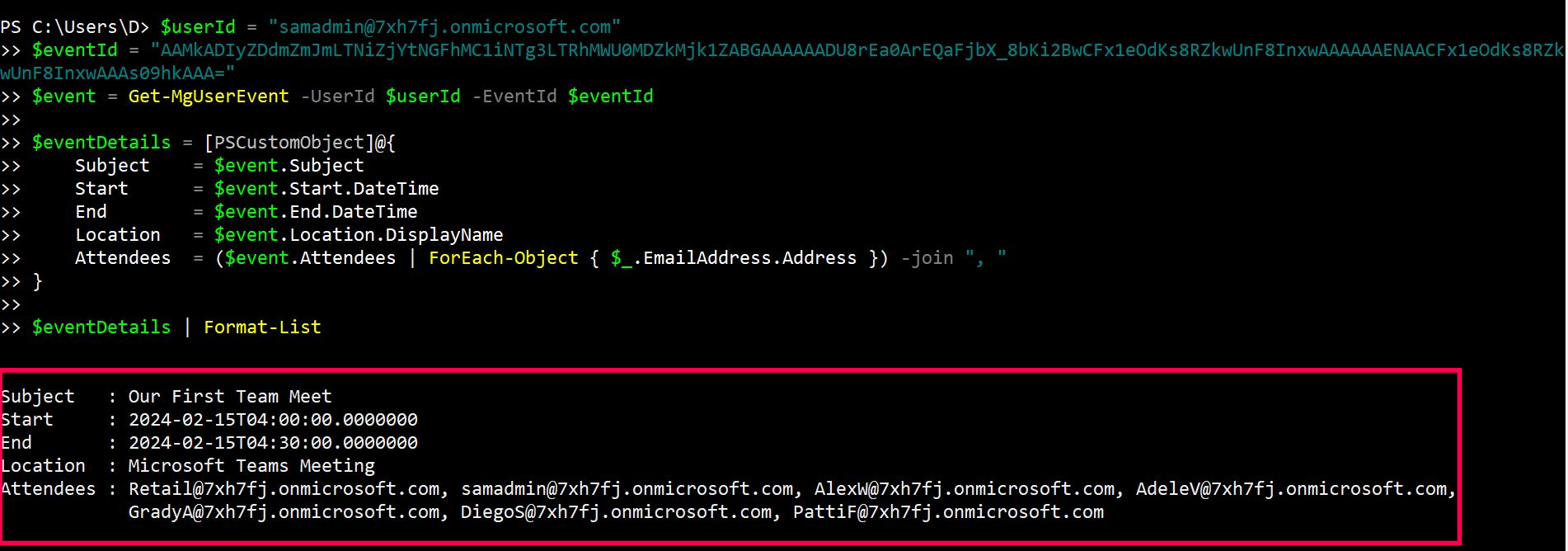
This command retrieves details of a specific event using its ID. Replace "event-id" with the actual event ID.
Filtering Events by Subject
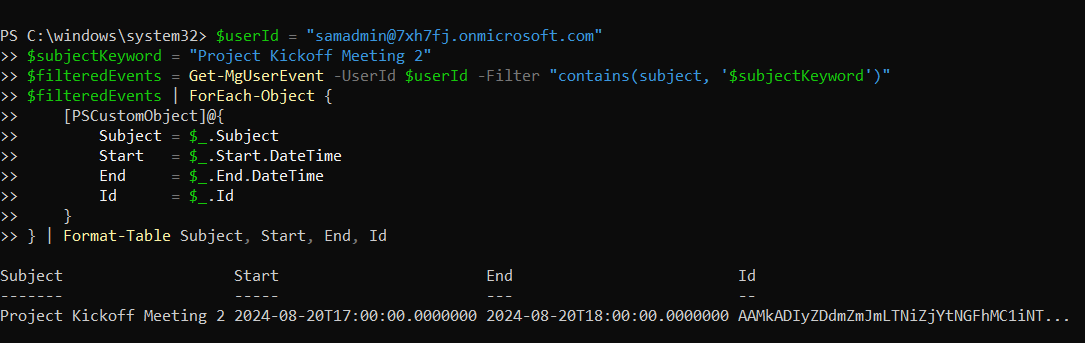
You can filter calendar events based on their subject using the -Filter parameter. This is particularly useful when you're looking for events with specific keywords in their titles.
$userId = "user@example.com"
$subjectKeyword = "Project Update"
$filteredEvents = Get-MgUserEvent -UserId $userId -Filter "contains(subject, '$subjectKeyword')"
$filteredEvents | ForEach-Object {
    [PSCustomObject]@{
        Subject = $_.Subject
        Start   = $_.Start.DateTime
        End     = $_.End.DateTime
        Id      = $_.Id
    }
} | Format-Table Subject, Start, End, Id
Retrieve Events Organized by a Specific User
Connect-MgGraph -Scopes "Calendars.Read"
$UserId = "user@domain.com"
$OrganizerEmail = "manager@domain.com"
Get-MgUserEvent -UserId $UserId -All |
Where-Object {
    $_.Organizer.EmailAddress.Address -eq $OrganizerEmail
} |
Select-Object `
    Subject,
    @{Name="Organizer";Expression={$_.Organizer.EmailAddress.Address}},
    @{Name="StartTime";Expression={$_.Start.DateTime}},
    @{Name="EndTime";Expression={$_.End.DateTime}},
    Id

What this script does
This script retrieves calendar events from a user’s calendar and filters only the meetings organized by a specific person.
Why this example is useful
This is useful when reviewing meetings scheduled by a manager, project lead, external consultant, or service account. It can help with calendar audits, meeting cleanup, and troubleshooting recurring meeting ownership issues.
Cmdlet Tips
- Permissions: Ensure you have the necessary permissions to access user calendar events. For delegated access, Calendars.Read or Calendars.ReadWrite permissions are required. For application access, appropriate application permissions must be granted.
- Filtering: The -Filter parameter allows you to refine your queries. For instance, you can filter events by start time, end time, or subject keywords. This is useful for retrieving specific events without processing unnecessary data.
- Expand Properties: Use the -ExpandProperty parameter to retrieve additional properties that are not returned by default. This is helpful when you need more detailed information about the events.
Use Cases
- Event Management: Administrators can utilize this cmdlet to manage and audit user calendar events, ensuring compliance with organizational policies
- Automation: Automate tasks such as sending reminders for upcoming events, generating event reports, or syncing events with other systems
- Troubleshooting: Identify and resolve issues related to user calendar events, such as missing or duplicate entries.
Possible Errors & Solutions
| Error | Cause | Solution |
|---|---|---|
| ErrorItemNotFound | The specified event was not found. | Verify the event ID is correct and exists in the user's calendar. List all events to check for the correct event ID. |
| ErrorAccessDenied | Insufficient permissions to access the calendar events. | Ensure the necessary permissions (Calendars.Read or Calendars.ReadWrite) are granted to the user or application. |
| ErrorInvalidRequest | The request is malformed or contains invalid parameters. | Check the syntax and ensure all required parameters are correctly specified. |
Frequently Asked Questions
- What is Get-MgUserEvent used for?
- How can I retrieve all calendar events for a user?
- How can I filter events by a specific date range?
- Can I export calendar events to a CSV file?
- What permissions are required to retrieve calendar events using Get-MgUserEvent?
- Can I filter calendar events by organizer using Get-MgUserEvent?
- What is the difference between Get-MgUserEvent and Get-MgUserCalendarEvent?
Get-MgUserEvent is a Microsoft Graph PowerShell cmdlet used to retrieve events from a user’s calendar, including event details like subject, attendees, and location.
Use the following command to fetch all calendar events:
Get-MgUserEvent -UserId "<UserPrincipalName>" -AllGet-MgUserEvent -UserId "<UserPrincipalName>" -Filter "start/dateTime ge '2023-11-01T00:00:00Z' and end/dateTime le '2023-11-30T23:59:59Z'"Yes, use this script to export event details like subject, attendees, and start time:
$Events = Get-MgUserEvent -UserId "<UserPrincipalName>" -All
$Events | Select-Object Subject, Start, End, Attendees | Export-Csv -Path "C:\Path\To\CalendarEvents.csv" -NoTypeInformation
You need the Calendars.Read or Calendars.ReadWrite permission in Microsoft Graph PowerShell. Ensure appropriate permissions are granted in Azure AD.
Yes. Retrieve the events and filter the Organizer.EmailAddress.Address property.
Get-MgUserEvent -UserId "user@domain.com" -All |
Where-Object { $_.Organizer.EmailAddress.Address -eq "manager@domain.com" }
Get-MgUserEvent retrieves events from the user’s default calendar event collection. Get-MgUserCalendarEvent is useful when you want to retrieve events from a specific calendar by providing the CalendarId.
Use Get-MgUserEvent for default calendar event queries and Get-MgUserCalendarEvent when working with multiple calendars.
$filter Parameter to Retrieve Events Within a Date RangeThe
Get-MgUserEvent cmdlet supports OData filtering by start/dateTime and end/dateTime.This allows you to retrieve calendar events that fall within a specific timeframe — without pulling the user’s entire calendar history.
The
Get-MgUserEvent cmdlet only works if the user has a valid Exchange Online mailbox.If the mailbox hasn’t been provisioned or the user is a guest without calendar access, the cmdlet will return an empty result or throw an error.
Conclusion
The Get-MgUserEvent cmdlet is an essential tool for managing and automating calendar events in Microsoft 365. By understanding its syntax, usage, and potential errors, administrators can effectively leverage this cmdlet to enhance their productivity and streamline event management processes.
Related Articles:
Using Get-MgDirectoryRole in Graph PowerShellUsing Get-MgUserLicenseDetail in Graph PowerShell
Using Find-GraphMgCommand in Graph PowerShell
Connect to Microsoft 365 Using PowerShell
How to Create Bulk Users in Office 365 Using Graph PowerShell?
Create Microsoft 365 Group Using Microsoft Graph PowerShell
Block Microsoft 365 User Using Microsoft Graph PowerShell
Assign Microsoft 365 License Using Graph PowerShell
Microsoft 365 User Management Using Graph PowerShell
Checking Group Membership in Microsoft 365
Bulk Assign Microsoft 365 License
Find Inactive Users in Microsoft 365
Using Powershell Graph Search Query
Using Powershell Graph Filter Query
Using Where-Object In Graph PowerShell
Using Expand Property In Graph PowerShell
Using Select Object In Graph PowerShell
Using -Contains Operator In Graph PowerShell
Add User to Multiple Microsoft 365 Groups Using Graph PowerShell
Get Microsoft 365 User Location Using Graph PowerShell
Import Microsoft 365 Groups from CSV File Using Graph PowerShell
Microsoft 365 Group User Import Using Graph PowerShell