Cmdlet Syntax
Get-MgTeamChannelMember -TeamId <String> -ChannelId <String>- TeamId: The unique identifier of the team.
- ChannelId: The unique identifier of the channel within the team.
- Filter: (Optional) The OData query to filter results.
Usage Examples
Example 1: Get All Channel Members
Get-MgTeamChannelMember -TeamId "d58a6e74-23a5-46db-a13f-b9a5625f9f1a" -ChannelId "19:737f2e5b6c4d4d46905d2f1b4bcf6f34@thread.tacv2"This example retrieves all members of a specific channel within a team.
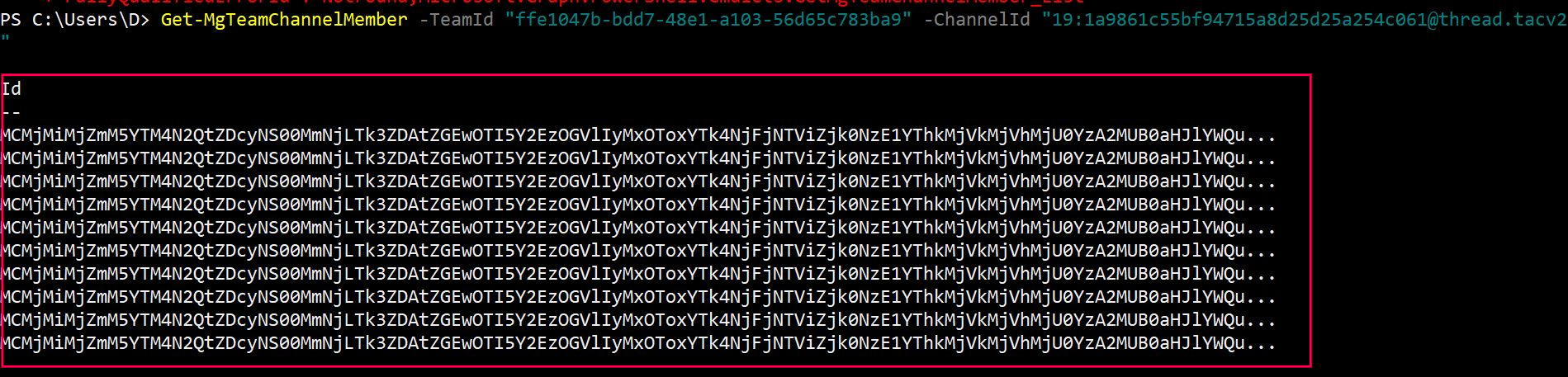
Example 2: Filter Channel Members by User Role
Get-MgTeamChannelMember -TeamId "d58a6e74-23a5-46db-a13f-b9a5625f9f1a" -ChannelId "19:737f2e5b6c4d4d46905d2f1b4bcf6f34@thread.tacv2" -Filter "roles/any(r: r eq 'owner')"In this example, we retrieve all members of a channel who have the role of "owner".

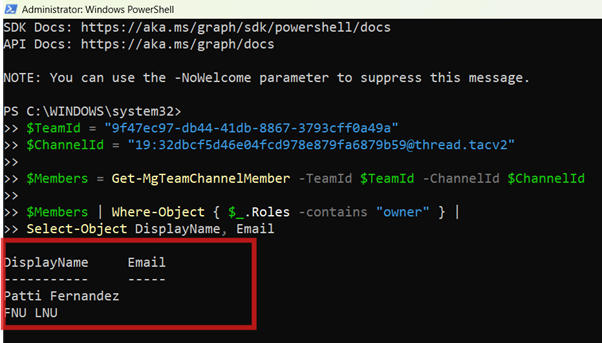
Example 3: List Only Owners of a Specific Teams Channel
This example retrieves members of a channel and filters only those who have the owner role.
$TeamId = "aaaaaaaa-bbbb-cccc-dddd-eeeeeeeeeeee"
$ChannelId = "19:xxxxxxxxxxxxxxxxxxxxxxxx@thread.tacv2"

$Members = Get-MgTeamChannelMember -TeamId $TeamId -ChannelId $ChannelId

$Members | Where-Object { $_.Roles -contains "owner" } |
Select-Object DisplayName, Email


New-MgUserEvent -UserId "john.doe@contoso.com" -BodyParameter $params
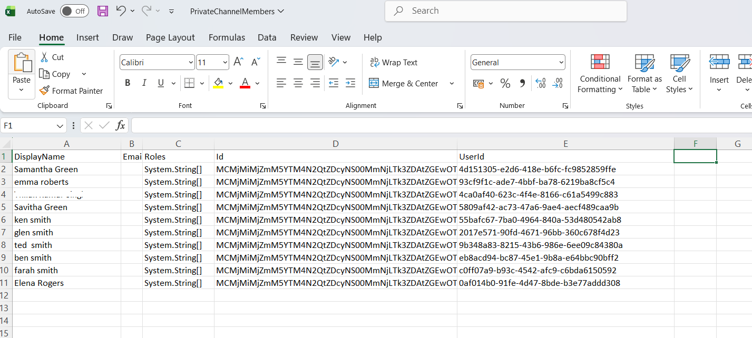
Example 4: Export Private Channel Members to CSV
Connect-MgGraph -Scopes "ChannelMember.Read.All"
$TeamId = "aaaaaaaa-bbbb-cccc-dddd-eeeeeeeeeeee"
$ChannelId = "19:xxxxxxxxxxxxxxxxxxxxxxxx@thread.tacv2"
$ExportPath = "C:\Reports\PrivateChannelMembers.csv"
Get-MgTeamChannelMember -TeamId $TeamId -ChannelId $ChannelId -All |
Select-Object `
    DisplayName,
    Email,
    Roles,
    Id,
    @{Name="UserId";Expression={$_.AdditionalProperties["userId"]}} |
Export-Csv -Path $ExportPath -NoTypeInformation
Write-Host "Private channel member report exported to $ExportPath"
What this script does
This script retrieves all members of a specific Teams channel and exports their details to a CSV file.
Why this example is useful
Private and shared channels can have a different membership list from the parent Team. This example helps admins audit channel-level access and maintain documentation for sensitive Teams channels.
Cmdlet Tips
- Use the Filter Parameter for Specific Results: When dealing with large teams or channels, using the -Filter parameter can significantly reduce the amount of data returned and make your query more efficient.
- Combine Parameters: You can combine multiple parameters like -ChannelId and -Filter to narrow down your search results further.
- Check for Permissions: Ensure that you have the necessary permissions to access the team's channel members, as insufficient permissions can lead to errors. ChannelMember.ReadWrite.All is the required Graph API permission.
Frequently Asked Questions
- Can Get-MgTeamChannelMember show private channel members?
Yes. Get-MgTeamChannelMember retrieves members of the specified channel, including private channel members, as long as you provide the correct TeamId and ChannelId.
Get-MgTeamChannelMember -TeamId "<TeamId>" -ChannelId "<ChannelId>"Private channels have their own membership list. A user must be part of the parent Team, but not every Team member automatically has access to every private channel.
Yes. Pipe the output to Export-Csv.
Get-MgTeamChannelMember -TeamId "<TeamId>" -ChannelId "<ChannelId>" -All |
Export-Csv "C:\Reports\ChannelMembers.csv" -NoTypeInformation
Use ChannelMember.Read.All for read-only reporting.
Connect-MgGraph -Scopes "ChannelMember.Read.All"For membership changes, use write permissions only when needed.
No. It returns members only for the channel specified using -ChannelId. To report across multiple channels, first retrieve channels using Get-MgTeamChannel, then loop through each channel and call Get-MgTeamChannelMember.
Possible Errors & Solutions
Error: ResourceNotFound
Cause: The specified TeamId or ChannelId does not exist, or the user does not have access.
Solution: Verify that the TeamId and ChannelId are correct and that you have the necessary permissions to access the team and channel.
Error: Request_UnsupportedQuery
Cause: The -Filter parameter was used incorrectly or with unsupported query options.
Solution: Review the OData query documentation and ensure that the filter syntax is correct. Common mistakes include incorrect property names or unsupported query operators.
Use Cases
- Auditing Channel Membership: Organizations often need to audit channel memberships to ensure that only the right people have access to specific channels. The Get-MgTeamChannelMember cmdlet allows administrators to list all members of a channel and filter by role, ensuring compliance with internal policies.
- Automating Reports on Channel Ownership: By filtering results to show only channel owners, administrators can quickly generate reports on channel ownership. This is particularly useful in scenarios where ownership changes need to be monitored or when preparing for transitions between teams.
- Security Audits: Regularly retrieving channel member lists can be part of security audits to ensure that sensitive information is only accessible to authorized users. By combining this cmdlet with scripts that check for external users, organizations can safeguard their internal communications.
Conclusion
The Get-MgTeamChannelMember cmdlet is an invaluable tool for managing and auditing Microsoft Teams channels. By understanding its syntax, parameters, and common errors, administrators can efficiently retrieve and filter channel member data, ensuring that team communication is secure and well-managed. Whether you are conducting routine audits or automating membership reports, this cmdlet offers the flexibility and power needed to maintain an organized and secure Teams environment.
Additional Resources:
Graph PowerShell Get-MgTeamChannelMember Cmdlet DocumentationMicrosoft Graph PowerShell Module Documentation
Microsoft Graph API Documentation
Related Articles:
Using Get-MgDirectoryRole in Graph PowerShellUsing Get-MgUserLicenseDetail in Graph PowerShell
Using Find-GraphMgCommand in Graph PowerShell
Connect to Microsoft 365 Using PowerShell
How to Create Bulk Users in Office 365 Using Graph PowerShell?
Create Microsoft 365 Group Using Microsoft Graph PowerShell
Block Microsoft 365 User Using Microsoft Graph PowerShell
Assign Microsoft 365 License Using Graph PowerShell
Microsoft 365 User Management Using Graph PowerShell
Checking Group Membership in Microsoft 365
Bulk Assign Microsoft 365 License
Find Inactive Users in Microsoft 365
Using Powershell Graph Search Query
Using Powershell Graph Filter Query
Using Where-Object In Graph PowerShell
Using Expand Property In Graph PowerShell
Using Select Object In Graph PowerShell
Using -Contains Operator In Graph PowerShell
Add User to Multiple Microsoft 365 Groups Using Graph PowerShell
Get Microsoft 365 User Location Using Graph PowerShell
Import Microsoft 365 Groups from CSV File Using Graph PowerShell
Microsoft 365 Group User Import Using Graph PowerShell