The Get-MgTeamChannel cmdlet in the Graph PowerShell allows administrators to retrieve detailed information about channels within a Microsoft Team. Whether you're looking to list all channels, get specific channel details, or filter channels based on certain criteria, this cmdlet provides the flexibility you need.
Prerequisites
-
Install Microsoft Graph PowerShell Module by running the following command:
Install-Module Microsoft.Graph -Scope CurrentUser - Graph API Permission : Ensure you have the Graph API permission Team.ReadBasic.All. This permission is needed to access the Microsoft Teams info.
- Microsoft 365 Admin Role: You should possess the Teams Administrator or Global Administrator role.
-
Connect to Graph PowerShell Module by running the following command:
Connect-MgGraph -Scopes "Team.ReadBasic.All"
Cmdlet Syntax
Get-MgTeamChannel -TeamId <String> [-ChannelId <String>] [-ExpandProperty <String[]>] [-Filter <String>] [-Search <String>] [-Select <String[]>] [] -TeamId <String>:The unique identifier of the team. This parameter is mandatory.-ChannelId <String>:The unique identifier of the channel. This parameter is optional and used to retrieve a specific channel within a team.-ExpandProperty <String[]>:Specifies related entities to expand inline in the results.-Filter <String>:OData filter query to filter the channels.-Search <String>:Search query to find specific channels.-Select <String[]>:Specifies the properties to include in the response.
Usage Examples
Retrieve All Channels in a Team
Retriveing all the channels within a team using Get-MgTeamChannel cmdlet.
Get-MgTeamChannel -TeamId "4a6c54df-9235-4854-8b98-5c0045c02855"
Retrieve a Specific Channel in a Team
Retriveing details of a specific channel within a team using Get-MgTeamChannel cmdlet.
Get-MgTeamChannel -TeamId "4a6c54df-9235-4854-8b98-5c0045c02855" -ChannelId "19:381fc3768ae64a9c8a596fb3f07b6622@thread.tacv2"
Filter Channels by Display Name
Filtering for a channel within a team using display name with the help of Get-MgTeamChannel cmdlet.
Get-MgTeamChannel -TeamId "4a6c54df-9235-4854-8b98-5c0045c02855" -Filter "displayName eq 'General'"
Filter Channels by Channel Type
Filtering for a channel within a team using channel type (shared, private or standard) with the help of Get-MgTeamChannel cmdlet.
$teamId = "ffe1047b-bdd7-48e1-a103-56d65c783ba9"
Get-MgTeamChannel -TeamId $teamId -Filter "membershipType eq 'shared'"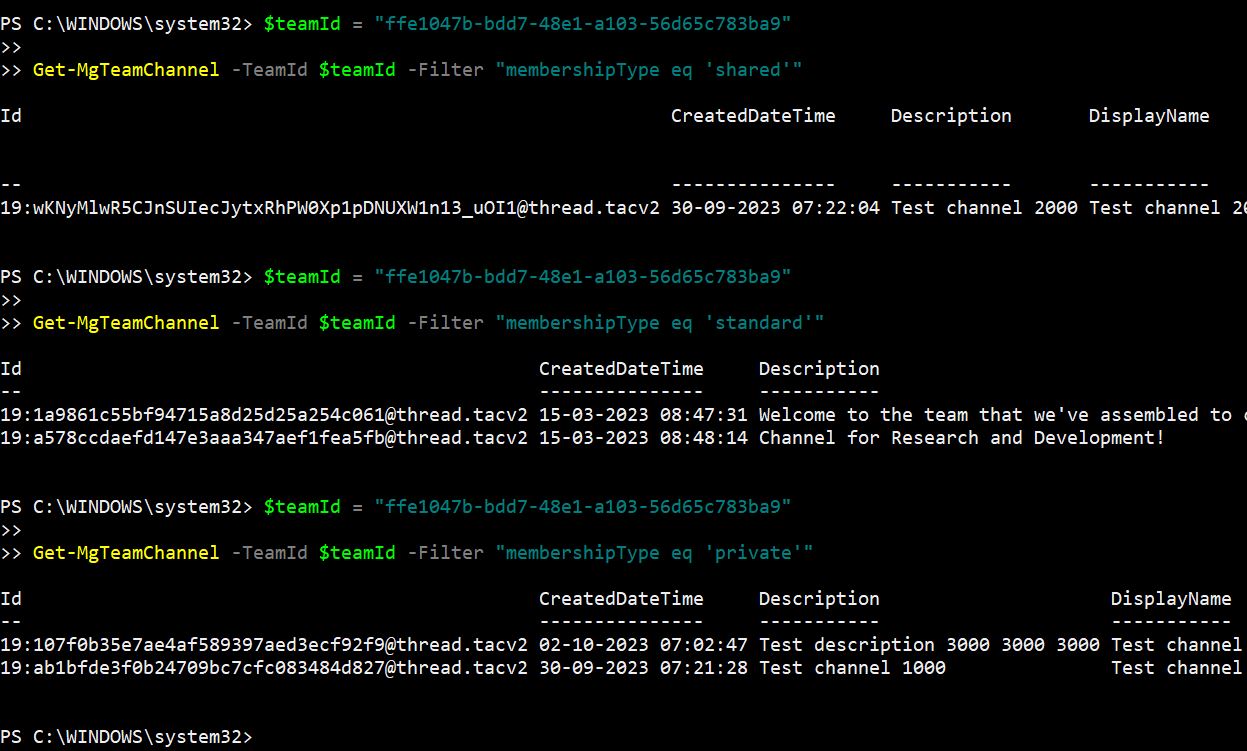
Listing All Channel Properties
Listing all the channel properties within a team using Get-MgTeamChannel cmdlet.
# Retrieve all channels in a team
$teamChannels = Get-MgTeamChannel -TeamId "4a6c54df-9235-4854-8b98-5c0045c02855"

# Display detailed information about each channel
$teamChannels | ForEach-Object {
$channelDetails = [PSCustomObject]@{
    Id               = $_.Id
    DisplayName      = $_.DisplayName
    Description      = $_.Description
    Email            = $_.Email
    CreatedDateTime  = $_.CreatedDateTime
    WebUrl           = $_.WebUrl
    FilesFolderId    = $_.FilesFolder.Id  # Accessing nested property
    IsArchived       = $_.AdditionalProperties["isArchived"]
    Members          = if ($_.Members) { ($_.Members | Select-Object -Property *) } else { "No members" }
    Summary          = if ($_.Summary) { ($_.Summary | Select-Object -Property *) } else { "No summary" }
    Tabs             = if ($_.Tabs) { ($_.Tabs | Select-Object -Property *) } else { "No tabs" }
}
$channelDetails | Format-List
}
Identify Private Channels in a Team
This helps admins quickly identify private channels, which have separate permissions and require closer governance.
$TeamId = "aaaaaaaa-bbbb-cccc-dddd-eeeeeeeeeeee"

# Get all channels in the team
$Channels = Get-MgTeamChannel -TeamId $TeamId

# Filter private channels
$PrivateChannels = $Channels | Where-Object { $_.MembershipType -eq "private" }

$PrivateChannels | Select-Object DisplayName, MembershipType, Id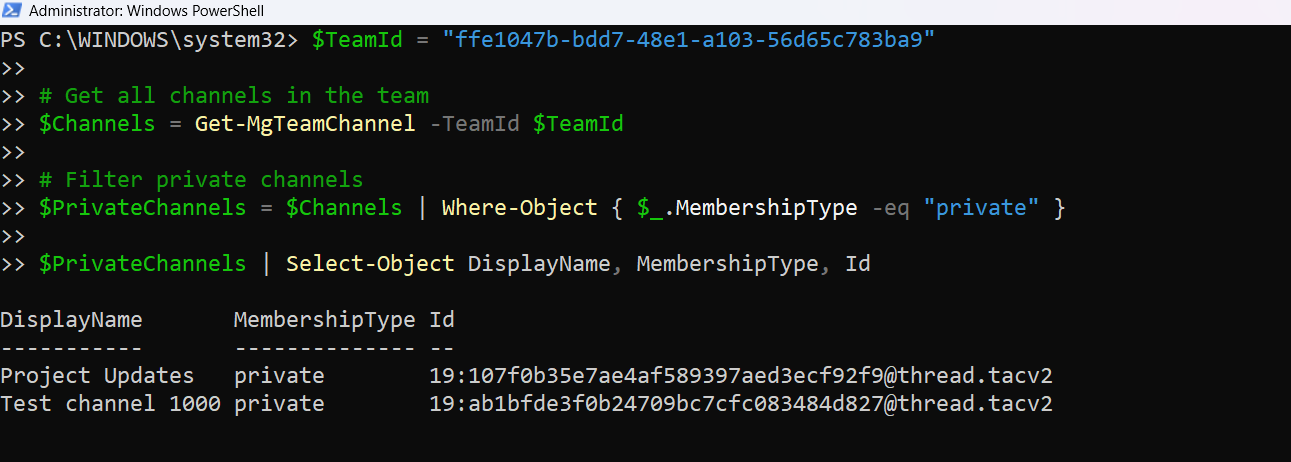
Find Teams Channels Without a Description
Connect-MgGraph -Scopes "Channel.ReadBasic.All"
$TeamId = "4a6c54df-9235-4854-8b98-5c0045c02855"
Get-MgTeamChannel -TeamId $TeamId |
Where-Object {
    [string]::IsNullOrWhiteSpace($_.Description)
} |
Select-Object DisplayName, MembershipType, Description, Id
What this script does
This script retrieves all channels in a Team and identifies channels where the description is empty.
Why this example is useful
Channel descriptions help users understand the purpose of each channel. This example is useful for Teams governance, cleanup, documentation, and improving user experience in large Teams.
Cmdlet Tips
- Use the
-Selectparameter to limit the properties returned, which can improve performance and readability. - The
-ExpandPropertyparameter allows you to retrieve related entities inline, providing more comprehensive details. - The
-Filterparameter uses OData query syntax, allowing for powerful and flexible filtering. - Always ensure you have the correct
TeamIdandChannelIdto avoid errors.
Common Errors and Solutions
| Error | Solution |
|---|---|
| "Authorization_RequestDenied" | Ensure you have the necessary permissions to access the Microsoft Teams channels. You may need to re-authenticate with the required scopes. |
| "ResourceNotFound" | Verify that the TeamId and ChannelId are correct. Ensure the team and channel exist. |
| "Invalid filter clause" | Check the OData filter syntax. Ensure the filter query is correctly formatted. |
Frequently Asked Questions
- What is Get-MgTeamChannel used for?
- How can I export team channel details to a CSV file using Get-MgTeamChannel?
- What Graph API permissions are required to retrieve team channels using Get-MgTeamChannel?
- Can I use Get-MgTeamChannel to find channels without descriptions?
- Can Get-MgTeamChannel retrieve standard, private, and shared channels?
Get-MgTeamChannel is a Microsoft Graph PowerShell cmdlet used to retrieve details about channels in Microsoft Teams, including their names, descriptions, and IDs.
Use this script to export channel details like name, description, and ID:
$Channels = Get-MgTeamChannel -TeamId "<TeamId>"
$Channels | Select-Object DisplayName, Description, Id | Export-Csv -Path "C:\Path\To\TeamChannels.csv" -NoTypeInformation
You need the Teamwork.Read.All or Teamwork.ReadWrite.All permission in Microsoft Graph PowerShell. Ensure appropriate permissions are granted in Azure AD.
Yes. Retrieve the channels first and filter empty Description values using PowerShell.
Get-MgTeamChannel -TeamId "<TeamId>" |
Where-Object { [string]::IsNullOrWhiteSpace($_.Description) }
Yes. Get-MgTeamChannel can return standard, private, and shared channels. Use the MembershipType property to identify the channel type.
Get-MgTeamChannel -TeamId "<TeamId>" |
Select-Object DisplayName, MembershipType, Id
Conclusion
The Get-MgTeamChannel cmdlet is a powerful tool for retrieving information about channels within Microsoft Teams. By understanding its parameters and using various examples, you can efficiently manage and query Teams channels. Remember to handle common errors and follow best practices for optimal usage.
For more information, refer to the official Microsoft Graph PowerShell Get-MgTeamChannel documentation.
Related Cmdlets
- New-MgTeamChannel -- helps create team channels.
- Update-MgTeamChannel -- helps update team channels settings.
- Remove-MgTeamChannel -- helps delete team channels.
If You Prefer the Graph API Way
You can retrieve channels in a Microsoft Team using the /teams/{team-id}/channels endpoint in Microsoft Graph. Below are examples that mirror common Get-MgTeamChannel use cases.
Example 1: Retrieve All Channels in a Team
This retrieves all channels (standard, private, shared) in a specific Microsoft Team.
$teamId = "4a6c54df-9235-4854-8b98-5c0045c02855"
$uri = "https://graph.microsoft.com/v1.0/teams/$teamId/channels"

$response = Invoke-MgGraphRequest -Method GET -Uri $uri

foreach ($channel in $response.value) {
Write-Output "Channel ID    : $($channel.id)"
Write-Output "Display Name  : $($channel.displayName)"
Write-Output "Membership Type: $($channel.membershipType)"
Write-Output "`n"
}
✅ Equivalent to: Get-MgTeamChannel -TeamId "<team-id>"
📘 List channels – Microsoft Graph
Example 2: Retrieve a Specific Channel in a Team
This fetches the details of a single channel using its channel ID.
$teamId = "4a6c54df-9235-4854-8b98-5c0045c02855"
$channelId = "19:381fc3768ae64a9c8a596fb3f07b6622@thread.tacv2"
$uri = "https://graph.microsoft.com/v1.0/teams/$teamId/channels/$channelId"

$response = Invoke-MgGraphRequest -Method GET -Uri $uri

Write-Output "Display Name    : $($response.displayName)"
Write-Output "Channel Type    : $($response.membershipType)"
Write-Output "Description     : $($response.description)"
Equivalent to: Get-MgTeamChannel -TeamId "<team-id> -ChannelId "<channel-id>"
📘 Get channel by ID – Microsoft Graph
Example 3: Filter Channels by Display Name
Although $filter is not supported on /teams/{team-id}/channels, you can filter client-side after retrieving all channels.
$teamId = "4a6c54df-9235-4854-8b98-5c0045c02855"
$uri = "https://graph.microsoft.com/v1.0/teams/$teamId/channels"

$response = Invoke-MgGraphRequest -Method GET -Uri $uri

$filtered = $response.value | Where-Object { $_.displayName -eq "General" }

foreach ($channel in $filtered) {
Write-Output "Matched Channel:"
Write-Output "Display Name : $($channel.displayName)"
Write-Output "ID           : $($channel.id)"
Write-Output "Type         : $($channel.membershipType)"
}
✅ Equivalent to: Get-MgTeamChannel -TeamId "<team-id>" -Filter "displayName eq 'General'(Graph PowerShell supports this natively; Graph API requires client-side filter)
Required Permissions
| Context | Required Permissions |
| Delegated | Channel.Read.All |
| Application | Channel.Read.All |
Additional References