In this guide, you’ll learn how to:
- Use -Search with Get-MgGroup
- Search Groups by Display Name (Exact or Partial Match)
- Search Security Groups/Dynamic Membership Groups/Mail-Enabled Groups/Teams-Connected Groups
- Difference Between -Search and -Filter in Get-MgGroup
- Search Syntax Tips
- Common Errors and Fixes
- Frequently Asked Questions
This article explains how to correctly use -Search with Get-MgGroup, including working examples, syntax rules, and key considerations to avoid common errors.
Connect to Microsoft Graph
Before using the Get-MgGroup cmdlet, connect to Microsoft Graph PowerShell with the required permissions.
Connect-MgGraph -Scopes Group.Read.AllThe -Search parameter must follow the property:value format and requires -ConsistencyLevel eventual.
Required Permissions
| Permission | Purpose |
| Group.Read.All | Read Microsoft 365 groups. |
| Directory.Read.All | Read directory-wide group information |
Important Requirements for Using -Search
The -Search parameter requires:
- -ConsistencyLevel eventual
- Proper quotation formatting
- Indexed search properties
Basic Syntax
Get-MgGroup -Search '"displayName:Finance"' -ConsistencyLevel eventualExample 1: Search Groups by Display Name (Exact or Partial Match)
Get-MgGroup -Search '"displayName:Marketing"' -ConsistencyLevel eventual -AllReturns all groups with "Marketing" in their display name, such as Marketing Team, Global Marketing, etc.

Example 2: Search Groups with a Multi-word Display Name
Get-MgGroup -Search '"displayName:Hello Team"' -ConsistencyLevel eventual -AllFinds groups named Hello Team or containing those words in the display name.

Example 3: Search Groups Based on Description
Get-MgGroup -Search '"description:Internal Project"' -ConsistencyLevel eventual -AllReturns all groups whose description includes the phrase Internal Project.

Example 4: Narrow Search and Select/Display Specific Properties
Get-MgGroup -Search '"displayName:HR"' -ConsistencyLevel eventual -All -Property displayName, mail, idFetches only HR-related groups and limits the returned fields to Display Name, Mail, and ID.

Example 5: Export Matching Groups to CSV
Get-MgGroup -Search '"displayName:Project"' -ConsistencyLevel eventual -All |
Select-Object DisplayName, Description, Mail |
Export-Csv "ProjectGroups.csv" -NoTypeInformation
Searches for all project-related groups and exports them to a CSV file for reporting.
Example 6: Search Groups by Mail
Get-MgGroup -Search '"mail:allcompany@7xh7fj.onmicrosoft.com"' -ConsistencyLevel eventual -AllSearches for the group with mail address allcompany@7xh7fj.onmicrosoft.com and outputs the group details

Advanced Get-MgGroup Search Examples
Search Security Groups Only
Useful for auditing Microsoft Entra security groups.
Get-MgGroup -Search '"displayName:security"' -ConsistencyLevel eventual |
    Where-Object {$_.SecurityEnabled -eq $true}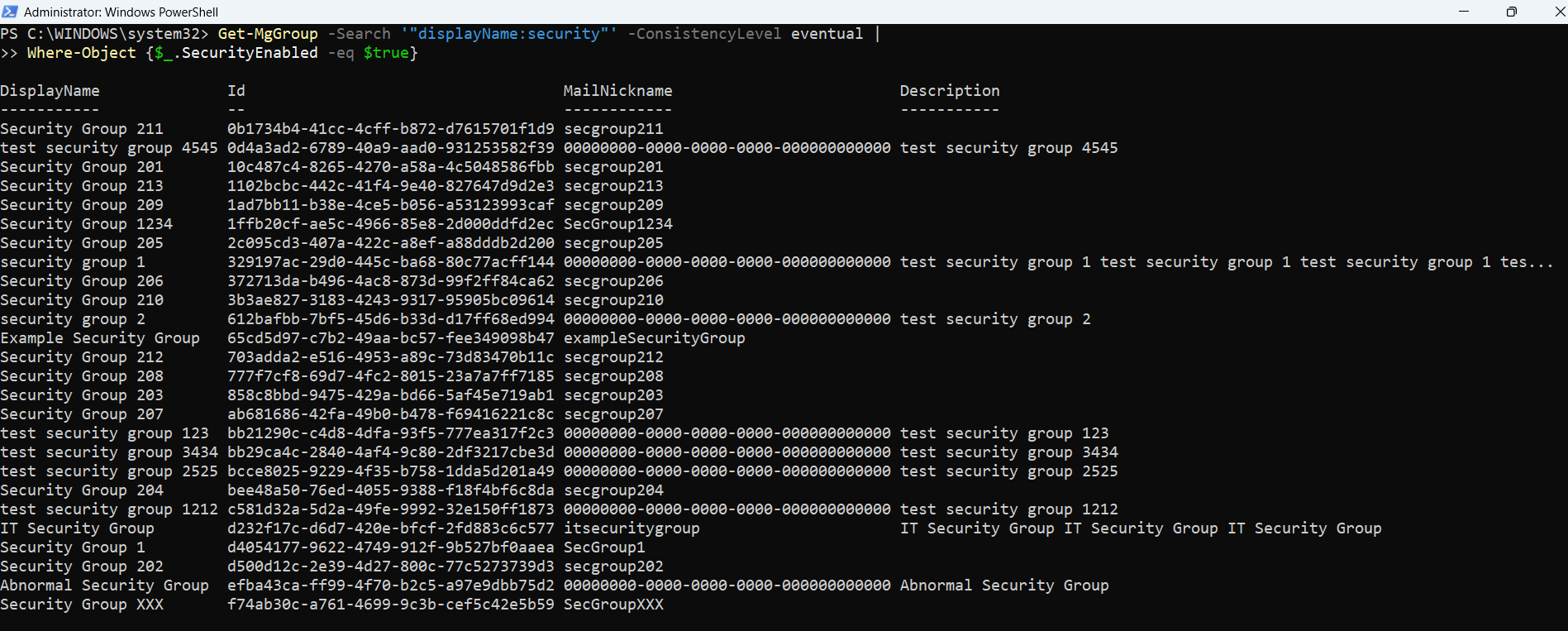
Search Dynamic Membership Groups
Helps identify dynamic Microsoft Entra groups.
Get-MgGroup -Search '"displayName:Dynamic"' -ConsistencyLevel eventual |
    Where-Object {$_.GroupTypes -contains "DynamicMembership"}
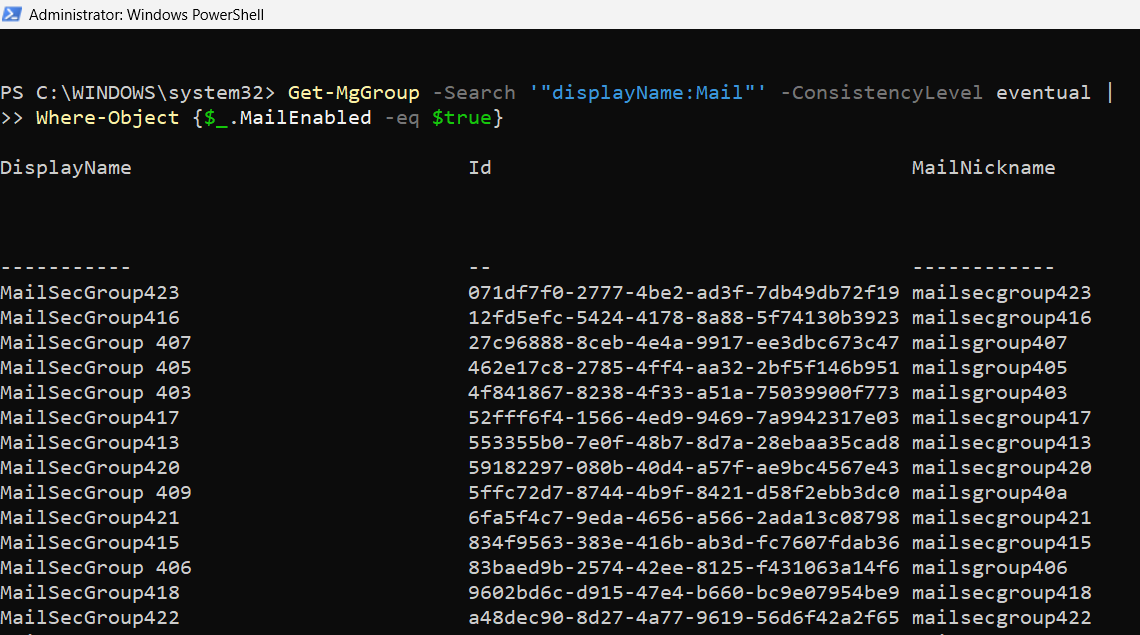
Search Mail-Enabled Groups
Allows administrators to locate mail-enabled groups quickly.
Get-MgGroup -Search '"displayName:Mail"' -ConsistencyLevel eventual |
    Where-Object {$_.MailEnabled -eq $true}
Search Teams-Connected Groups
This helps administrators locate Microsoft Teams-backed groups during governance or auditing activities.
Get-MgGroup -Search '"displayName:Team"' -ConsistencyLevel eventual Difference Between -Search and -Filter in Get-MgGroup
Many administrators confuse -Search and -Filter. Both serve different purposes.
| Feature | -Search | -Filter |
| Partial keyword matching | Yes | Limited |
| Exact property filtering | No | Yes |
| Flexible discovery | Excellent | Moderate |
| Supports advanced conditions | Limited | Excellent |
| Keyword-based searching | Yes | No |
| Best for large discovery operations | Yes | Moderate |
-Search Works Only on Select PropertiesThe
-Search parameter supports only specific fields like displayName and description.Attempting to use it on unsupported fields will result in errors like "Search request is not supported for this resource."
When to Use -Search
Use -Search when:
- You only know part of the group name
- You want flexible keyword matching
- You are auditing large environments
When to Use -Filter
Use -Filter when:
- Exact property values are known
- You need precise filtering
- You want advanced OData filtering
Search Syntax Tips
Correct syntax formatting is critical while using -Search.
Correct Syntax
Get-MgGroup -Search '"Finance"' -ConsistencyLevel eventualIncorrect Syntax
Get-MgGroup -Search "Finance"The incorrect example may fail because:
- Missing quotation format
- Missing consistency level
Common Errors and Fixes
| Error Message | Cause | Solution |
| Clause 'Team Alpha' in $search is not of right format 'property:value' | Missing property: prefix | Use -Search '"displayName:Team Alpha"' |
| Request_UnsupportedQuery | Used unsupported field like mail or id | Only use displayName or description |
| -Search used without -ConsistencyLevel | Required parameter omitted | Always include -ConsistencyLevel eventual |
Frequently Asked Questions
- Why does Get-MgGroup -Search require ConsistencyLevel eventual?
Microsoft Graph uses indexed search capabilities that require eventual consistency for advanced queries. - Can I search groups using partial names?
Yes. The -Search parameter supports keyword-based matching. - Can I export searched groups to CSV?
Yes. You can pipe results to Export-Csv for reporting and auditing. - Does -Search work for Microsoft Teams groups?
Yes. Teams-connected groups can be searched using Get-MgGroup -Search. - What is the difference between -Search and -Filter?
-Search is designed for keyword discovery, while -Filter is used for exact property-based filtering.
Conclusion
The -Search parameter in Get-MgGroup is ideal for quick lookups based on group names or descriptions. Whether you're searching for Teams groups, project groups, or admin lists, using -Search with the right syntax and flags gives fast and relevant results.
Just remember:
- Always use "property:value" format
- Include -ConsistencyLevel eventual
- Stick to supported fields like displayName and description