Cmdlet Syntax
Revoke-MgUserSignInSession -UserId <String>Parameters:
- -UserId: Specifies the unique identifier or User Principal Name (UPN) of the user whose sessions are to be revoked. This parameter is required.
🚀 Community Edition Released!
Try the M365Corner Microsoft 365 Reporting Tool — your DIY pack with 20+ out-of-the-box M365 reports for Users, Groups, and Teams.
Usage Examples
Example 1: Prompting Admin for User Input
You'll be prompted to enter or pass the UserId or UPN if you use the cmdlet directly. The user session is revoked when you pass the UserID or UPN.
Revoke-MgUserSignInSession 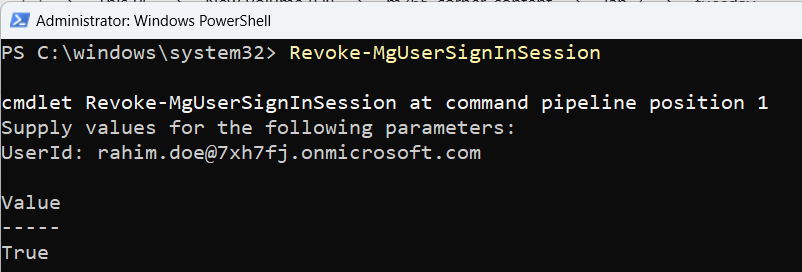
Example 2: Directly Passing the User ID
This example shows how to revoke a user’s session by directly passing their ID or UPN to the cmdlet.
# Revoke sessions for a specific user
Revoke-MgUserSignInSession -UserId "user@example.com"
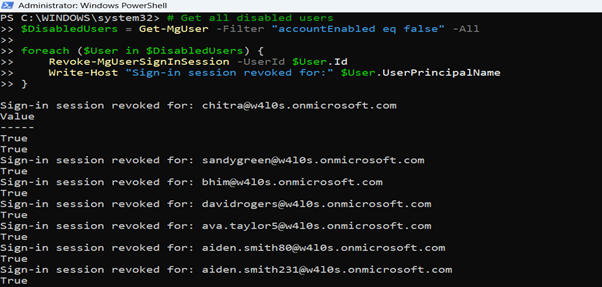
Example 3: Revoke Sign-In Sessions for All Disabled Accounts
This is useful during offboarding cleanup to ensure disabled users cannot continue using existing refresh tokens.
# Get all disabled users
$DisabledUsers = Get-MgUser -Filter "accountEnabled eq false" -All
foreach ($User in $DisabledUsers) {
    Revoke-MgUserSignInSession -UserId $User.Id
    Write-Host "Sign-in session revoked for:" $User.UserPrincipalName
}
Example 4: Revoke Sign-In Sessions for Users Who Signed In from a Suspicious IP
This combines audit logs with session revocation.
$SuspiciousIP = "203.0.113.50"
$StartDate = (Get-Date).AddDays(-1).ToString("yyyy-MM-ddTHH:mm:ssZ")

$SignIns = Get-MgAuditLogSignIn `
-Filter "ipAddress eq '$SuspiciousIP' and createdDateTime ge $StartDate" `
-All

$AffectedUsers = $SignIns | Select-Object -ExpandProperty UserPrincipalName -Unique

foreach ($UserUPN in $AffectedUsers) {
    Revoke-MgUserSignInSession -UserId $UserUPN
    Write-Host "Revoked session for:" $UserUPN
}
Example 5: Revoke Sessions for Users in a Specific Department
Connect-MgGraph -Scopes "User.ReadWrite.All"
$Department = "Sales"
$Users = Get-MgUser `
    -Filter "department eq '$Department'" `
    -All `
    -Property Id,DisplayName,UserPrincipalName,Department
foreach ($User in $Users) {
    Revoke-MgUserSignInSession -UserId $User.Id
    Write-Host "Revoked session for:" $User.UserPrincipalName
}
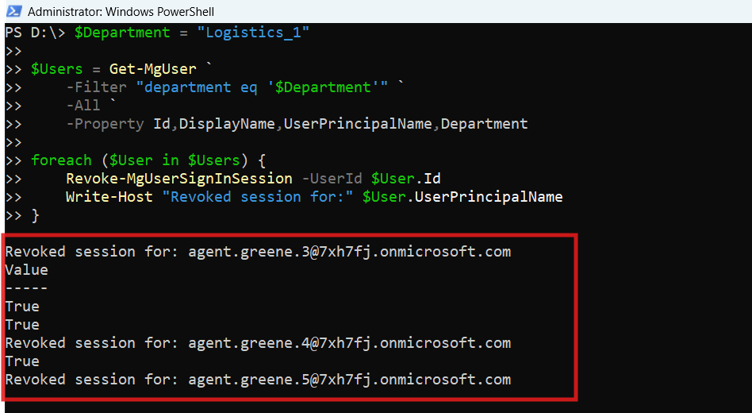
What this script does
This script finds all users from a specific department and revokes their active sign-in sessions.
Why this example is useful
This is useful when enforcing new Conditional Access rules, MFA policies, device compliance requirements, or emergency access restrictions for a particular department.
Cmdlet Tips
- Use Secure Input: If you’re dealing with sensitive environments, use
Read-Host -AsSecureStringto avoid displaying input in plaintext. - Monitor Sign-In Activity: Combine this cmdlet with
Get-MgUserSignInActivityto identify users with suspicious login activity before revoking sessions. - Admin Consent: Ensure you have appropriate permissions, such as the
User.ReadWrite.Allpermission, to execute this cmdlet. - Immediate Effect: Revoking sessions forces users to reauthenticate immediately, so communicate with affected users beforehand if possible.
Use Cases
- Responding to Security Incidents: Revoke sessions for a user whose account is suspected of being compromised.
- Enforcing MFA: Ensure users reauthenticate after enabling multi-factor authentication (MFA) for their accounts.
- Terminating User Access: Revoke access for users who are leaving the organization to ensure no further access to company resources.
Frequently Asked Questions
- Does Revoke-MgUserSignInSession immediately sign the user out from all devices?
- How can I verify if a sign-in session was revoked successfully?
- Will this cmdlet revoke sessions for service principals or app registrations?
- Does revoking a user’s session also reset their password?
- Can revoked sessions still allow offline access to cached data?
- What Exactly Does Revoke-MgUserSignInSession Revoke?
- The user must sign in again in all apps
- Existing access tokens expire naturally (usually within ~1 hour)
- New authentication is required to obtain fresh tokens
- How Long Does Session Revocation Take to Apply?
- Refresh tokens become invalid shortly after execution.
- Access tokens already issued remain valid until they expire (commonly up to 1 hour).
- What’s the Difference Between Password Reset and Session Revocation?
- Invalidates refresh tokens
- Forces reauthentication
- Does not change credentials
- Changes the user’s credential
- Invalidates sessions tied to old credentials
- Prevents sign-in with the previous password
- Will MFA Be Triggered Again After Revocation?
- Conditional Access policies are re-evaluated
- MFA will be required if enforced by policy
- Device compliance checks are re-applied
- Can I revoke sign-in sessions for users in a specific department?
No, it only invalidates the user's refresh tokens. Existing access tokens remain valid until they expire, so the user may not be signed out immediately.
The cmdlet does not return output. To verify, check Azure AD audit logs or track changes in sign-in behavior using Get-MgAuditLogSignIn.
No, Revoke-MgUserSignInSession is intended for user accounts only, not for applications or service principals.
No. Revoking sign-in sessions only invalidates refresh tokens and forces reauthentication. The user’s existing password remains valid unless explicitly reset using Update-MgUser or other password reset methods.
Yes, in some cases. If applications cache data locally (for example, Outlook OST files or Teams offline files), users may still see previously synced content. Revoking sessions only blocks future authentication and access to cloud resources.
Revoke-MgUserSignInSession invalidates all refresh tokens issued to the user.
This means:
It does not disable the account, reset the password, or remove licenses.
Revocation is typically effective within minutes.
For immediate containment, combine revocation with account disable or password reset.
Session Revocation
Password Reset
For compromised accounts, best practice is:
👉 Revoke session and reset password.
Yes — in most environments.
When the user signs in again:
Yes. First retrieve users with Get-MgUser using the department property, then pass each user’s ID to Revoke-MgUserSignInSession.
Get-MgUser -Filter "department eq 'Sales'" -AllBoth can work, but using the user’s object ID is safer in automation because it avoids issues caused by UPN changes, renamed accounts, or duplicate-looking aliases.
Possible Errors & Solutions
| Error | Cause | Solution |
| Insufficient privileges to complete the operation | The admin account lacks the required permissions | Assign the User.ReadWrite.All permission to your account or role. |
| Invalid user ID or UPN provided | The -UserId parameter value is incorrect or does not exist in your tenant. |
Verify the user ID or UPN using the Get-MgUser cmdlet:
|
| Resource not found | The user specified by the -UserId does not exist |
Double-check the ID or UPN for typos and ensure the user exists in the tenant. |
Revoking Tokens Doesn’t Immediately Log Out the User
Revoke-MgUserSignInSession, users may still retain access for a short time until the current tokens expire. This cmdlet invalidates refresh tokens, but existing access tokens remain valid until their expiry.
No Output Is Expected After Successful Execution
Revoke-MgUserSignInSession cmdlet does not return any output upon success. To confirm revocation, check audit logs or monitor recent user sign-ins using Get-MgAuditLogSignIn.
Revoke-MgUserSignInSession terminates all active refresh tokens for the user — across browsers, mobile apps, and desktop clients.
This ensures sign-ins are invalidated everywhere, forcing the user to reauthenticate before accessing Microsoft 365 resources again.
Conclusion
The Revoke-MgUserSignInSession cmdlet is a powerful tool for managing Microsoft 365 user sessions. Whether you’re responding to a security incident or enforcing new policies, this cmdlet provides administrators with a straightforward way to revoke access and enhance security. By understanding its syntax, usage, and potential pitfalls, you can effectively utilize this cmdlet to protect your organization’s resources.