🔧 New: User Management Graph PowerShell Toolkit
Simplify user tasks like bulk creation, updates, password resets, deletions, license checks & more — all from one place.
🚀 Launch ToolkitGenerate Microsoft 365 Successful Login User Report – PowerShell
Monitoring successful user sign-ins is vital for gaining visibility into authentication trends and validating legitimate access patterns in Microsoft 365. It helps administrators identify user behavior, confirm policy compliance, and detect anomalies like logins from unusual locations or devices.
Using Microsoft Graph PowerShell, you can easily query Entra ID (Azure AD) sign-in logs, generate a detailed successful login report, and have it automatically emailed to the administrator for review.
i) The Script
$AdminUPN     = "admin@yourtenant.onmicrosoft.com"
$LookbackDays = 7
Connect-MgGraph -Scopes "AuditLog.Read.All","Mail.Send"
$StartDate = (Get-Date).AddDays(-$LookbackDays).ToString("yyyy-MM-ddTHH:mm:ssZ")
$SignInLogs = Get-MgAuditLogSignIn -All `
  -Filter "createdDateTime ge $StartDate" `
  -Property Id,UserDisplayName,UserPrincipalName,AppDisplayName,ResourceDisplayName,IpAddress,Location,Status,CreatedDateTime,ConditionalAccessStatus,ClientAppUsed,CorrelationId

$SuccessfulSignIns = $SignInLogs | Where-Object { $_.Status.errorCode -eq 0 }

$ReportRows = $SuccessfulSignIns | Select-Object `
  @{n='UserDisplayName';       e={$_.UserDisplayName}},
  @{n='UserPrincipalName';     e={$_.UserPrincipalName}},
  @{n='AppDisplayName';        e={$_.AppDisplayName}},
  @{n='ResourceDisplayName';   e={$_.ResourceDisplayName}},
  @{n='IPAddress';             e={$_.IpAddress}},
  @{n='Location';              e={ if ($_.Location.city) { "$($_.Location.city), $($_.Location.countryOrRegion)" } else { "Unknown" } }},
  @{n='LoginResult';           e={"Success"}},
  @{n='ErrorCode';             e={$_.Status.errorCode}},
  @{n='FailureReason';         e={$_.Status.failureReason}},
  @{n='FailureDetails';        e={$_.Status.additionalDetails}},
  @{n='ConditionalAccess';     e={$_.ConditionalAccessStatus}},
  @{n='ClientAppUsed';         e={$_.ClientAppUsed}},
  @{n='CorrelationId';         e={$_.CorrelationId}},
  @{n='Timestamp(UTC)';        e={[datetime]$_.CreatedDateTime}}

$ReportPath = "$env:TEMP\SuccessfulUserLoginReport_Last${LookbackDays}Days.csv"
$ReportRows |
  Sort-Object 'Timestamp(UTC)' -Descending |
  Export-Csv -Path $ReportPath -NoTypeInformation -Encoding UTF8

$successCount = @($ReportRows).Count
$Subject = "Successful User Login Report (Past $LookbackDays Days) — $(Get-Date -Format 'yyyy-MM-dd')"
$Body = @"

Hello Admin,<br><br>
Attached is the <b>Successful User Login Report</b> generated from Entra ID (Azure AD) sign-in logs for the past <b>$LookbackDays</b> days.<br>
Total successful sign-ins: <b>$successCount</b><br><br>
Each record includes:<br>
- User, UPN, Application, Resource<br>
- IP & Location<br>
- LoginResult (Success), ErrorCode/Failure fields (for completeness)<br>
- Conditional Access result, ClientAppUsed<br>
- CorrelationId, Timestamp (UTC)<br><br>
Regards,<br>

Graph PowerShell Script
"@

$AttachmentContent = [System.Convert]::ToBase64String([System.IO.File]::ReadAllBytes($ReportPath))
$Attachments = @(
  @{
    "@odata.type" = "#microsoft.graph.fileAttachment"
    Name          = [System.IO.Path]::GetFileName($ReportPath)
    ContentBytes  = $AttachmentContent
  }
)

$Message = @{
  Message = @{
    Subject = $Subject
    Body    = @{
      ContentType = "HTML"
      Content     = $Body
    }
    ToRecipients = @(
      @{ EmailAddress = @{ Address = $AdminUPN } }
    )
    Attachments = $Attachments
  }
  SaveToSentItems = "true"
}
Send-MgUserMail -UserId $AdminUPN -BodyParameter $Message
Write-Host "Successful user login report (last $LookbackDays days) emailed successfully to $AdminUPN"
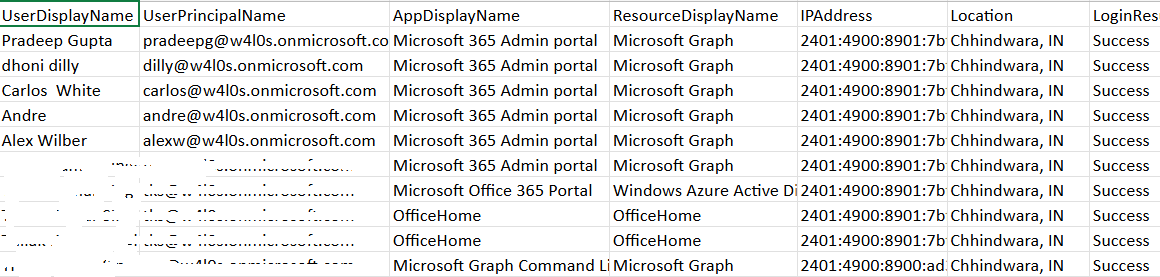
ii) How the Script Works
- Connects to Microsoft Graph – The script authenticates using delegated permissions AuditLog.Read.All (to read sign-in logs) and Mail.Send (to email the report).
- Fetches Sign-In Logs – Retrieves Entra ID sign-in records from the last 7 days using the correct UTC format required by Microsoft Graph.
- Filters Successful Logins – Only records with an errorCode value of 0 are included, indicating successful sign-ins.
- Generates Report – The report includes user identity details, IP, location, and conditional access outcomes. Failure-related fields (ErrorCode, FailureReason, etc.) are included but remain blank for successful attempts, giving a consistent reporting structure.
- Emails the Report – The script exports the report to CSV and sends it to the administrator’s mailbox as an HTML email attachment.
iii) Further Enhancements
- Custom Time Range – Allow admins to specify a custom number of days or a date range via parameters.
- Geo Insight – Highlight unusual login regions or devices by integrating IP reputation data.
- Success Ratio Analysis – Combine this script with failed login reports to calculate overall authentication success rates.
- Dashboard Integration – Automatically upload reports to a shared location such as SharePoint or Teams.
- Automation – Schedule weekly execution through Task Scheduler or Azure Automation to maintain audit consistency.
iv) Possible Errors and Solutions
| Error | Cause | Solution |
|---|---|---|
| Invalid filter clause | The timestamp filter format isn’t accepted by Graph API. | Use the format "yyyy-MM-ddTHH:mm:ssZ" to ensure UTC compliance. |
| Insufficient privileges | The account lacks the required scopes. | Run Connect-MgGraph -Scopes "AuditLog.Read.All","Mail.Send". |
| Send-MgUserMail : Resource not found | The $AdminUPN provided doesn’t correspond to a valid mailbox. | Ensure $AdminUPN is a mail-enabled account. |
| Empty CSV File | No successful sign-ins occurred within the defined window. | Extend $LookbackDays or confirm sign-in logging is enabled in Entra ID. |
v) Conclusion
This Graph PowerShell script enables administrators to efficiently monitor successful user logins across their Microsoft 365 environment. By automatically generating and emailing the report, it provides a reliable, hands-free approach to validating authentication events and access trends.
The inclusion of both success and failure-related fields creates a unified reporting framework, allowing quick correlation between successful and failed attempts.