List All Entra ID Applications Without API Permissions Using Graph PowerShell
In Microsoft Entra ID (Azure AD), applications often request API permissions to access Microsoft Graph or other services. However, administrators frequently encounter applications that exist without any API permissions assigned.
These apps may represent:
- Incomplete application registrations
- Abandoned test applications
- Misconfigured integrations
- Potential security review candidates
Identifying such applications helps administrators clean up unused apps, maintain governance, and strengthen tenant security posture.
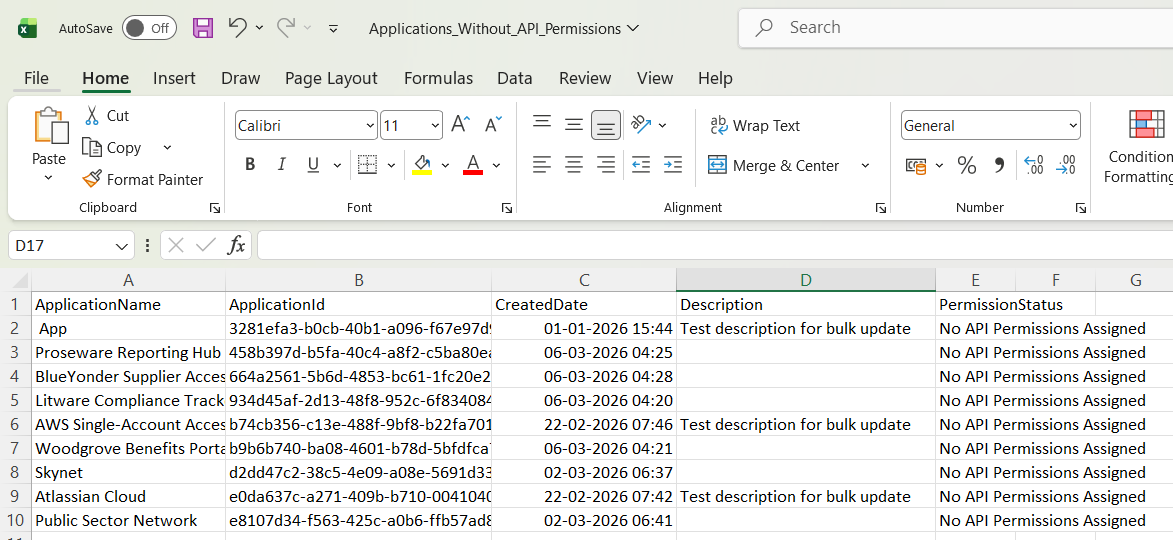
This Graph PowerShell script scans all Entra ID applications and lists applications that have no API permissions configured, exporting the results to a CSV report.
🚀 Community Edition Released!
Try the M365Corner Microsoft 365 Reporting Tool — your DIY pack with 20+ out-of-the-box M365 reports for Users, Groups, and Teams.
The Script
The following script connects to Microsoft Graph, retrieves all applications, checks their API permission configuration, and exports the results.
# Connect to Microsoft Graph
Connect-MgGraph -Scopes Application.Read.All

Write-Host "Fetching Entra ID Applications..." -ForegroundColor Cyan

# Get all applications with API permission property
$Applications = Get-MgApplication -All -Property Id,DisplayName,CreatedDateTime,Description,RequiredResourceAccess

$Results = @()

foreach ($App in $Applications) {

    # Check if API permissions exist
    if (-not $App.RequiredResourceAccess) {

        Write-Host "$($App.DisplayName) → No API permissions assigned" -ForegroundColor Yellow

        $Results += [PSCustomObject]@{
            ApplicationName  = $App.DisplayName
            ApplicationId    = $App.Id
            CreatedDate      = $App.CreatedDateTime
            Description      = $App.Description
            PermissionStatus = "No API Permissions Assigned"
        }
    }
}

# Export results
$ExportPath = "D:\Applications_Without_API_Permissions.csv"

$Results | Export-Csv $ExportPath -NoTypeInformation

Write-Host "Report exported to $ExportPath" -ForegroundColor Cyan
Download this script from our M365Corner GitHub Repo: https://github.com/m365corner/M365Corner-Scripts/tree/main/Entra-Apps-Related-Scripts/List-Entra-Apps-Without-API-Permissions
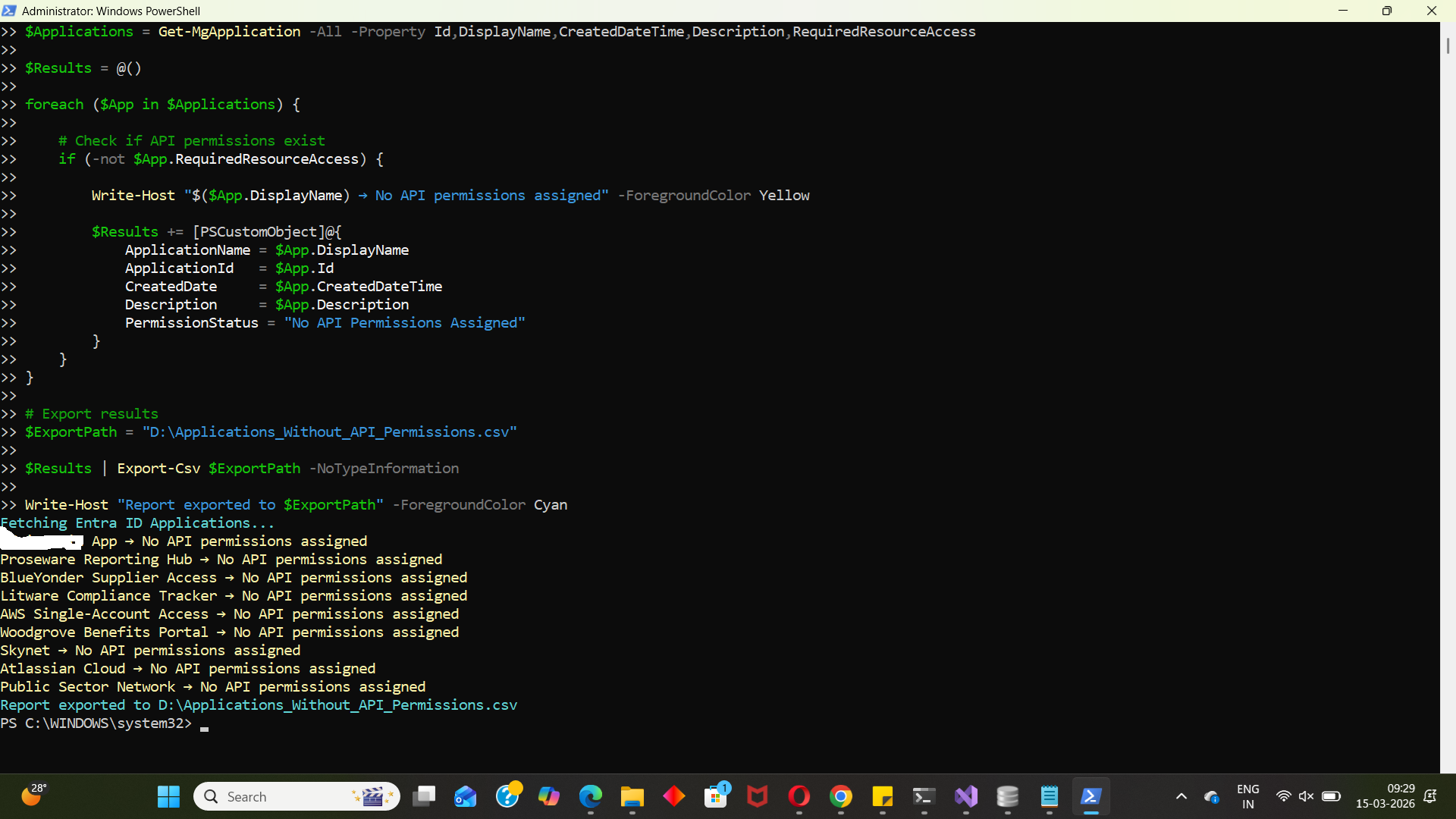
How the Script Works
Let’s break down what each section of the script does.
- Connect to Microsoft Graph
- Retrieve All Applications
- Loop Through Applications
- Identify Applications Without API Permissions
- The script prints a message to the console
- The application details are added to the results object.
- Store Results in a Custom Object
- Application Name
- Application ID
- Creation Date
- Description
- Permission Status
- Export the Report
- Security audits
- Application cleanup
- Governance reviews
- Documentation
Connect-MgGraph -Scopes Application.Read.AllThe script begins by authenticating to Microsoft Graph.
The Application.Read.All permission allows administrators to retrieve information about all applications in the tenant.
This permission is required because application registration data is stored in Entra ID.
$Applications = Get-MgApplication -All -Property Id,DisplayName,CreatedDateTime,Description,RequiredResourceAccessThis command retrieves all application registrations from the tenant.
Important properties collected:
| Property | Description |
|---|---|
| Id | Unique Application ID |
| DisplayName | Application name |
| CreatedDateTime | Application creation date |
| Description | Description of the application |
| RequiredResourceAccess | API permissions assigned to the application |
The RequiredResourceAccess property is key to this script because it stores the API permission assignments.
foreach ($App in $Applications)The script iterates through each application retrieved from Entra ID.
Each application is examined individually.
if (-not $App.RequiredResourceAccess)This condition checks whether the RequiredResourceAccess property is empty.
If it is empty, the application does not have any API permissions assigned.
When such an application is found:
$Results += [PSCustomObject]@{For each qualifying application, a structured object is created containing:
This structured approach makes it easy to export the results later.
$Results | Export-Csv $ExportPath -NoTypeInformationAll identified applications are exported to a CSV file: D:\Applications_Without_API_Permissions.csv
This report can then be used for:
Further Enhancements
Administrators can extend this script with additional capabilities.
- Include Application Owners
- Identify Old Applications
- Applications older than 1 year
- Applications created during migration periods
- Applications created by former administrators
- Automatically Flag Suspicious Apps
- Applications with no API permissions
- No owners
- No sign-in activity
- Generate Governance Reports
- Applications without API permissions
- Applications with excessive permissions
- Applications created recently
Adding application owners helps determine who created or manages the application.
Example enhancement:
Retrieve owners using:
Get-MgApplicationOwnerThis helps administrators contact the responsible owner before deleting unused apps.
You can filter applications based on age.
For example:
This helps identify legacy applications that may no longer be required.
You can extend the script to flag:
These may represent abandoned or misconfigured applications.
Administrators could generate reports showing:
These reports are useful for security reviews and compliance audits.
Possible Errors & Solutions
Below are common issues administrators may encounter while running the script.
| Error | Cause | Solution |
|---|---|---|
| Insufficient privileges to complete the operation | The account running the script does not have permission to read application registrations. |
Reconnect to Microsoft Graph using: Connect-MgGraph -Scopes Application.Read.All Ensure the account has one of these roles:
|
| Get-MgApplication command not recognized Get-MgApplication : The term 'Get-MgApplication' is not recognized |
The Microsoft Graph PowerShell module is not installed. | Install the module: Install-Module Microsoft.Graph -Scope CurrentUser Then import it: Import-Module Microsoft.Graph |
| Access to the path is denied Access to the path 'D:\Applications_Without_API_Permissions.csv' is denied |
The script does not have permission to write to the selected path. |
Either: Run PowerShell as Administrator or
Example: C:\Temp\Applications_Without_API_Permissions.csv |
Conclusion
Monitoring application registrations is an essential part of Microsoft 365 tenant governance. This Graph PowerShell script helps administrators quickly identify applications that have no API permissions configured, which can often indicate:
- abandoned apps
- incomplete integrations
- test applications
- misconfigurations
By exporting this information into a CSV report, administrators gain better visibility into their Entra ID environment and can review, clean up, or document unnecessary applications.
Regularly auditing application registrations ensures your tenant remains secure, organized, and compliant with governance policies.