List Entra ID Applications With/Without Owners Using Graph PowerShell
Application governance is an important responsibility for Microsoft Entra ID administrators. Every application registered in the tenant should ideally have one or more assigned owners who are responsible for maintaining the application, reviewing permissions, and ensuring compliance with security policies.
However, in many environments administrators often need visibility into:
- Applications with assigned owners
- Applications without any owners
Identifying both categories helps administrators perform application lifecycle management, ownership validation, and security audits.
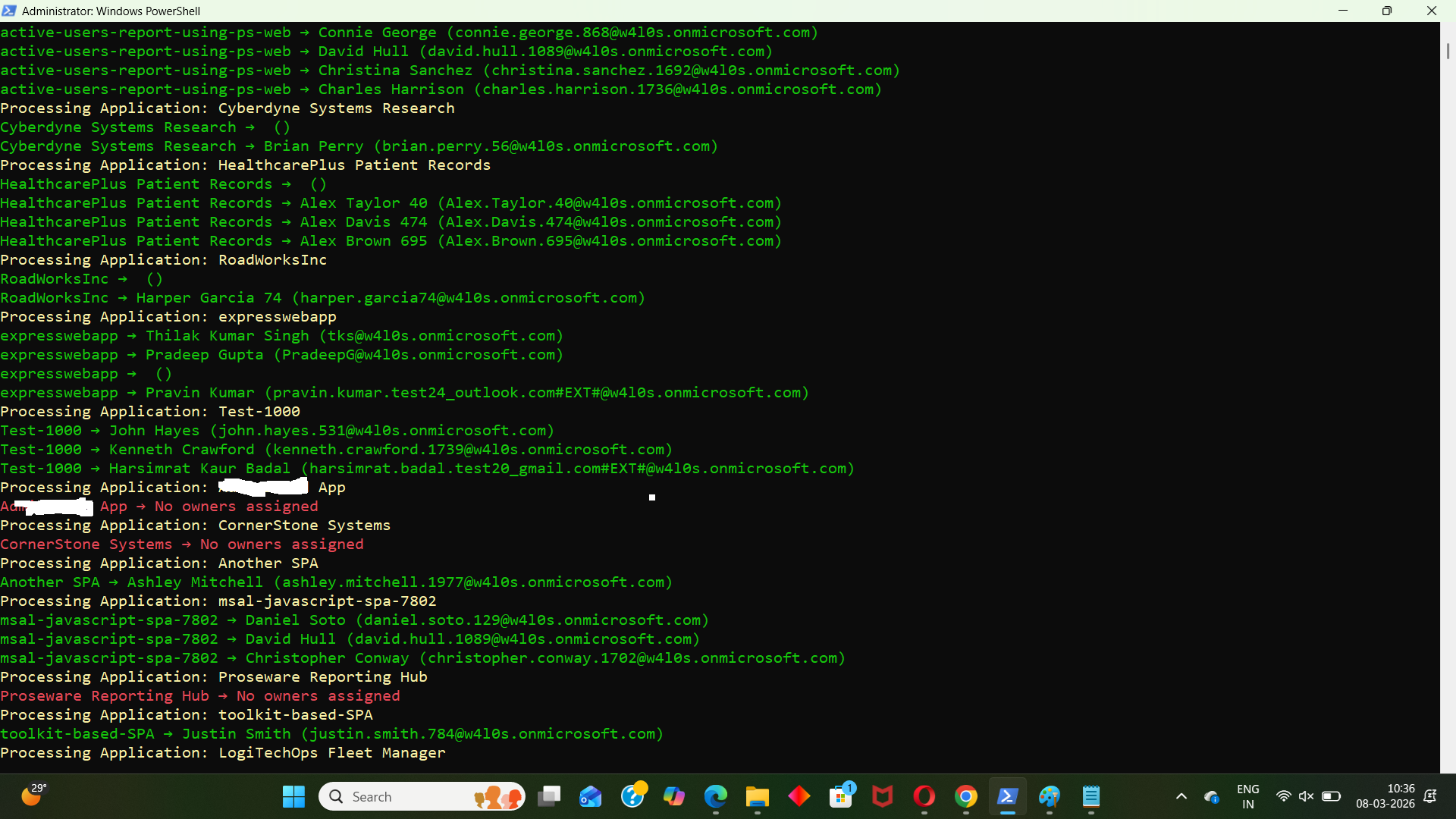
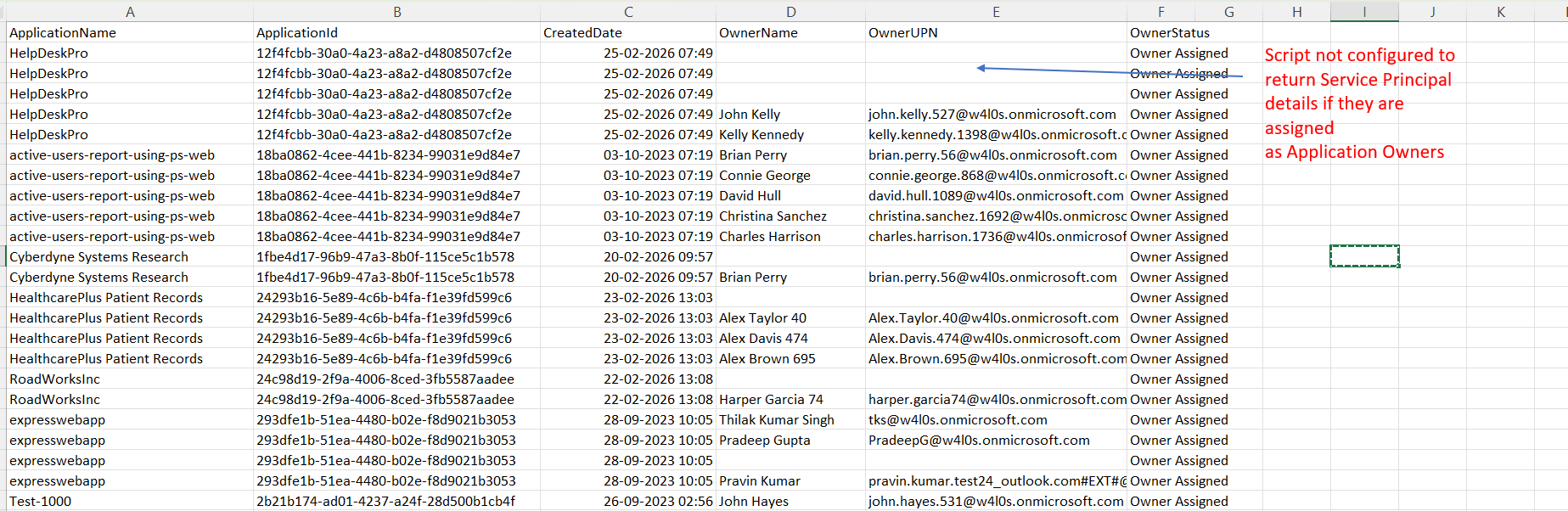
Using Microsoft Graph PowerShell, administrators can automate this process and generate a report showing all Entra ID applications along with their ownership status. The script below retrieves application details and displays whether an owner is assigned or not.
🚀 Community Edition Released!
Try the M365Corner Microsoft 365 Reporting Tool — your DIY pack with 20+ out-of-the-box M365 reports for Users, Groups, and Teams.
The Script
# Connect to Microsoft Graph
Connect-MgGraph -Scopes Application.Read.All, Directory.Read.All

Write-Host "Fetching Entra ID Applications..." -ForegroundColor Cyan

# Get all applications including additional properties
$Applications = Get-MgApplication -All -Property Id,DisplayName,CreatedDateTime,Description

$Results = @()

foreach ($App in $Applications) {

    Write-Host "Processing Application: $($App.DisplayName)" -ForegroundColor Yellow

    # Get application owners
    $Owners = Get-MgApplicationOwner -ApplicationId $App.Id

    if ($Owners) {

        foreach ($Owner in $Owners) {

            $OwnerDetails = Get-MgUser -UserId $Owner.Id -ErrorAction SilentlyContinue

            $OwnerName = $OwnerDetails.DisplayName
            $OwnerUPN  = $OwnerDetails.UserPrincipalName

            Write-Host "$($App.DisplayName) → $OwnerName ($OwnerUPN)" -ForegroundColor Green

            $Results += [PSCustomObject]@{
                ApplicationName   = $App.DisplayName
                ApplicationId     = $App.Id
                CreatedDate       = $App.CreatedDateTime
                Description       = $App.Description
                OwnerName         = $OwnerName
                OwnerUPN          = $OwnerUPN
                OwnerStatus       = "Owner Assigned"
            }
        }

    }
    else {

        Write-Host "$($App.DisplayName) → No owners assigned" -ForegroundColor Red

        $Results += [PSCustomObject]@{
            ApplicationName   = $App.DisplayName
            ApplicationId     = $App.Id
            CreatedDate       = $App.CreatedDateTime
            Description       = $App.Description
            OwnerName         = "N/A"
            OwnerUPN          = "N/A"
            OwnerStatus       = "No Owner Assigned"
        }
    }
}

# Export results
$ExportPath = "C:\Path\EntraID_All_Applications_Report.csv"
$Results | Export-Csv $ExportPath -NoTypeInformation
Write-Host "Full application inventory exported to $ExportPath" -ForegroundColor Cyan
How the Script Works
- Retrieve Deleted Microsoft 365 Groups
- Review the deleted object
- Restore the group
- Verify deletion events
- Export deleted group details for auditing
- Query Deleted Directory Objects
- Deleted Microsoft 365 groups
- Deleted security groups
- Other directory objects pending permanent removal
- Identify Deleted Group Details
- Group display name
- Group ID
- Description
- Group type
- Creation details
- Support Auditing and Recovery
- Audit deleted group activity
- Investigate accidental deletions
- Confirm group details before restoration
- Maintain compliance records
The script uses the following command:
Get-MgDirectoryDeletedItemAsGroupThis Microsoft Graph PowerShell cmdlet retrieves deleted Microsoft 365 groups that are currently stored in the Entra ID directory recycle bin.
When a Microsoft 365 group is deleted, it is not permanently removed immediately. Instead, it is moved to the Deleted Items container, allowing administrators to:
The cmdlet queries the deleted directory objects container within Entra ID.
This container temporarily stores objects such as:
The cmdlet allows administrators to retrieve these objects by specifying a DirectoryObjectId, which uniquely identifies the deleted group.
When the cmdlet retrieves a deleted group, it can return information such as:
These details help administrators confirm the identity of the deleted group before taking further action.
This cmdlet is particularly useful when administrators need to:
The retrieved information can also be exported to CSV for documentation and reporting.
Further Enhancements
Administrators can extend the functionality of this cmdlet to build more powerful reporting scripts.
- Export Deleted Groups to CSV
- Retrieve Specific Deleted Group
- Automate Deleted Object Audits
- Accidental group deletions
- Suspicious deletion activity
- Governance issues
- Combine With Group Restore Scripts
Administrators can export the deleted group information for auditing.
Example:
Get-MgDirectoryDeletedItemAsGroup | Export-Csv "d:/deletedgroups.csv" -NoTypeInformation
This creates a report containing all deleted groups currently stored in the recycle bin.
If the administrator already knows the directory object ID of the deleted group, they can retrieve only that object.
Example:
Get-MgDirectoryDeletedItemAsGroup -DirectoryObjectId <directory-object-id>
This helps quickly verify specific group deletion events.
Administrators may schedule scripts that periodically check deleted directory objects to detect:
Scheduled reporting ensures better visibility into group lifecycle events.
The output from this cmdlet can also be integrated into scripts that restore deleted groups.
This allows administrators to build automated recovery workflows.
Possible Errors & Solutions
| Error | Cause | Solution |
|---|---|---|
| Insufficient privileges to complete the operation | The account running the script does not have sufficient permissions to read directory data. | Ensure the user has one of the following roles:
Connect-MgGraph -Scopes Directory.Read.All |
| The term 'Get-MgDirectoryDeletedItemAsGroup' is not recognized | The Microsoft Graph PowerShell module is not installed. | Install the module before running the script. Install-Module Microsoft.Graph -Scope CurrentUser Then import the module: Import-Module Microsoft.Graph |
| Access token expired | The Microsoft Graph session expired. | Reconnect to Microsoft Graph: Connect-MgGraph |
| DirectoryObjectId not found | The specified object ID does not exist in the deleted items container. | Verify the correct directory object ID before executing the command. |
Conclusion
The Get-MgDirectoryDeletedItemAsGroup cmdlet provides administrators with a simple way to retrieve deleted Microsoft 365 groups from the Entra ID directory recycle bin. This functionality is essential for auditing deleted objects, verifying group deletion events, and recovering groups before permanent removal.
By incorporating this cmdlet into administrative scripts or automation workflows, administrators can improve visibility into group lifecycle events and maintain better governance across the Microsoft 365 environment.