Get Standard Channel Count Per Team Using Microsoft Graph PowerShell
Microsoft Teams environments often contain hundreds of teams and thousands of channels. For administrators managing collaboration environments, understanding how many standard channels exist within each team can help with governance, reporting, and environment auditing.
Standard channels are the default channels in Microsoft Teams and are accessible to all team members. Administrators may want to track their usage across teams to identify heavily used teams, maintain governance standards, or prepare reports.
In this article, we will use Microsoft Graph PowerShell to fetch all teams in the tenant, count the number of standard channels in each team, and export the results into a CSV report.
🚀 Community Edition Released!
Try the M365Corner Microsoft 365 Reporting Tool — your DIY pack with 20+ out-of-the-box M365 reports for Users, Groups, and Teams.
The Script
# Connect to Microsoft Graph
Connect-MgGraph -Scopes "Team.ReadBasic.All","Channel.ReadBasic.All"

# Fetch all Teams
$Teams = Get-MgTeam -All

# Store results
$Results = @()

foreach ($Team in $Teams) {

    # Fetch only Standard Channels
    $StandardChannels = Get-MgTeamChannel -TeamId $Team.Id -Filter "membershipType eq 'standard'" -All

    # Count channels
    $ChannelCount = $StandardChannels.Count

    # Store output
    $Results += [PSCustomObject]@{
        TeamName = $Team.DisplayName
        TeamId = $Team.Id
        StandardChannelCount = $ChannelCount
    }
}

# Export results to CSV
$Results | Export-Csv -Path "Standard_Channel_Count_Per_Team.csv" -NoTypeInformation -Encoding UTF8

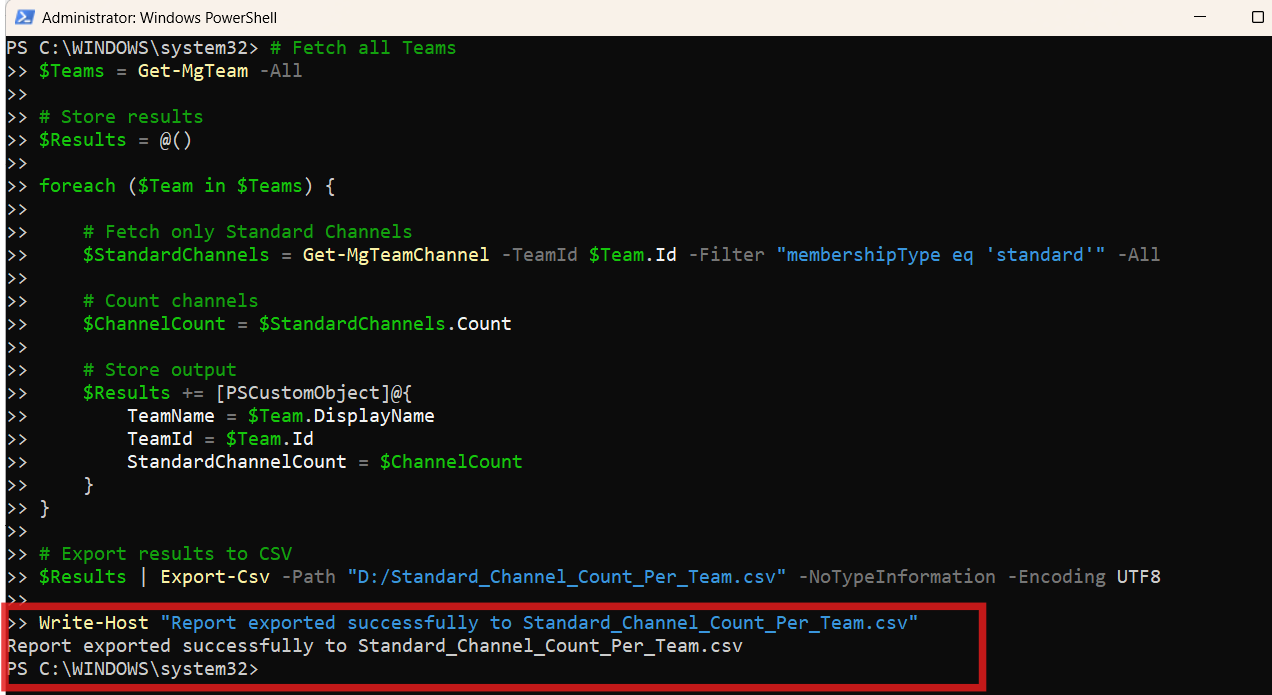
Write-Host "Report exported successfully to Standard_Channel_Count_Per_Team.csv"
How the Script Works
This script retrieves all Microsoft Teams in the tenant and calculates the number of standard channels for each team before exporting the results into a CSV report.
Connecting to Microsoft Graph
The script begins by connecting to Microsoft Graph using the required permissions:
Connect-MgGraph -Scopes "Team.ReadBasic.All","Channel.ReadBasic.All"These permissions allow the script to retrieve team information and channel details.
Retrieving All Teams
Next, the script retrieves every team in the tenant.
$Teams = Get-MgTeam -AllThe -All parameter ensures that the script retrieves all teams, even in large tenants where results are paginated.
Looping Through Each Team
The script then processes each team individually using a loop.
foreach ($Team in $Teams)This allows the script to perform operations for every team retrieved.
Fetching Standard Channels
Inside the loop, the script retrieves only standard channels.
$StandardChannels = Get-MgTeamChannel -TeamId $Team.Id -Filter "membershipType eq 'standard'" -AllMicrosoft Teams channels have a property called membershipType, which can have the following values:
- standard
- private
- shared
By applying the filter membershipType eq 'standard', the script ensures that only standard channels are returned.
Counting Channels
The number of standard channels is then calculated.
$ChannelCount = $StandardChannels.CountStoring Results
The script stores the results in a custom PowerShell object.
$Results += [PSCustomObject]@{
  TeamName = $Team.DisplayName
  TeamId = $Team.Id
  StandardChannelCount = $ChannelCount
}
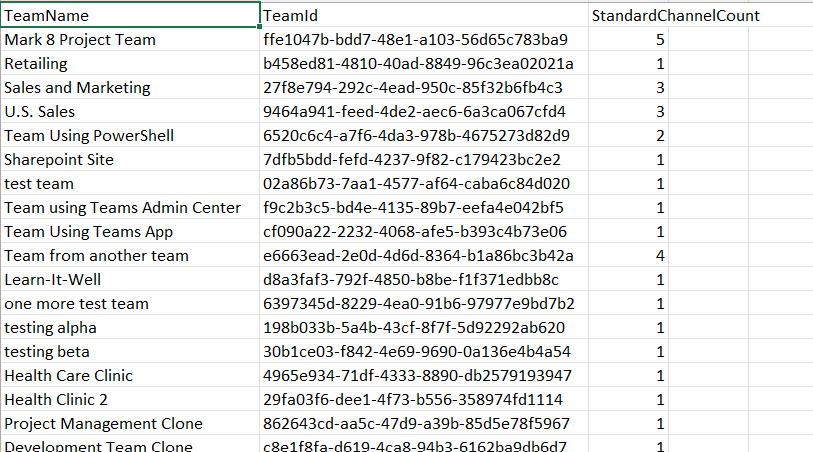
Each entry contains:
- Team Name
- Team ID
- Standard Channel Count
Exporting the Report
Finally, the results are exported into a CSV file.
$Results | Export-Csv -Path "Standard_Channel_Count_Per_Team.csv" -NoTypeInformation -Encoding UTF8This generates a report that can be easily opened in Excel or imported into other reporting tools.
Further Enhancements
Administrators may want to extend this script further depending on their reporting needs.
Include Private and Shared Channels
The script can be modified to also report private and shared channels per team for a more complete view of channel distribution.
Add Total Channel Count
You may include an additional column showing the total number of channels within each team.
Export Additional Team Details
Additional team properties such as:
- Team visibility
- Team description
- Creation date
can be added to the output report.
Schedule Automated Reports
The script can be scheduled using Task Scheduler or Azure Automation to generate periodic reports on channel distribution across teams.
Possible Errors & Solutions
| Error | Cause | Solution |
|---|---|---|
| Insufficient privileges to complete the operation. | The script does not have the required Microsoft Graph permissions. | Reconnect to Microsoft Graph with the required scopes: Connect-MgGraph -Scopes "Team.ReadBasic.All","Channel.ReadBasic.All" Ensure that the administrator consents to the permissions if required. |
| Get-MgTeamChannel : Resource not found. | The team ID may be invalid or the team may have been deleted. | Ensure the team exists and that the script is retrieving valid team IDs from Get-MgTeam. |
| Access Denied when exporting the CSV file. | PowerShell does not have permission to write to the specified directory. | Specify a writable path such as: Export-Csv -Path "C:\Reports\Standard_Channel_Count_Per_Team.csv" |
Conclusion
Tracking channel distribution across Microsoft Teams can help administrators better understand collaboration patterns within their organization. By using Microsoft Graph PowerShell, administrators can quickly retrieve the number of standard channels per team and generate a structured report for further analysis.
This script provides a simple yet effective way to audit Teams channel usage and export the data into a CSV report for easy review. Administrators can further enhance the script to include additional channel types, team properties, or scheduled reporting to support ongoing governance and monitoring efforts within their Microsoft Teams environment.