Get-MgGroupMemberAsGroup: Graph PowerShell Cmdlet
In Microsoft Entra ID, groups can contain other groups as members, enabling nested group designs for access management and delegation. When you need to specifically identify which groups are members of another group, filtering out users, devices, and service principals, the Get-MgGroupMemberAsGroup cmdlet is the right tool.
This cmdlet returns only group objects that are direct members of a specified group, making it especially useful for reviewing nested group structures and troubleshooting complex access configurations.
Note: Group nesting is not allowed for groups that can be assigned to a role. This cmdlet is therefore most relevant for standard security groups and Microsoft 365 groups that support nesting.
🚀 Community Edition Released!
Try the M365Corner Microsoft 365 Reporting Tool — your DIY pack with 20+ out-of-the-box M365 reports for Users, Groups, and Teams.
i) Cmdlet Syntax
Get-MgGroupMemberAsGroup -GroupId <String>Key parameter:
- -GroupId: The object ID of the Microsoft 365 or Entra ID group whose group members you want to retrieve.
If omitted, the console prompts you to enter it.
ii) Usage Examples
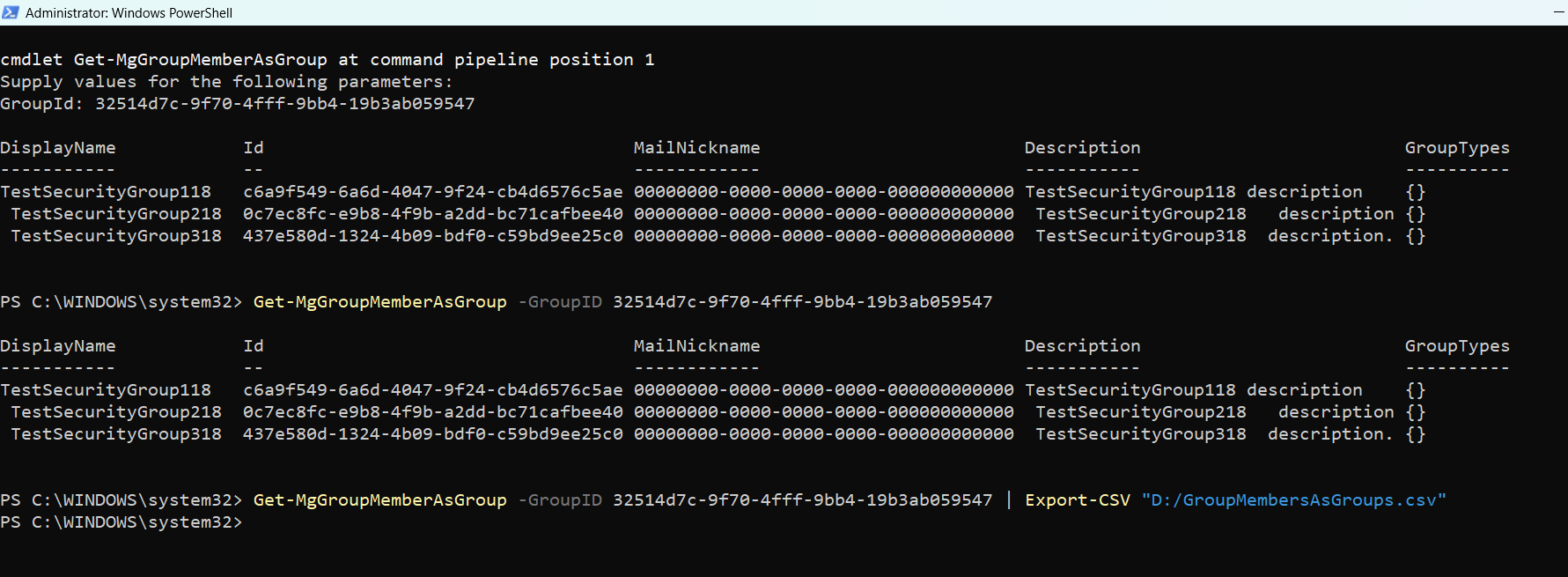
Example 1: Passing GroupId when requested by the console
Get-MgGroupMemberAsGroupExplanation:
When run without parameters, the cmdlet prompts for the GroupId. After you provide it, the command returns only the group objects that are direct members of the specified group.
Example 2: Passing GroupId directly
Get-MgGroupMemberAsGroup -GroupID 32514d7c-9f70-4fff-9bb4-19b3ab059547Explanation:
This example retrieves all nested groups that are direct members of the specified group, excluding users, devices, service principals, and contacts.
Example 3: Exporting the results to CSV
Get-MgGroupMemberAsGroup -GroupID 32514d7c-9f70-4fff-9bb4-19b3ab059547 |
Export-CSV "D:/GroupMembersAsGroups.csv"
Explanation:
Exports the list of nested group members to a CSV file, which is helpful for audits, documentation, or sharing group hierarchy details.
iii) Cmdlet Tips
- This cmdlet returns only group objects that are direct members of the specified group.
- Nested membership is not expanded recursively; only direct group members are returned.
- Ideal for auditing group-to-group relationships in complex access models.
- Combine with Select-Object to export only key properties such as DisplayName and Id.
- Remember that role-assignable groups cannot have nested group members, so results may be empty in those scenarios.
iv) Possible Errors & Solutions
| Error / Message | Cause | Solution |
| Authorization_RequestDenied | Insufficient permissions | Ensure Group.Read.All permission is granted with admin consent. |
| ResourceNotFound | Invalid GroupId | VerVerify the group object ID in the Entra admin center. |
| Empty output | No nested group members | Confirm whether the group actually contains other groups as members. |
| Cmdlet not recognized | Microsoft.Graph module missing | Install or update the module using Install-Module Microsoft.Graph. |
v) Conclusion
The Get-MgGroupMemberAsGroup cmdlet provides a focused and efficient way to retrieve nested group memberships in Microsoft Entra ID. By filtering out non-group objects and returning only direct group members, it helps administrators clearly understand group hierarchies, validate access models, and support audits—while respecting Entra ID limitations around role-assignable groups.