Find Entra Service Principals With High Risk Permissions
Service principals in Microsoft Entra ID often hold API permissions that allow them to access data, modify directory objects, or perform administrative actions. Some permissions are considered high-risk because they provide: i) Full directory access, ii) User and group modification rights, iii) Application-level control and iv) Role and privilege management
Examples include:
- Directory.ReadWrite.All
- User.ReadWrite.All
- RoleManagement.ReadWrite.Directory
👉 Identifying service principals with such permissions is critical for maintaining a strong security posture and least privilege model.
This script helps administrators detect Entra service principals with high-risk permissions and export the results for auditing and remediation.
🚀 Community Edition Released!
Try the M365Corner Microsoft 365 Reporting Tool — your DIY pack with 20+ out-of-the-box M365 reports for Users, Groups, and Teams.
The Script
# Connect to Microsoft Graph
Connect-MgGraph -Scopes Application.Read.All

Write-Host "Scanning Service Principals with HIGH-RISK permissions..." -ForegroundColor Cyan

# Define high-risk permissions
$HighRiskPermissions = @(
    "Directory.ReadWrite.All",
    "User.ReadWrite.All",
    "Application.ReadWrite.All",
    "RoleManagement.ReadWrite.Directory",
    "Group.ReadWrite.All",
    "AppRoleAssignment.ReadWrite.All",
    "Directory.Read.All",
    "User.Read.All",
    "Group.Read.All"
)

# Get all service principals
$ServicePrincipals = Get-MgServicePrincipal -All -Property Id,DisplayName,AppId

$Results = @()

foreach ($SP in $ServicePrincipals) {

    # Get assigned app role permissions
    $Assignments = Get-MgServicePrincipalAppRoleAssignment -ServicePrincipalId $SP.Id -All -ErrorAction SilentlyContinue

    $MatchedPermissions = @()

    foreach ($Assignment in $Assignments) {

        # Resolve resource service principal
        $ResourceSP = Get-MgServicePrincipal -ServicePrincipalId $Assignment.ResourceId -Property AppRoles

        # Match AppRoleId to actual permission name
        $Role = $ResourceSP.AppRoles | Where-Object { $_.Id -eq $Assignment.AppRoleId }

        if ($Role -and $HighRiskPermissions -contains $Role.Value) {
            $MatchedPermissions += $Role.Value
        }
    }

    if ($MatchedPermissions.Count -gt 0) {

        # Console output (minimal)
        Write-Host "$($SP.DisplayName) | $($SP.AppId)" -ForegroundColor Red

        # Export object (detailed)
        $Results += [PSCustomObject]@{
            DisplayName         = $SP.DisplayName
            ServicePrincipalId  = $SP.Id
            AppId               = $SP.AppId
            HighRiskPermissions = ($MatchedPermissions -join ", ")
            RiskLevel           = "High"
        }
    }
}

# Export results
$ExportPath = "C:\SP_HighRiskPermissions_Report.csv"

$Results | Export-Csv $ExportPath -NoTypeInformation

Write-Host "Report exported to $ExportPath" -ForegroundColor Cyan

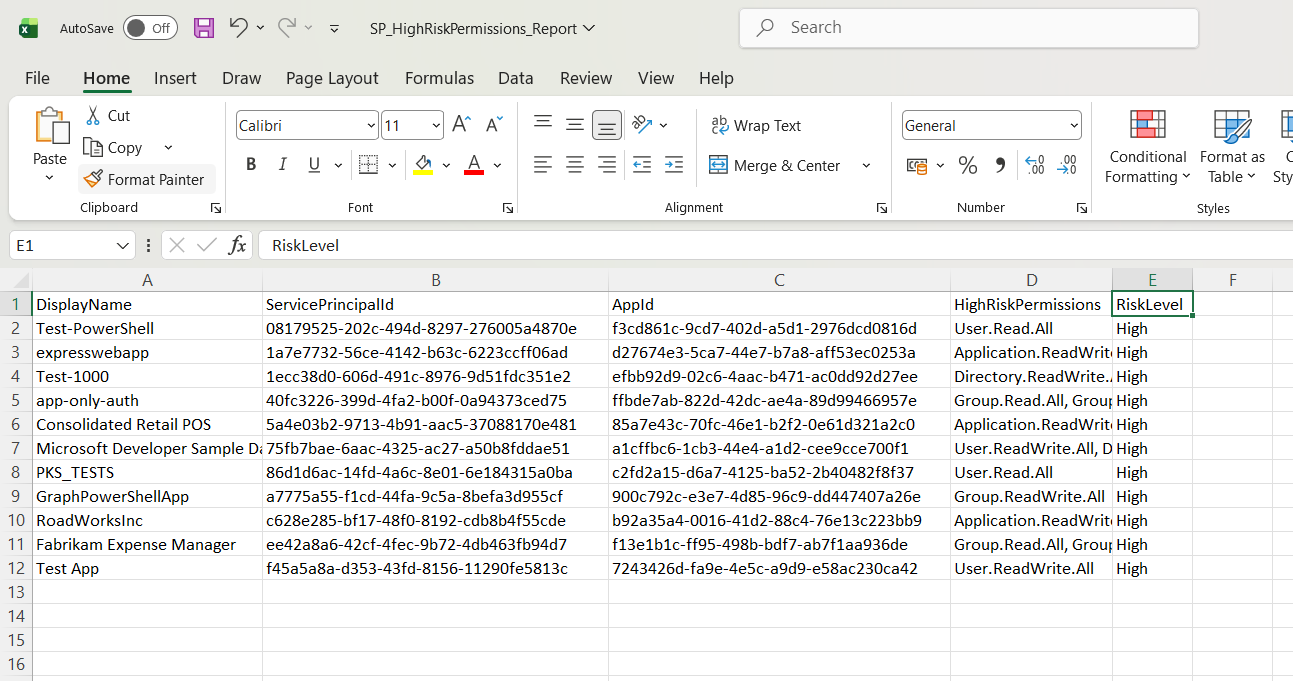
How the Script Works
| Step | Description |
|---|---|
| Connect to Graph | Authenticates using Application.Read.All |
| Define High-Risk Permissions | Stores a predefined list of sensitive permissions |
| Fetch Service Principals | Retrieves all service principals |
| Get App Role Assignments | Fetches assigned permissions using Get-MgServicePrincipalAppRoleAssignment |
| Resolve Permission Names | Matches AppRoleId with actual permission values |
| Compare with High-Risk List | Checks if permissions match high-risk entries |
| Identify Risky SPs | Filters service principals with high-risk permissions |
| Build Report | Stores details including matched permissions |
| Export Results | Outputs results to CSV |
Further Enhancements
| Enhancement | Description |
|---|---|
| Add Owner Details | Identify who owns high-risk service principals |
| Include App Type | Differentiate between managed identities and app registrations |
| Add Last Sign-In | Identify active vs unused high-risk service principals |
| Risk Classification | Categorize into medium, high, and critical |
| Auto Alerting | Trigger alerts when high-risk permissions are detected |
Frequently Asked Questions
| Question | Answer |
|---|---|
| What are high-risk permissions? | Permissions that allow broad or sensitive access to directory or data |
| Why are these permissions dangerous? | They can be exploited to gain full control over tenant resources |
| Are all read permissions risky? | Some read permissions are included as they expose sensitive data |
| ShoCan a service principal have multiple high-risk permissions? | Yes, and this increases the risk level |
| Should all high-risk SPs be removed? | No, review business necessity before taking action |
Admin Usecases
| Use Case | Description |
|---|---|
| Security Audit | Identify service principals with elevated privileges |
| Risk Assessment | Detect over-permissioned applications |
| Compliance Reporting | Ensure least privilege principle is followed |
| Incident Response | Investigate potential attack surfaces |
| Governance Review | Monitor and control API permissions |
Possible Errors & Solutions
| Error | Cause | Solution |
|---|---|---|
| Insufficient privileges | Missing Graph permissions | Use Application.Read.All |
| Cmdlet not recognized | Graph module not installed | Install using Install-Module Microsoft.Graph |
| Access token expired | Session timeout | Reconnect using Connect-MgGraph |
| Slow execution | Large tenant or multiple API calls | Optimize or cache results |
| Permission resolution failure | Resource SP not found | Add error handling for null values |
Conclusion
Service principals with high-risk permissions represent one of the most critical security concerns in Microsoft Entra ID. Without proper monitoring, these identities can provide excessive access to sensitive resources and increase the attack surface.
This Microsoft Graph PowerShell script provides a practical way to identify service principals with high-risk permissions and export the results for review. By regularly auditing these permissions, administrators can enforce the least privilege principle, reduce risk, and strengthen overall security posture.
Incorporating this script into your governance strategy ensures better visibility, control, and compliance across your Entra environment.