Find Entra ID Applications Without Owners Using PowerShell
Application ownership is a key governance requirement in Microsoft Entra ID. Application owners are responsible for maintaining the application, reviewing permissions, and ensuring the application remains secure and relevant within the tenant.
However, many environments accumulate orphaned applications over time—applications that do not have any assigned owners. These applications pose governance and security risks because no one is accountable for their maintenance.
Using Microsoft Graph PowerShell, administrators can easily identify such applications and generate a report for remediation. The script below retrieves all Entra ID applications and lists those that do not have any assigned owners, exporting the results to a CSV file for review.
🚀 Community Edition Released!
Try the M365Corner Microsoft 365 Reporting Tool — your DIY pack with 20+ out-of-the-box M365 reports for Users, Groups, and Teams.
The Script
# Connect to Microsoft Graph
Connect-MgGraph -Scopes Application.Read.All, Directory.Read.All

Write-Host "Fetching Entra ID Applications..." -ForegroundColor Cyan

# Get all applications
$Applications = Get-MgApplication -All

$Results = @()

foreach ($App in $Applications) {

    Write-Host "Checking Application: $($App.DisplayName)" -ForegroundColor Yellow

    # Get application owners
    $Owners = Get-MgApplicationOwner -ApplicationId $App.Id

    # Process only applications without owners
    if (-not $Owners) {

        Write-Host "$($App.DisplayName) → No owners assigned" -ForegroundColor Red

        $Results += [PSCustomObject]@{
            ApplicationName = $App.DisplayName
            ApplicationId   = $App.Id
            OwnerStatus     = "No Owner Assigned"
        }
    }
}

# Export results
$ExportPath = "C:\Path\EntraID_Applications_Without_Owners.csv"

$Results | Export-Csv $ExportPath -NoTypeInformation

Write-Host "Report exported to $ExportPath" -ForegroundColor Cyan
How the Script Works
- Connect to Microsoft Graph
- Read Entra ID application registrations
- Retrieve application ownership details
- Access directory objects
- Retrieve All Entra ID Applications
- Loop Through Each Application
- Retrieve Application Owners
- Identify Applications Without Owners
- Displays a message in the console
- Adds the application details to the report
- Build the Report
- Application Name
- Application ID
- Owner status
- Export the Results
The script begins by connecting to Microsoft Graph with the necessary permissions.
Connect-MgGraph -Scopes Application.Read.All, Directory.Read.AllThese permissions allow the script to:
Without these permissions, the script cannot retrieve application or owner information.
The script then retrieves all applications present in the Entra ID tenant.
$Applications = Get-MgApplication -AllThe -All parameter ensures that the script retrieves every application in the tenant, including those beyond the default result limit.
The script iterates through each application retrieved.
foreach ($App in $Applications)For each application, it checks whether the application has any owners assigned.
Owners are retrieved using the following command:
$Owners = Get-MgApplicationOwner -ApplicationId $App.Id
This command returns the owners associated with the application.
The script evaluates whether the application has owners:
if (-not $Owners)If no owners are found, the script:
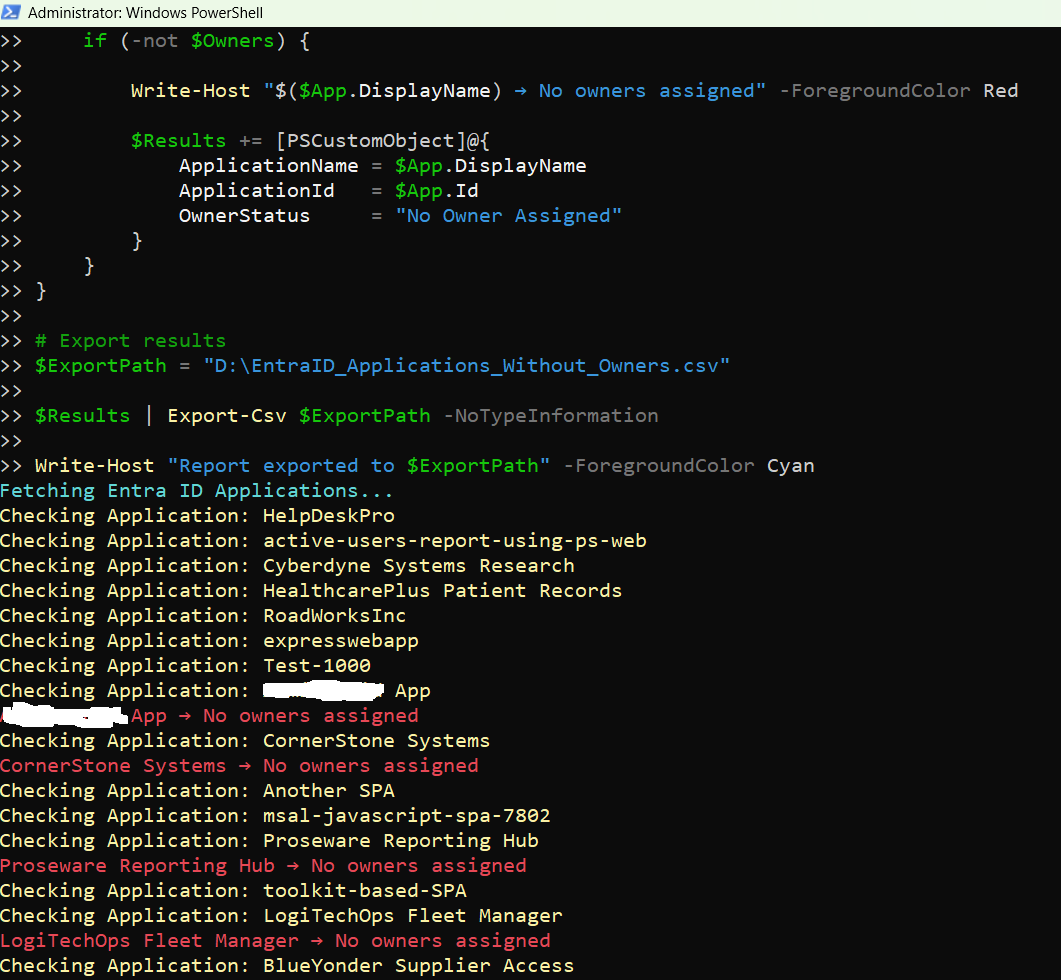
Example console output:
ApplicationName → No owners assigned
For each application without owners, the script creates a custom PowerShell object containing:
[PSCustomObject]@{
  ApplicationName = $App.DisplayName
  ApplicationId   = $App.Id
  OwnerStatus     = "No Owner Assigned"
}
These objects are stored in the $Results array.
Finally, the script exports the collected data to a CSV report.
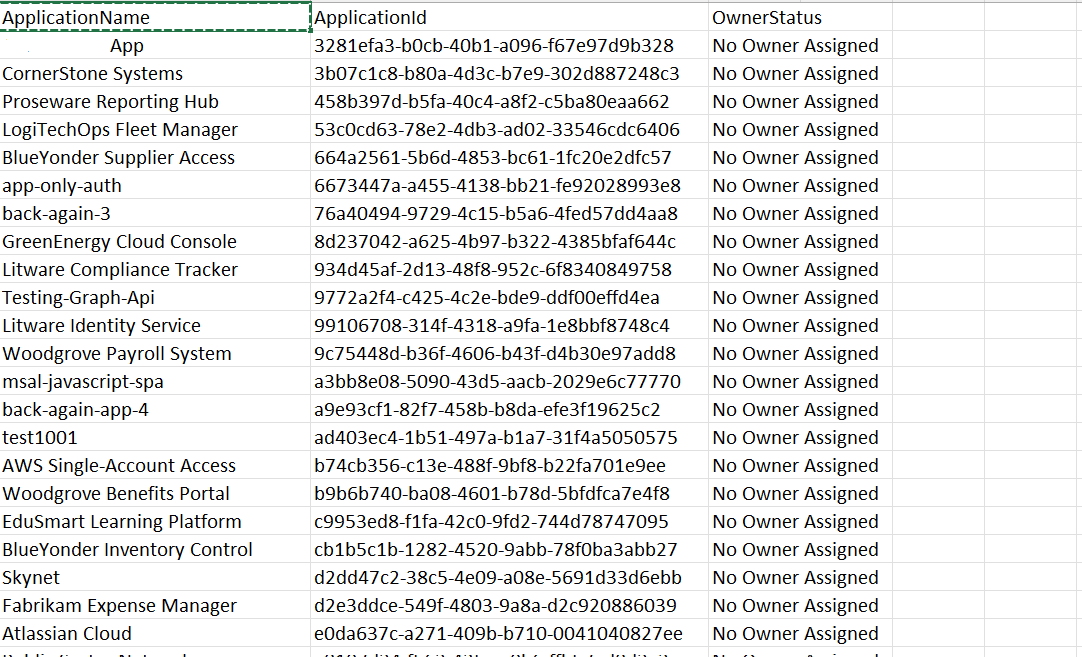
$Results | Export-Csv $ExportPath -NoTypeInformationThe generated report contains the following fields:
| Column | Description |
|---|---|
| ApplicationName | Name of the Entra ID application |
| ApplicationId | Unique identifier of the application |
| OwnerStatus | Indicates that no owner is assigned |
This report can be used for governance and cleanup activities.
Further Enhancements
Administrators may extend this script to make it even more useful in large environments.
- Include Application Creation Date
- Export Additional Application Properties
- AppId
- PublisherDomain
- SignInAudience
- Automatically Assign Owners
- Filter Applications
- Schedule Regular Reports
- Windows Task Scheduler
- Azure Automation
- Scheduled PowerShell jobs
You can add the application creation timestamp to the report:
CreatedDateTime
This helps identify older orphaned applications that may no longer be required.
Consider adding properties such as:
This provides deeper visibility into application configuration.
Once applications without owners are identified, administrators can automatically assign owners using: New-MgApplicationOwnerByRef
This can help enforce governance policies.
Instead of scanning all applications, administrators may filter by name:
Get-MgApplication -Filter "startsWith(displayName,'HR')"This reduces processing time in large tenants.
To maintain governance hygiene, schedule the script using:
Running the report periodically helps ensure that newly created applications always have assigned owners.
Possible Errors & Solutions
| Error | Cause | Solution |
|---|---|---|
| Insufficient privileges to complete the operation | The account executing the script does not have sufficient permissions to read application data. | Ensure the script is executed with permissions such as:
Additionally, the account should have one of the following roles:
|
| The term 'Get-MgApplication' is not recognized | The Microsoft Graph PowerShell module is not installed. | Install the module before running the script. Install-Module Microsoft.Graph -Scope CurrentUser Then import the module: Import-Module Microsoft.Graph |
| Access token expired | Microsoft Graph sessions expire after some time. | Reconnect to Microsoft Graph: Connect-MgGraph |
| Export path not found | The directory specified in $ExportPath does not exist. | Ensure the folder exists before running the script. Example: C:\Path\ Alternatively, modify the export path to an existing directory. |
Conclusion
Applications without assigned owners can quickly become governance and security risks in Microsoft Entra ID environments. Identifying these orphaned applications helps administrators ensure that every application has a responsible owner who can maintain it, review permissions, and manage lifecycle changes.
The Microsoft Graph PowerShell script provided in this article allows administrators to quickly identify Entra ID applications without owners and export the results into a structured report. With minor enhancements and scheduled execution, this script can become a powerful tool for maintaining proper application governance across the tenant.