List Entra ID Applications with High-Risk API Permissions Using Graph PowerShell
API permissions allow applications to access Microsoft 365 resources such as users, groups, files, and mailboxes. While these permissions enable powerful integrations, certain permissions are considered high risk because they grant broad access to directory data or allow modification of sensitive resources.
Examples include permissions like:
- Directory.ReadWrite.All
- User.ReadWrite.All
- Application.ReadWrite.All
Applications with such permissions can potentially modify users, change directory settings, or access sensitive data, making them important targets for security reviews.
This Graph PowerShell script helps administrators identify applications that have high-risk API permissions assigned and export the results into a CSV report for auditing and governance purposes.
🚀 Community Edition Released!
Try the M365Corner Microsoft 365 Reporting Tool — your DIY pack with 20+ out-of-the-box M365 reports for Users, Groups, and Teams.
The Script
Below is the script that scans all Entra ID applications and lists those containing high-risk API permissions.
# Connect to Microsoft Graph
Connect-MgGraph -Scopes Application.Read.All

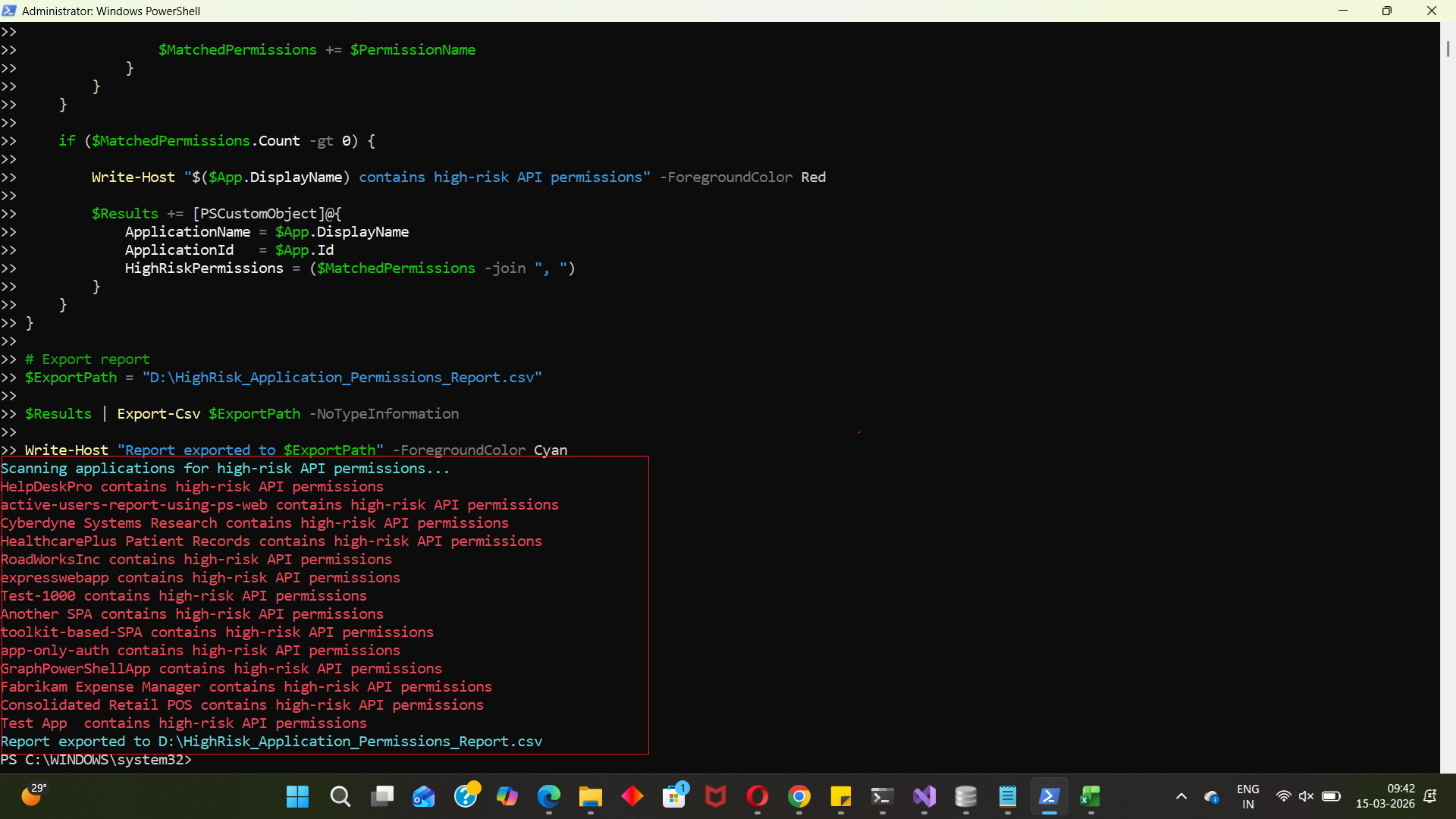
Write-Host "Scanning applications for high-risk API permissions..." -ForegroundColor Cyan

# Define high-risk permissions
$HighRiskPermissions = @(
"Directory.ReadWrite.All",
"User.ReadWrite.All",
"Application.ReadWrite.All",
"RoleManagement.ReadWrite.Directory",
"Group.ReadWrite.All",
"Mail.ReadWrite",
"Files.ReadWrite.All"
)

# Get all applications
$Applications = Get-MgApplication -All -Property Id,DisplayName,RequiredResourceAccess

$Results = @()

foreach ($App in $Applications) {

    $MatchedPermissions = @()

    foreach ($Resource in $App.RequiredResourceAccess) {

        foreach ($Access in $Resource.ResourceAccess) {

            # Resolve permission name
            $PermissionId = $Access.Id

            # Get permission details from service principal
            $ServicePrincipal = Get-MgServicePrincipal -Filter "appId eq '$($Resource.ResourceAppId)'" -Property AppRoles,Oauth2PermissionScopes

            $PermissionName = ($ServicePrincipal.AppRoles + $ServicePrincipal.Oauth2PermissionScopes | Where-Object {$_.Id -eq $PermissionId}).Value

            if ($HighRiskPermissions -contains $PermissionName) {

                $MatchedPermissions += $PermissionName
            }
        }
    }

    if ($MatchedPermissions.Count -gt 0) {

        Write-Host "$($App.DisplayName) contains high-risk API permissions" -ForegroundColor Red

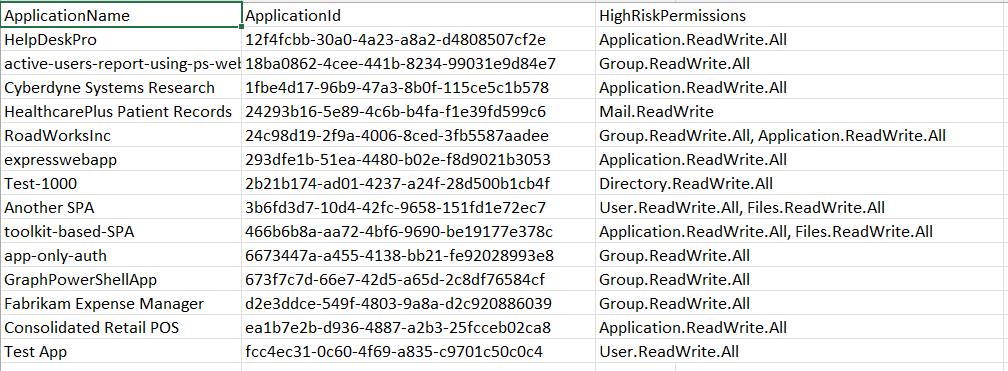
        $Results += [PSCustomObject]@{
            ApplicationName      = $App.DisplayName
            ApplicationId        = $App.Id
            HighRiskPermissions  = ($MatchedPermissions -join ", ")
        }
    }
}

# Export report
$ExportPath = "D:\HighRisk_Application_Permissions_Report.csv"

$Results | Export-Csv $ExportPath -NoTypeInformation

Write-Host "Report exported to $ExportPath" -ForegroundColor Cyan
Download this script from our M365Corner GitHub Repo: https://github.com/m365corner/M365Corner-Scripts/tree/main/Entra-Apps-Related-Scripts/List-Entra-Apps-With-High-Risk-API-Permissions
How the Script Works
Let’s walk through the script step by step.
- Connect to Microsoft Graph
- Define High-Risk Permissions
- Modify directory objects
- Access or modify user accounts
- Manage applications
- Read or modify files and mailboxes
- Retrieve All Applications
- Scan Application Permissions
- The script checks every API resource
- It then checks every permission assigned to that resource.
- Resolve Permission Names
- AppRoles
- Oauth2PermissionScopes
- Match Against High-Risk Permissions
- The permission is flagged
- It is stored in a collection of matched permissions.
- Record Applications with Risky Permissions
- Displays a warning in the console
- Adds the application details to a result object.
- Application Name
- Application ID
- High-Risk Permissions assigned
- Export the Security Report
- Security audits
- Compliance checks
- Application governance reviews
- Permission cleanup initiatives.
Connect-MgGraph -Scopes Application.Read.AllThe script starts by authenticating to Microsoft Graph.
The Application.Read.All permission allows the script to retrieve application registration details from Microsoft Entra ID.
This permission is necessary because application metadata and API permissions are stored within the directory.
$HighRiskPermissions = @(...)A list of high-risk API permissions is defined in an array.
These permissions are considered sensitive because they allow applications to:
Administrators can expand this list depending on their organization's security policies.
$Applications = Get-MgApplication -All -Property Id,DisplayName,RequiredResourceAccessThis command retrieves all application registrations in the tenant.
Key properties retrieved include:
| Property | Purpose |
|---|---|
| Id | Unique identifier of the application |
| DisplayName | Application name |
| RequiredResourceAccess | API permissions assigned to the application |
The RequiredResourceAccess property contains details of the APIs and permissions the application requests.
The script loops through each application and inspects its API permissions.
foreach ($App in $Applications)For each application:
API permissions are stored internally as permission IDs, not readable names.
The script resolves these IDs by retrieving the associated service principal.
$ServicePrincipal = Get-MgServicePrincipalIt then searches both:
to find the matching permission name.
The resolved permission name is compared against the predefined list.
if ($HighRiskPermissions -contains $PermissionName)If a match is found:
If one or more high-risk permissions are detected:
if ($MatchedPermissions.Count -gt 0)The script:
The report includes:
Finally, the script exports the results to a CSV file.
$ExportPath = "D:\HighRisk_Application_Permissions_Report.csv"The report can then be used for:
Further Enhancements
Administrators can extend this script in several ways.
- Include Application Owners
- Add Permission Risk Scoring
- Low risk
- Medium risk
- High risk
- Export Additional Application Details
- Application creation date
- Publisher information
- Application owners
- Consent type (Delegated or Application)
- Automate Security Audits
- Task Scheduler
- Azure Automation
- Automation Runbooks
You can retrieve application owners to identify who manages the application.
Example:
Get-MgApplicationOwner
This helps administrators contact the responsible owner before making permission changes.
Organizations may categorize permissions into:
This allows for more structured risk reporting.
You could extend the report to include:
This would provide a more comprehensive security overview.
This script can be scheduled using:
Automating the script ensures continuous monitoring of risky application permissions.
Possible Errors & Solutions
Below are some common errors administrators may encounter.
| Error | Cause | Solution |
|---|---|---|
| Insufficient privileges to complete the operation | The account running the script lacks the required permissions. |
Reconnect with the required scope: Connect-MgGraph -Scopes Application.Read.All Ensure the user has one of these roles:
|
| Graph PowerShell module not installed Get-MgApplication : The term 'Get-MgApplication' is not recognized |
The Microsoft Graph PowerShell module is missing. | Install the module: Install-Module Microsoft.Graph -Scope CurrentUser Then import it: Import-Module Microsoft.Graph |
| Cannot export CSV file Access to the path 'D:\HighRisk_Application_Permissions_Report.csv' is denied |
The specified path may not exist or the script does not have permission to write to that location. |
Either:
Example: C:\Temp\HighRisk_Application_Permissions_Report.csv |
Conclusion
Applications with high-risk API permissions pose a significant security concern in Microsoft Entra ID environments. These permissions can grant applications the ability to modify users, manage applications, or access sensitive organizational data.
This Graph PowerShell script helps administrators quickly identify applications that contain high-risk API permissions and generate a structured report for review.
Regularly auditing application permissions ensures that:
- unnecessary permissions are removed
- abandoned applications are identified
- tenant security posture remains strong
Running scripts like this periodically can greatly improve Microsoft 365 security governance and application lifecycle management.