🔧 New: User Management Graph PowerShell Toolkit
Simplify user tasks like bulk creation, updates, password resets, deletions, license checks & more — all from one place.
🚀 Launch ToolkitFetch and Email Teams-Enabled Groups Report
Not every Microsoft 365 group has a Microsoft Teams workspace attached to it. For administrators, it’s often important to know which groups are Teams-enabled to properly manage collaboration, security, and governance. With Microsoft Graph PowerShell, you can quickly fetch only those groups that have Teams enabled and deliver a report straight to your inbox.
i) Script
# ============================
# Config
# ============================
# Admin mailbox to receive the report
$AdminUPN = "admin@yourtenant.onmicrosoft.com"   # <-- replace

# Connect to Microsoft Graph
# Scopes: read groups + send mail
Connect-MgGraph -Scopes "Group.Read.All","Directory.Read.All","Mail.Send"

# ============================
# 1) Fetch Teams-enabled groups
# ============================
# A Teams-enabled group is a Microsoft 365 Group with resourceProvisioningOptions containing "Team"
$TeamsEnabledGroups = Get-MgGroup -All `
  -Filter "resourceProvisioningOptions/any(x:x eq 'Team')" `
  -Property Id, DisplayName, GroupTypes, MailEnabled, SecurityEnabled, Visibility, MailNickname, ResourceProvisioningOptions

# ============================
# 2) Shape data for export
# ============================
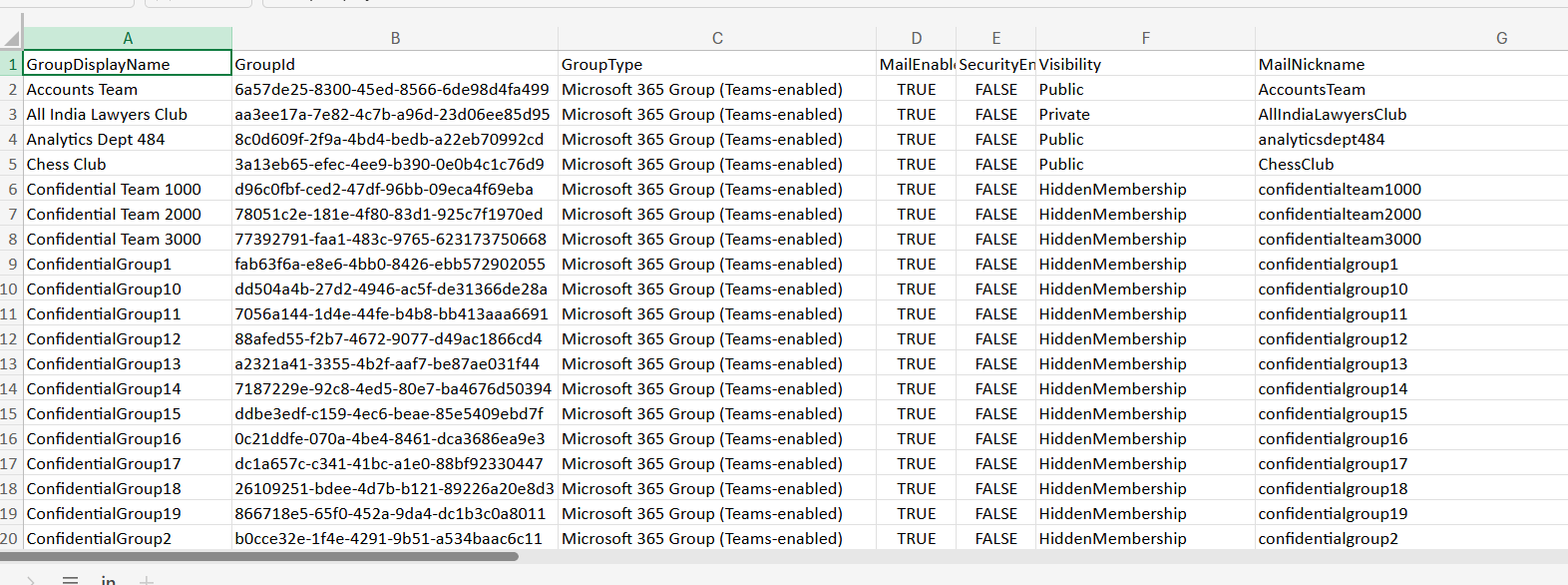
$ReportRows = $TeamsEnabledGroups | Select-Object `
  @{n='GroupDisplayName'; e={$_.DisplayName}},
  @{n='GroupId';          e={$_.Id}},
  @{n='GroupType';        e={ if ($_.GroupTypes -contains 'Unified') { 'Microsoft 365 Group (Teams-enabled)' } else { 'Other' } }},
  MailEnabled,
  SecurityEnabled,
  Visibility,
  MailNickname,
  @{n='HasTeam';          e={ ($_.ResourceProvisioningOptions -contains 'Team') }}

# ============================
# 3) Export to CSV
# ============================
$ReportPath = "$env:TEMP\TeamsEnabledGroups.csv"
$ReportRows | Sort-Object GroupDisplayName | Export-Csv -Path $ReportPath -NoTypeInformation -Encoding UTF8

# ============================
# 4) Email the report to the administrator
# ============================
$groupCount = @($ReportRows).Count
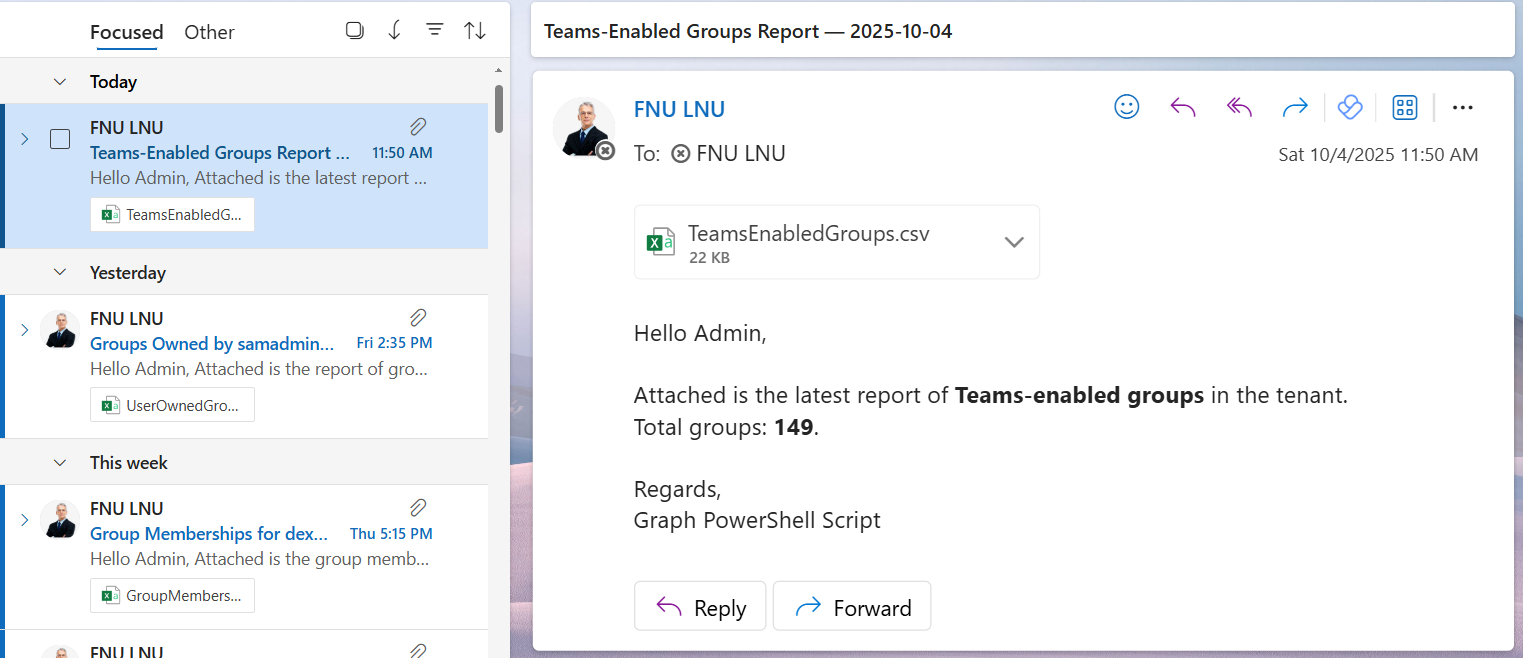
$Subject = "Teams-Enabled Groups Report — $(Get-Date -Format 'yyyy-MM-dd')"
$Body = @"
Hello Admin,


Attached is the latest report of Teams-enabled groups in the tenant.

Total groups: $groupCount.


Regards,

Graph PowerShell Script
"@

# Read and attach the CSV
$AttachmentContent = [System.Convert]::ToBase64String([System.IO.File]::ReadAllBytes($ReportPath))
$Attachments = @(
    @{
        "@odata.type" = "#microsoft.graph.fileAttachment"
        Name          = [System.IO.Path]::GetFileName($ReportPath)
        ContentBytes  = $AttachmentContent
    }
)

# Build the message payload
$Message = @{
    Message = @{
        Subject = $Subject
        Body    = @{
            ContentType = "HTML"
            Content     = $Body
        }
        ToRecipients = @(
            @{ EmailAddress = @{ Address = $AdminUPN } }
        )
        Attachments = $Attachments
    }
    SaveToSentItems = "true"
}

# Send the email from admin's mailbox
Send-MgUserMail -UserId $AdminUPN -BodyParameter $Message

Write-Host "Teams-enabled groups report emailed successfully to $AdminUPN"
ii) How the Script Works
- Configuration – Specify the admin mailbox ($AdminUPN) to receive the report.
- Connect to Microsoft Graph – The script authenticates using scopes: Group.Read.All, Directory.Read.All, and Mail.Send.
- Fetch Teams-Enabled Groups – Uses the filter resourceProvisioningOptions/any(x:x eq 'Team') to retrieve only Microsoft 365 groups that have Teams enabled.
- Prepare Report Data – Selects relevant properties such as group name, ID, type, visibility, and confirms whether the group has a Team.
- Export Report – Saves the results as a CSV file in the system’s temp folder.
- Email Report – Attaches the CSV to an email and sends it to the administrator with a summary in the body.
iii) Further Enhancements
- Add Owners – Extend the script to include owner details for each Teams-enabled group.
- Add Members Count – Fetch the number of members in each group for capacity insights.
- Scheduled Execution – Automate the script with Task Scheduler or Azure Automation for weekly/monthly reports.
- Filter by Visibility – Report only on private or public Teams-enabled groups.
- Centralized Storage – Save reports to SharePoint or OneDrive instead of sending by email.
iv) Possible Errors & Solutions
| Error | Cause | Solution |
|---|---|---|
| Insufficient privileges to complete the operation | Missing Graph API scopes. | Connect with Group.Read.All, Directory.Read.All, and Mail.Send. |
| Send-MgUserMail : Resource not found | Invalid $AdminUPN (not a mailbox). | Ensure $AdminUPN is a valid mailbox in your tenant. |
| CSV File Empty | No Teams-enabled groups found. | Verify that Teams is provisioned for groups in your tenant. |
| Property not found errors | Group query missing required properties. | Ensure the script includes the ResourceProvisioningOptions property in the Get-MgGroup command. |
v) Conclusion
This Graph PowerShell script provides administrators with an efficient way to identify and report Teams-enabled groups in Microsoft 365. By exporting the results and emailing them automatically, it simplifies governance, improves visibility, and ensures administrators can track which groups have Teams workspaces enabled.
With small enhancements like adding owners, member counts, or scheduling, this script can become a key part of Teams and group lifecycle management.