🔧 New: User Management Graph PowerShell Toolkit
Simplify user tasks like bulk creation, updates, password resets, deletions, license checks & more — all from one place.
🚀 Launch ToolkitFetch and Email Microsoft 365 Dynamic Membership Groups
Dynamic membership groups in Microsoft 365 automatically manage group membership based on defined rules, reducing the need for manual updates. While powerful, these groups require regular oversight to ensure that rules are configured correctly and that they are being processed as expected. With Microsoft Graph PowerShell, administrators can generate a report of all dynamic groups, including their membership rules and processing states, and email it directly to their inbox.
i) The Script
    $AdminUPN = "admin@yourtenant.onmicrosoft.com"

    Connect-MgGraph -Scopes "Group.Read.All" ,"Directory.Read.All","Mail.Send"


    $allGroups=Get-MgGroup -All `
    -Property Id, DisplayName, GroupTypes, MailEnabled, SecurityEnabled, Visibility, MailNickname, MembershipRule, MembershipRuleProcessingState

    $DynamicGroups=$allGroups | Where-Object { $_.MembershipRule -and $_.MembershipRule.Trim().Length -gt 0 }

    $ReportRows =$DynamicGroups | Select-Object `
    @{n='GroupDisplayName' ; e={$_.DisplayName}},
    @{n='GroupId' ; e={$_.Id}},
    @{n='GroupType' ; e={
    if ($_.GroupTypes -contains 'Unified' ) { 'Microsoft 365 Group (Dynamic)' }
    elseif ($_.SecurityEnabled) { 'Security Group (Dynamic)' }
    else { 'Other (Dynamic)' }
    }},
    MailEnabled,
    SecurityEnabled,
    Visibility,
    MailNickname,
    @{n='MembershipRule' ; e={$_.MembershipRule}},
    @{n='MembershipRuleProcessingState' ; e={$_.MembershipRuleProcessingState}}
    #3) Export to CSV
    #$ReportPath ="$env:TEMP\DynamicGroupsWithRules.csv"
    $ReportRows | Sort-Object GroupDisplayName | Export-Csv -Path $ReportPath -NoTypeInformation -Encoding UTF8
    #4) Email the report to the administrator
    #$groupCount =@($ReportRows).Count
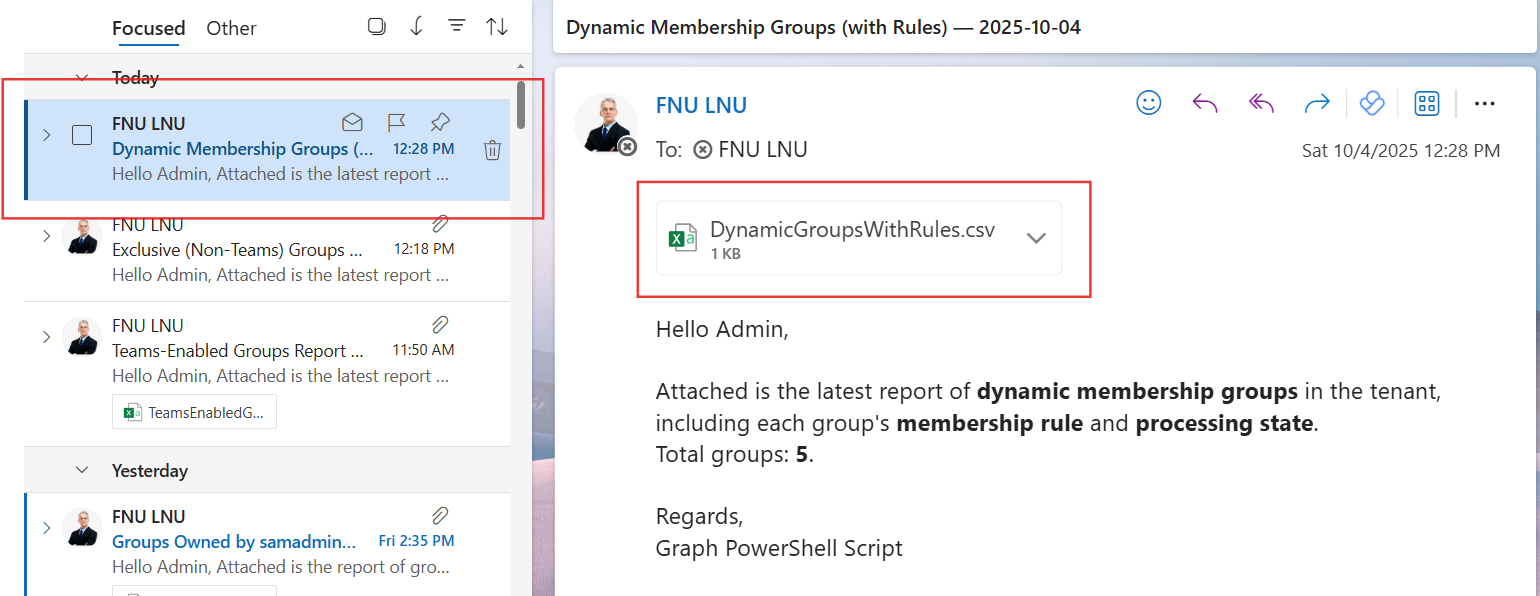
    $Subject="Dynamic Membership Groups (with Rules) — $(Get-Date -Format 'yyyy-MM-dd')"
    $Body=@"
    Hello Admin,


Attached is the latest report of dynamic membership groups in the tenant, including each group's membership rule and processing state.

Total groups: $groupCount.


Regards,

Graph PowerShell Script
"@

# Read and attach the CSV
$AttachmentContent = [System.Convert]::ToBase64String([System.IO.File]::ReadAllBytes($ReportPath))
$Attachments = @(
    @{
        "@odata.type" = "#microsoft.graph.fileAttachment"
        Name          = [System.IO.Path]::GetFileName($ReportPath)
        ContentBytes  = $AttachmentContent
    }
)

# Build the message payload
$Message = @{
    Message = @{
        Subject = $Subject
        Body    = @{
            ContentType = "HTML"
            Content     = $Body
        }
        ToRecipients = @(
            @{ EmailAddress = @{ Address = $AdminUPN } }
        )
        Attachments = $Attachments
    }
    SaveToSentItems = "true"
}

# Send the email from admin's mailbox
Send-MgUserMail -UserId $AdminUPN -BodyParameter $Message

Write-Host "Dynamic membership groups report (with rules) emailed successfully to $AdminUPN"

ii) How the Script Works
- Configuration – You provide the administrator’s email address ($AdminUPN) where the report will be delivered.
- Graph Connection – The script connects to Microsoft Graph with Group.Read.All, Directory.Read.All, and Mail.Send scopes.
- Fetch Groups – It retrieves all groups along with their dynamic membership properties. Since Graph doesn’t support filtering on membershipRule server-side, the script filters dynamic groups client-side in PowerShell.
- Prepare Data – Each dynamic group’s DisplayName, ID, type, visibility, and membership rule (along with its processing state) are prepared for reporting.
- Export Report – Results are written into a CSV file in the system’s temp folder.
- Email Report – The CSV is attached to an email and sent to the admin with a summary of how many dynamic groups were found.
iii) Further Enhancements
- Include Group Owners – Extend the report to include group owner details for accountability.
- Include Member Counts – Add the number of users dynamically included in each group.
- Scheduled Automation – Run the script on a weekly/monthly schedule with Task Scheduler or Azure Automation.
- Filter by Rule State – Report only groups with rules in an “On” state, or flag those in an error/paused state.
- Centralized Storage – Store the CSV in OneDrive or SharePoint for centralized access and auditing.
iv) Possible Errors & Solutions
| Error | Cause | Solution |
|---|---|---|
| Insufficient privileges to complete the operation | Missing Graph API scopes. | Ensure Group.Read.All, Directory.Read.All, and Mail.Send are granted. |
| Send-MgUserMail : Resource not found | Invalid $AdminUPN value. | Provide a valid mailbox-enabled user as $AdminUPN. |
| Slow Performance | Fetching all groups before filtering can be heavy in large tenants. | Narrow down with -ConsistencyLevel eventual and paging if performance is an issue. |
| Empty CSV File | No dynamic groups exist in the tenant. | This is expected behavior if dynamic groups aren’t in use. |
v) Conclusion
This Graph PowerShell script gives administrators a clear, automated way to track dynamic membership groups in Microsoft 365, complete with their rules and processing states. By exporting results and emailing them directly, the script ensures admins always have visibility into how dynamic memberships are structured and whether they are being processed correctly.
With small enhancements like adding owners, member counts, or filtering by rule status, this script can become an essential governance and compliance reporting tool for dynamic groups.