🔧 New: User Management Graph PowerShell Toolkit
Simplify user tasks like bulk creation, updates, password resets, deletions, license checks & more — all from one place.
🚀 Launch ToolkitFetch and Email Disabled Admins Report
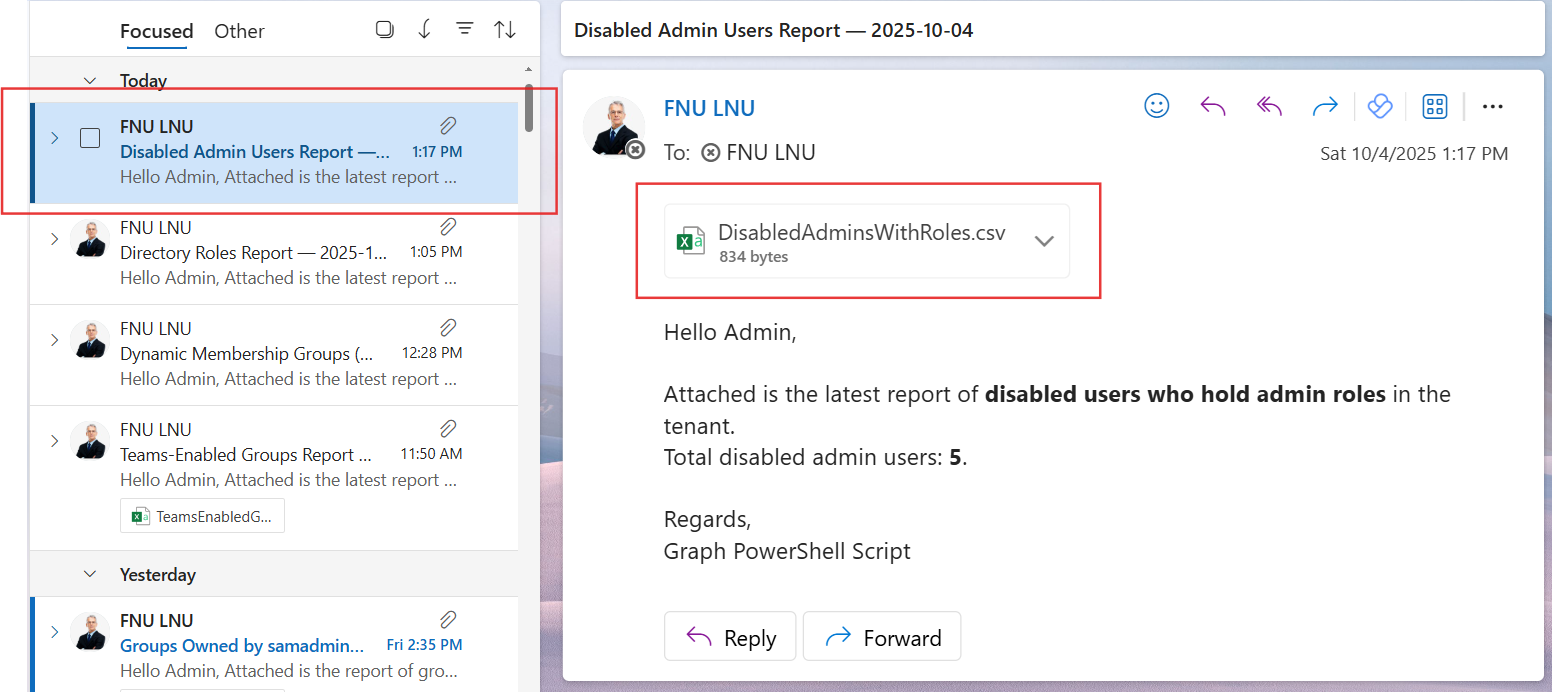
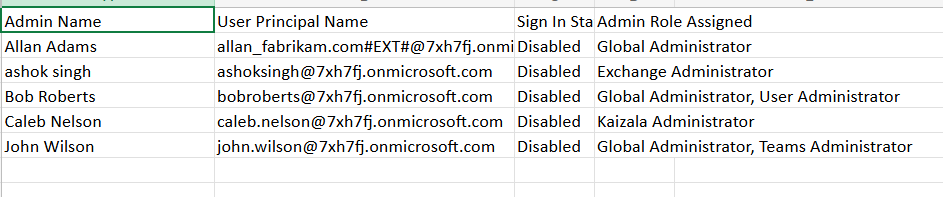
In Microsoft 365, administrators may sometimes disable user accounts without removing them from their assigned admin roles. These disabled accounts still retain their role assignments, which can pose a security risk if the account is ever re-enabled. To maintain better visibility and governance, administrators can use Microsoft Graph PowerShell to identify disabled users who still hold admin roles and automatically email a report to the security team or administrator.
i) The Script
# ============================
# Config
# ============================
# Admin mailbox to receive the report
$AdminUPN = "admin@yourtenant.onmicrosoft.com"   # <-- replace

# Connect to Microsoft Graph
# Required scopes: Directory.Read.All (roles & members), User.Read.All (user props), Mail.Send (email)
Connect-MgGraph -Scopes "Directory.Read.All","User.Read.All","Mail.Send"

# ============================
# 1) Your original logic: find disabled admins
# ============================

# Get all active directory roles (e.g., Global Admin, Helpdesk Admin)
$activatedRoles = Get-MgDirectoryRole -All

# Hashtable to track disabled admin users
$disabledAdminUsers = @{}

foreach ($role in $activatedRoles) {
    try {
        # Get members of the current role
        $members = Get-MgDirectoryRoleMember -DirectoryRoleId $role.Id -All

        foreach ($member in $members) {
            # Process only user objects
            if ($member.AdditionalProperties.'@odata.type' -eq "#microsoft.graph.user") {
                $userId = $member.Id

                # Fetch full user object
                $user = Get-MgUser -UserId $userId -Property DisplayName, UserPrincipalName, AccountEnabled

                # Include only disabled accounts
                if (-not $user.AccountEnabled) {
                    if ($disabledAdminUsers.ContainsKey($userId)) {
                        # Append new role to existing user
                        $disabledAdminUsers[$userId].'Admin Role Assigned' += ", $($role.DisplayName)"
                    } else {
                        # Add new entry
                        $disabledAdminUsers[$userId] = [PSCustomObject]@{
                            'Admin Name'          = $user.DisplayName
                            'User Principal Name' = $user.UserPrincipalName
                            'Sign In Status'      = "Disabled"
                            'Admin Role Assigned' = $role.DisplayName
                        }
                    }
                }
            }
        }
    } catch {
        Write-Warning "Error while processing role '$($role.DisplayName)': $_"
    }
}

# Optional console output (unchanged)
if ($disabledAdminUsers.Count -eq 0) {
    Write-Host "No disabled users with admin roles were found." -ForegroundColor Yellow
} else {
    $disabledAdminUsers.Values | Sort-Object 'Admin Name' | Format-Table -AutoSize
}

# ============================
# 2) Export to CSV
# ============================
$ReportRows = @()
if ($disabledAdminUsers.Count -gt 0) {
    $ReportRows = $disabledAdminUsers.Values | Sort-Object 'Admin Name'
}

$ReportPath = "$env:TEMP\DisabledAdminsWithRoles.csv"

# Ensure consistent column order even if empty
$ReportRows | Select-Object 'Admin Name','User Principal Name','Sign In Status','Admin Role Assigned' |
    Export-Csv -Path $ReportPath -NoTypeInformation -Encoding UTF8

# ============================
# 3) Email the report to the administrator
# ============================
$disabledCount = $disabledAdminUsers.Count
$Subject = "Disabled Admin Users Report — $(Get-Date -Format 'yyyy-MM-dd')"
$Body = @"
Hello Admin,


Attached is the latest report of disabled users who hold admin roles in the tenant.

Total disabled admin users: $disabledCount.


Regards,

Graph PowerShell Script
"@

# Read and attach the CSV
$AttachmentContent = [System.Convert]::ToBase64String([System.IO.File]::ReadAllBytes($ReportPath))
$Attachments = @(
    @{
        "@odata.type" = "#microsoft.graph.fileAttachment"
        Name          = [System.IO.Path]::GetFileName($ReportPath)
        ContentBytes  = $AttachmentContent
    }
)

# Build the message payload
$Message = @{
    Message = @{
        Subject = $Subject
        Body    = @{
            ContentType = "HTML"
            Content     = $Body
        }
        ToRecipients = @(
            @{ EmailAddress = @{ Address = $AdminUPN } }
        )
        Attachments = $Attachments
    }
    SaveToSentItems = "true"
}

# Send the email
Send-MgUserMail -UserId $AdminUPN -BodyParameter $Message

Write-Host "Disabled admin users report emailed successfully to $AdminUPN"
ii) How the Script Works
- Configuration – The script requires you to specify the administrator’s mailbox ($AdminUPN) where the report will be sent.
- Graph Connection – The script connects to Microsoft Graph with Directory.Read.All, User.Read.All, and Mail.Send permissions.
- Retrieve Active Roles – Using Get-MgDirectoryRole, the script identifies all activated directory roles in the tenant.
- Check Members – For each role, it fetches the members and filters only user objects.
- Identify Disabled Admins – Each user is checked using Get-MgUser. If AccountEnabled is False, the user is flagged as a disabled admin. If a user is assigned multiple roles, the roles are appended to the same record.
- Export Report – The results are exported to a CSV file.
- Email Report – The script emails the CSV to the administrator with a summary count in the body.
iii) Further Enhancements
- Add Role Descriptions – Include details about each role’s purpose for context.
- Add Timestamps – Store when the report was generated for audit history.
- Track Admin Assignments – Include both direct and inherited role assignments.
- Scheduled Automation – Run the script on a weekly or monthly schedule with Task Scheduler or Azure Automation.
- Security Alerts – Extend the script to trigger an alert if disabled admins are found, integrating with monitoring tools.
iv) Possible Errors & Solutions
| Error | Cause | Solution |
|---|---|---|
| Insufficient privileges to complete the operation | The account lacks Graph API permissions. | Connect with Directory.Read.All, User.Read.All, and Mail.Send. |
| Send-MgUserMail : Resource not found | $AdminUPN is not a valid mailbox-enabled account. | Provide a valid admin mailbox in your tenant. |
| Empty CSV File | No disabled admin accounts exist in the tenant. | This is expected behavior; the script still generates a valid empty file. |
| API Throttling in Large Tenants | Too many role member lookups in one session. | Implement retry logic or split queries if throttling occurs. |
v) Conclusion
This Graph PowerShell script gives administrators an automated way to identify disabled users with admin roles in Microsoft 365. Such accounts, if unnoticed, could present risks if re-enabled. By exporting results and emailing them directly, the script ensures administrators always have visibility into these accounts.
With enhancements like scheduling, role descriptions, or automated alerts, this script can form a critical part of an organization’s identity governance and security auditing strategy.