Bulk Creating Microsoft 365 Role-Assignable Security Groups (Graph PowerShell)
Role-assignable security groups are a clean way to manage Entra ID (Azure AD) admin role assignments at scale—especially when you want consistent, repeatable role assignment across multiple groups without manually creating and wiring each one.
This script bulk-creates role-assignable security groups and assigns the Authentication Administrator role to each group.
🚀 Community Edition Released!
Try the M365Corner Microsoft 365 Reporting Tool — your DIY pack with 20+ out-of-the-box M365 reports for Users, Groups, and Teams.
i) The Script
# Number of groups to create
$GroupCount = 10

# Prefix for group names
$GroupNamePrefix = "AUTH-Role-Group"

# Get Global Administrator role
$GlobalAdminRole = Get-MgDirectoryRole | Where-Object {
    $_.DisplayName -eq "Authentication Administrator"
}

# If role is not activated, activate it
if (-not $GlobalAdminRole) {
    $RoleTemplate = Get-MgDirectoryRoleTemplate | Where-Object {
        $_.DisplayName -eq "Authentication Administrator"
    }

    Enable-MgDirectoryRole -DirectoryRoleTemplateId $RoleTemplate.Id
    Start-Sleep -Seconds 5

    $GlobalAdminRole = Get-MgDirectoryRole | Where-Object {
        $_.DisplayName -eq "Authentication Administrator"
    }
}

Write-Host "Authentication Administrator ID:" $GlobalAdminRole.Id

for ($i = 1; $i -le $GroupCount; $i++) {

    $GroupName = "$GroupNamePrefix-$i"

    Write-Host "Creating group: $GroupName"

    # Create role-assignable group
    $Group = New-MgGroup -BodyParameter @{
        displayName = $GroupName
        description = "Role-assignable group with Authentication Administrator permissions"
        mailEnabled = $false
        mailNickname = ($GroupName -replace '\s','').ToLower()
        securityEnabled = $true
        isAssignableToRole = $true
    }

    # Assign Authentication Administrator role to the group
    New-MgDirectoryRoleMemberByRef `
        -DirectoryRoleId $GlobalAdminRole.Id `
        -BodyParameter @{
            "@odata.id" = "https://graph.microsoft.com/v1.0/directoryObjects/$($Group.Id)"
        }

    Write-Host "Assigned Authentication Administrator role to $GroupName"
}

Write-Host "Completed creation and role assignment for $GroupCount groups."
ii) How the Script Works
- Sets the group count and naming pattern
- $GroupCount = 10 decides how many groups will be created.
- $GroupNamePrefix = "AUTH-Role-Group" controls the naming pattern.
- Each group becomes:
AUTH-Role-Group-1, AUTH-Role-Group-2, … up to the count. - Locates the “Authentication Administrator” directory role
- Get-MgDirectoryRole
- A Where-Object filter that matches DisplayName -eq "Authentication Administrator"
- Activates the role if it’s not currently enabled in the tenant
- Searches role templates via Get-MgDirectoryRoleTemplate
- Enables the role using Enable-MgDirectoryRole -DirectoryRoleTemplateId ...
- Waits 5 seconds (via Start-Sleep) to allow role activation to propagate
- Re-queries Get-MgDirectoryRole again to retrieve the now-activated role object
- Creates role-assignable security groups in a loop
- It builds the group name.
- It creates a security group using New-MgGroup with key settings:
- securityEnabled = $true
- mailEnabled = $false
- isAssignableToRole = $true ✅ (this is what makes it “role-assignable”)
- mailNickname auto-generated from the group name
- Assigns the Authentication Administrator role to each group
- New-MgDirectoryRoleMemberByRef
- An @odata.id reference pointing to the newly created group’s directory object URL:
https://graph.microsoft.com/v1.0/directoryObjects/<GroupId> - Prints progress and completion messages
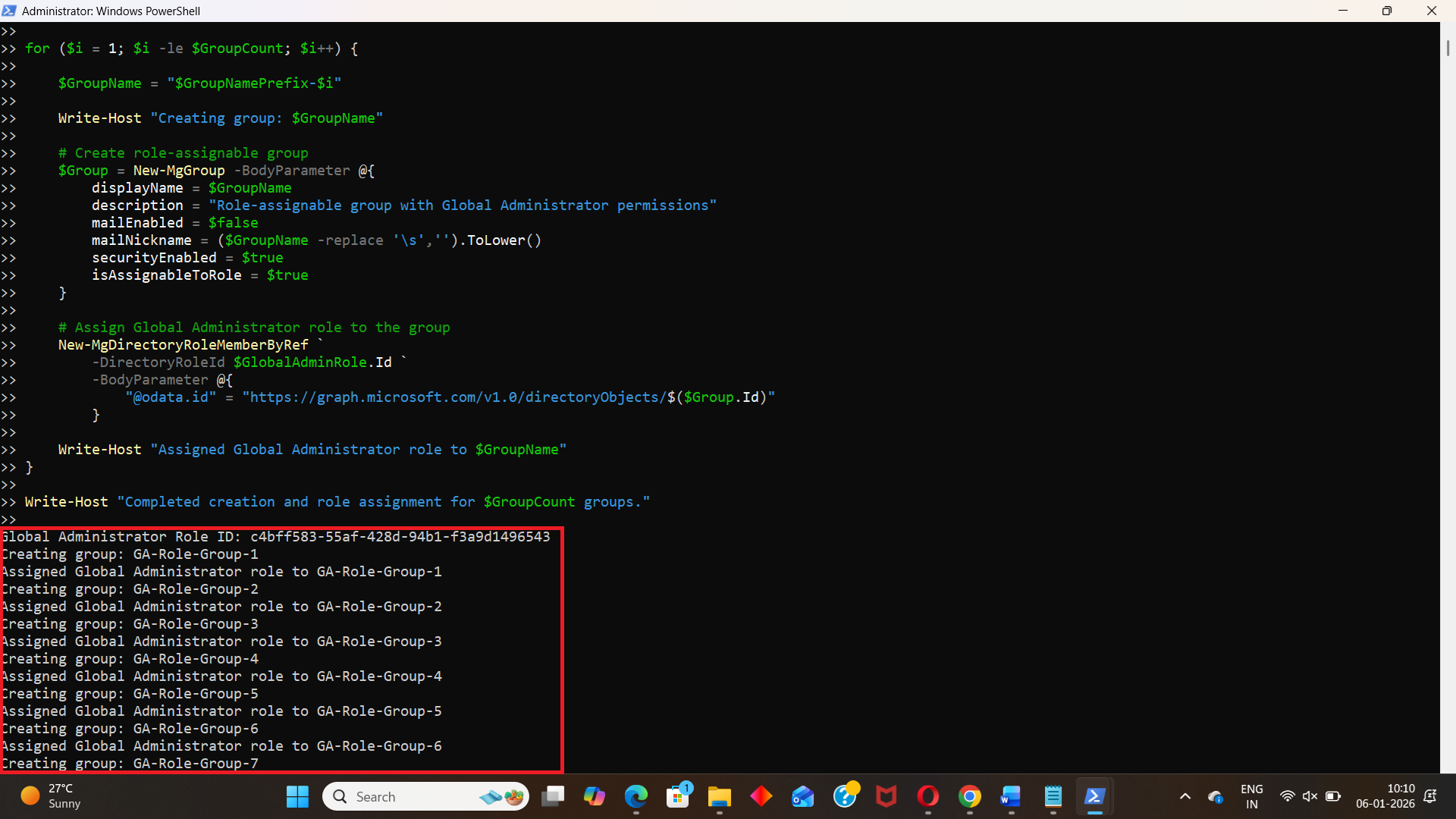
- The role ID in use
- Each group being created
- Each role assignment being completed
- Final completion summary
The script checks your tenant’s activated directory roles using:
If the role is already activated in the tenant, the script proceeds.
If the role is not activated, the script:
For each iteration:
Immediately after creating the group, the script assigns the role to the group using:
The script uses Write-Host throughout so you can track:
iii) Further Enhancements
If you want to evolve this into a more “production-ready” bulk provisioning script, here are some practical upgrades you can consider:
- Import group names from CSV
- Instead of creating Prefix-1..N, you could read DisplayName, Description, and even a custom MailNickname from a CSV.
- Add “already exists” checks
- Prevent failures by checking whether a group already exists (same display name or mailNickname) before creating it.
- Export results to a report
- Capture GroupName, GroupId, RoleName, RoleId, and Status into a CSV for audit/compliance.
- Add try/catch with structured error logging
- Helpful when you’re creating dozens/hundreds of groups and want a clean post-run summary.
- Assign multiple roles
- Extend the logic to assign multiple admin roles to the same group set (or different roles per group).
iv) Possible Errors and Solutions
| Error | Cause | Solution |
|---|---|---|
| Insufficient privileges / Access denied | Insufficient privileges to complete the operation | Connect with an account that has the required Entra roles/permissions. In most environments, role management actions require elevated admin privileges. |
| Role template or role not found: $RoleTemplate is empty or role never resolves after enabling |
The role display name doesn’t match exactly, or role activation hasn’t propagated yet. | Confirm the role display name is correct in your tenant and allow a bit more time after enabling. (The script already includes a 5-second delay.) |
| Request_BadRequest when creating the group | Common reasons include:
|
Verify role-assignable group support is available and that your admin context is permitted to create them. |
| Role assignment fails for the group Role member reference add fails via New-MgDirectoryRoleMemberByRef |
The role isn’t properly activated, or the role assignment operation is blocked by permission/scoping constraints. | Confirm the role ID printed by the script is valid and that your session has role management rights. |
v) Conclusion
If you’re managing admin access at scale, role-assignable security groups are one of the cleanest ways to standardize access without manually assigning roles to individual users every time. This script helps you rapidly provision multiple role-assignable groups and immediately assign the Authentication Administrator role to each—making it ideal for larger environments, access segmentation, or tiered admin models.