Bulk Create Role-Assignable Security Groups and Assign Multiple Roles Using Graph PowerShell
Managing Entra ID (Azure AD) admin roles at scale can quickly become messy when roles are assigned directly to users. Role-assignable security groups solve this problem by allowing administrators to manage privileged access through group membership instead of individual role assignments.
This article walks through a Microsoft Graph PowerShell script that bulk creates role-assignable security groups from a CSV file and assigns multiple directory roles to each group in a single run—making it ideal for tiered admin models, delegated administration, and large environments.
🚀 Community Edition Released!
Try the M365Corner Microsoft 365 Reporting Tool — your DIY pack with 20+ out-of-the-box M365 reports for Users, Groups, and Teams.
i) The Script
# Path to CSV file
$CsvPath = "C:\Scripts\RoleAssignableGroups.csv"

# Import CSV
$Groups = Import-Csv -Path $CsvPath

# Roles to assign
$RoleNames = @(
    "Global Administrator",
    "Exchange Administrator",
    "Security Administrator"
)

# Resolve directory roles (activate if required)
$ResolvedRoles = @()

foreach ($RoleName in $RoleNames) {

    $Role = Get-MgDirectoryRole | Where-Object {
        $_.DisplayName -eq $RoleName
    }

    if (-not $Role) {

        Write-Host "Activating role: $RoleName"

        $RoleTemplate = Get-MgDirectoryRoleTemplate | Where-Object {
            $_.DisplayName -eq $RoleName
        }

        Enable-MgDirectoryRole -DirectoryRoleTemplateId $RoleTemplate.Id
        Start-Sleep -Seconds 5

        $Role = Get-MgDirectoryRole | Where-Object {
            $_.DisplayName -eq $RoleName
        }
    }

    $ResolvedRoles += $Role
}

# Create groups and assign roles
foreach ($GroupItem in $Groups) {

    Write-Host "Creating role-assignable group:" $GroupItem.DisplayName

    $Group = New-MgGroup -BodyParameter @{
        displayName        = $GroupItem.DisplayName
        description        = $GroupItem.Description
        securityEnabled    = $true
        mailEnabled        = $false
        mailNickname       = ($GroupItem.DisplayName -replace '\s','').ToLower()
        isAssignableToRole = $true
    }

    foreach ($Role in $ResolvedRoles) {

        New-MgDirectoryRoleMemberByRef `
            -DirectoryRoleId $Role.Id `
            -BodyParameter @{
                "@odata.id" = "https://graph.microsoft.com/v1.0/directoryObjects/$($Group.Id)"
            }

        Write-Host "Assigned $($Role.DisplayName) to $($GroupItem.DisplayName)"
    }

    Write-Host "Completed role assignments for $($GroupItem.DisplayName)"
    Write-Host "-----------------------------------------------"
}

Write-Host "Bulk role-assignable group creation completed."
ii) How the Script Works
- Reads group data from a CSV file
- DisplayName
- Description
- Defines multiple roles to assign per group
- Global Administrator
- Exchange Administrator
- Security Administrator
- Resolves and activates directory roles
- The script checks whether the role is already active using Get-MgDirectoryRole
- If not active, it:
- Retrieves the role template
- Activates the role using Enable-MgDirectoryRole
- Waits briefly for propagation
- Each resolved role is stored in $ResolvedRoles
- Bulk creates role-assignable security groups
- A security group is created using New-MgGroup
- Critical properties include:
- securityEnabled = $true
- mailEnabled = $false
- isAssignableToRole = $true ✅
- Assigns multiple roles to each group
- The script loops through all resolved roles
- Each role is assigned to the group using New-MgDirectoryRoleMemberByRef
- The group is referenced using its directory object URL
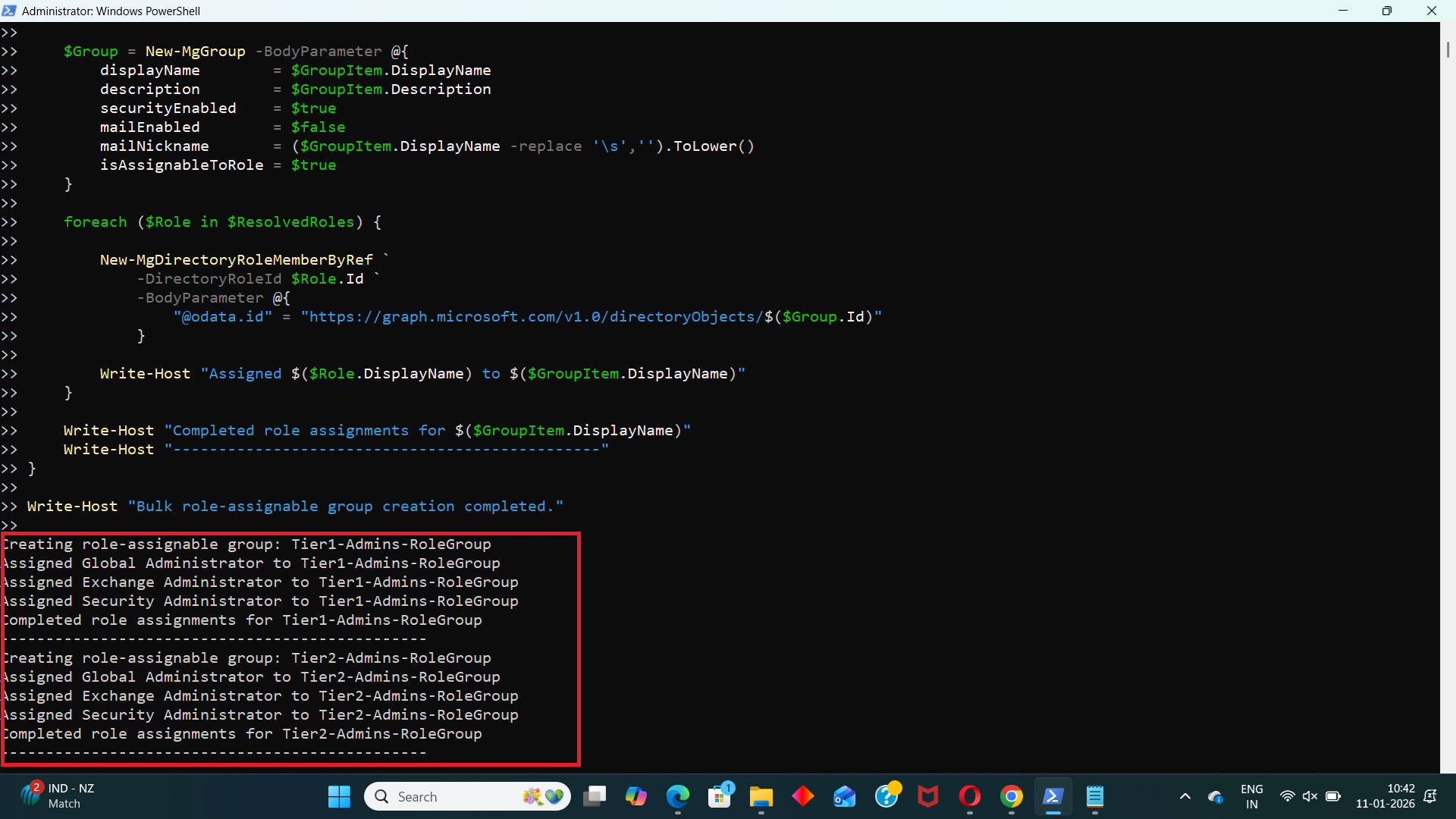
- Progress and completion tracking
- Role activation visibility
- Group creation status
- Per-role assignment confirmation
- Clear separation between group runs
The script imports group details from a CSV file containing:
This makes the solution scalable and reusable across environments.
The $RoleNames array contains three directory roles:
These roles will be assigned to every group created by the script—this is the core strength of the solution.
For each role:
This ensures role assignment never fails due to inactive roles.
For each CSV entry:
This explicitly makes the group eligible for directory role assignment.
Once the group is created:
Result:
👉 Every group is automatically assigned multiple admin roles in one execution
Write-Host output provides:
iii) Further Enhancements
You can easily extend this script to:
- Read role names directly from the CSV
- Add group existence checks to avoid duplicates
- Export group-to-role assignment reports
- Add try/catch blocks with structured logging
- Support app-only authentication
- Assign different role sets per group
iv) Possible Errors and Solutions
| Error | Cause | Solution |
|---|---|---|
| Authorization_RequestDenied | Missing permissions for role or group management | Connect with sufficient Entra ID admin privileges and required Graph scopes. |
| Role activation delay Role not found immediately after activation |
Directory role propagation delay | Allow additional time or rerun the script. The script already includes a delay. |
| Group creation fails Request_BadRequest |
Duplicate mailNickname Invalid naming policy Tenant restrictions |
Ensure unique display names and compliant naming. |
| Role assignment fails Role member reference fails |
Role not fully activated Insufficient permissions |
Confirm role activation and admin rights. |
v) Conclusion
This Graph PowerShell script provides a clean, scalable, and repeatable way to bulk create role-assignable security groups and assign multiple Entra ID roles to each group in a single run.
By shifting role management from users to groups, you:
- Simplify admin access governance
- Improve auditability
- Reduce operational overhead
- Enable structured, tier-based administration
For environments managing privileged access at scale, this approach is not just efficient—it’s essential.