Automate Exchange Online Mailbox Governance Audits with PowerShell
Managing Exchange Online mailboxes at scale involves much more than simply tracking mailbox sizes. Organizations must regularly review mailbox growth, archive adoption, licensing status, inactivity, and storage utilization to prevent operational issues and maintain a healthy Microsoft 365 environment.
Without regular governance reviews, administrators may encounter:
- Oversized mailboxes approaching quota limits
- Inactive or stale mailboxes consuming resources
- Shared mailboxes with unclear ownership
- Archive mailboxes that should be enabled but are not
- Licensing inconsistencies
- Storage growth that impacts long-term planning
This PowerShell automation solution helps administrators perform mailbox governance audits across Exchange Online by identifying:
- Mailbox size and quota utilization
- Archive status
- Last mailbox logon activity
- Inactive and stale mailboxes
- Shared mailbox governance candidates
- Licensing status
- Mailbox risk scores
- Governance recommendations
The script generates a comprehensive governance report, exports findings to CSV, and automatically emails a governance summary to administrators.
🚀 Community Edition Released!
Try the M365Corner Microsoft 365 Reporting Tool — your DIY pack with 20+ out-of-the-box M365 reports for Users, Groups, and Teams.
Why Mailbox Governance Matters
Mailbox governance is often overlooked until storage limits, licensing issues, or inactive mailbox sprawl begin creating operational challenges.
Regular mailbox governance reviews help organizations:
- Improve storage planning
- Reduce mailbox sprawl
- Identify stale accounts
- Improve archive adoption
- Optimize licensing
- Maintain operational efficiency
- Support compliance and retention initiatives
Instead of reacting to mailbox problems after they occur, administrators can proactively identify governance risks and address them before they impact users.
What This Script Audits
This governance audit script evaluates multiple aspects of Exchange Online mailbox health:
| Governance Area | Audited |
|---|---|
| Mailbox Size | Yes |
| Quota Utilization | Yes |
| Archive Status | Yes |
| Last Logon Activity | Yes |
| Mailbox Inactivity | Yes |
| Shared Mailbox Review | Yes |
| Licensing Status | Yes |
| Governance Severity | Yes |
| Mailbox Risk Score | Yes |
| Governance Recommendations | Yes |
| Email Reporting | Yes |
This transforms a traditional mailbox inventory report into a governance-focused operational review.
Prerequisites
Install the required modules if they are not already available:
Install-Module ExchangeOnlineManagement -Scope CurrentUser
Install-Module Microsoft.Graph -Scope CurrentUser
Connect to Exchange Online:
Connect-ExchangeOnlineConnect to Microsoft Graph:
Connect-MgGraph -Scopes `
"User.Read.All",
"Domain.Read.All",
"Mail.Send"
The account running the script should have sufficient permissions to:
- Read Exchange Online mailbox information
- Read Microsoft 365 user licensing information
- Send mail through Microsoft Graph
Complete Script to Automate Exchange Online Mailbox Governance Audits
Important: Use the exact script below. This is the tested version that correctly retrieves mailbox statistics, inactivity information, mailbox risk scores, and governance recommendations. Modify only the $Sender and $EmailRecipient variable values with your admin e-mail addresses.
# Import required modules
Import-Module ExchangeOnlineManagement
Import-Module Microsoft.Graph

# Connect to Exchange Online
Connect-ExchangeOnline

# Verify Exchange Online connection
$EXOConnection = Get-ConnectionInformation

if (-not $EXOConnection) {
    Write-Host "Exchange Online connection failed. Please reconnect using Connect-ExchangeOnline." -ForegroundColor Red
    return
}

# Connect to Microsoft Graph
Connect-MgGraph -Scopes `
"User.Read.All",
"Directory.Read.All",
"Mail.Send"

# Report path
$ReportPath = "C:\Reports\MailboxGovernanceAudit.csv"

# Email settings
$Sender = "admin@contoso.com"
$EmailRecipient = "securityteam@contoso.com"

# Governance thresholds
$MediumUtilizationThreshold = 70
$HighUtilizationThreshold = 90
$InactiveDaysThreshold = 90
$StaleDaysThreshold = 180

$AuditReport = @()

# Retrieve user and shared mailboxes
$Mailboxes = Get-EXOMailbox `
-ResultSize Unlimited `
-RecipientTypeDetails UserMailbox,SharedMailbox `
-Properties ArchiveStatus,ProhibitSendReceiveQuota

foreach ($Mailbox in $Mailboxes) {

    try {

        Write-Host "Processing mailbox: $($Mailbox.UserPrincipalName)" -ForegroundColor Cyan

        $MailboxStatistics = Get-MailboxStatistics `
        -Identity $Mailbox.UserPrincipalName `
        -ErrorAction Stop

        # Convert mailbox size to GB
        $MailboxSizeGB = 0

        if ($MailboxStatistics.TotalItemSize) {

            $SizeString = $MailboxStatistics.TotalItemSize.ToString()

            if ($SizeString -match "\(([\d,]+) bytes\)") {
                $Bytes = [double](($Matches[1]) -replace ",", "")
                $MailboxSizeGB = [math]::Round(($Bytes / 1GB), 2)
            }
        }

        # Convert quota to GB
        $QuotaGB = 0

        if (
            $Mailbox.ProhibitSendReceiveQuota -and
            $Mailbox.ProhibitSendReceiveQuota.ToString() -ne "Unlimited"
        ) {

            $QuotaString = $Mailbox.ProhibitSendReceiveQuota.ToString()

            if ($QuotaString -match "\(([\d,]+) bytes\)") {
                $QuotaBytes = [double](($Matches[1]) -replace ",", "")
                $QuotaGB = [math]::Round(($QuotaBytes / 1GB), 2)
            }
        }

        # Calculate utilization percentage
        $UtilizationPercent = 0

        if ($QuotaGB -gt 0) {
            $UtilizationPercent = [math]::Round((($MailboxSizeGB / $QuotaGB) * 100), 2)
        }

        # Determine last logon and inactivity
        $LastLogonTime = $MailboxStatistics.LastLogonTime

        $DaysSinceLastLogon = "Never Logged In"

        if ($LastLogonTime) {
            $DaysSinceLastLogon = (
                New-TimeSpan `
                -Start $LastLogonTime `
                -End (Get-Date)
            ).Days
        }

        # License detection using Graph
        $LicenseStatus = "Not Applicable"

        if ($Mailbox.RecipientTypeDetails -eq "UserMailbox") {

            try {

                $User = Get-MgUser `
                -UserId $Mailbox.UserPrincipalName `
                -Property Id,AssignedLicenses `
                -ErrorAction Stop

                if ($User.AssignedLicenses.Count -gt 0) {
                    $LicenseStatus = "Licensed"
                }
                else {
                    $LicenseStatus = "Unlicensed"
                }
            }
            catch {
                $LicenseStatus = "Unable to Determine"
            }
        }

        # Governance evaluation
        $Issues = @()
        $Recommendations = @()
        $RiskScore = 0
        $Severity = "Low"

        # Utilization check
        if ($UtilizationPercent -ge $HighUtilizationThreshold) {

            $Issues += "High Mailbox Utilization"
            $Recommendations += "Review mailbox cleanup or enable archive"
            $RiskScore += 40
            $Severity = "High"
        }
        elseif ($UtilizationPercent -ge $MediumUtilizationThreshold) {

            $Issues += "Medium Mailbox Utilization"
            $Recommendations += "Monitor mailbox growth"
            $RiskScore += 20

            if ($Severity -ne "High") {
                $Severity = "Medium"
            }
        }

        # Archive check
        if (
            $Mailbox.ArchiveStatus -ne "Active" -and
            $MailboxSizeGB -ge 30
        ) {

            $Issues += "Archive Not Enabled"
            $Recommendations += "Evaluate archive mailbox enablement"
            $RiskScore += 20

            if ($Severity -eq "Low") {
                $Severity = "Medium"
            }
        }

        # Inactivity check
        if ($DaysSinceLastLogon -eq "Never Logged In") {

            $Issues += "Never Logged In"
            $Recommendations += "Review mailbox ownership and business need"
            $RiskScore += 20

            if ($Severity -eq "Low") {
                $Severity = "Medium"
            }
        }
        elseif ($DaysSinceLastLogon -ge $StaleDaysThreshold) {

            $Issues += "Stale Mailbox"
            $Recommendations += "Review mailbox retention or deprovisioning"
            $RiskScore += 30

            if ($Severity -ne "High") {
                $Severity = "High"
            }
        }
        elseif ($DaysSinceLastLogon -ge $InactiveDaysThreshold) {

            $Issues += "Inactive Mailbox"
            $Recommendations += "Review mailbox activity"
            $RiskScore += 20

            if ($Severity -eq "Low") {
                $Severity = "Medium"
            }
        }

        # Shared mailbox governance
        if ($Mailbox.RecipientTypeDetails -eq "SharedMailbox") {

            $Issues += "Shared Mailbox"
            $Recommendations += "Validate shared mailbox ownership and usage"
            $RiskScore += 10
        }

        # Unlicensed mailbox check
        if (
            $Mailbox.RecipientTypeDetails -eq "UserMailbox" -and
            $LicenseStatus -eq "Unlicensed"
        ) {

            $Issues += "Unlicensed User Mailbox"
            $Recommendations += "Review license assignment or mailbox state"
            $RiskScore += 20

            if ($Severity -eq "Low") {
                $Severity = "Medium"
            }
        }

        # Critical severity check
        if ($RiskScore -ge 70) {
            $Severity = "Critical"
        }

        # Mailbox category
        if ($Issues.Count -eq 0) {
            $MailboxCategory = "Healthy"
            $Recommendations += "No immediate action required"
        }
        elseif ($Severity -eq "Critical") {
            $MailboxCategory = "Critical Review Required"
        }
        elseif ($Severity -eq "High") {
            $MailboxCategory = "Review Required"
        }
        elseif ($Severity -eq "Medium") {
            $MailboxCategory = "Monitor"
        }
        else {
            $MailboxCategory = "Healthy"
        }

        $AuditReport += [PSCustomObject]@{
            Mailbox              = $Mailbox.UserPrincipalName
            DisplayName          = $Mailbox.DisplayName
            MailboxType          = $Mailbox.RecipientTypeDetails
            MailboxSizeGB        = $MailboxSizeGB
            QuotaGB              = $QuotaGB
            UtilizationPercent   = $UtilizationPercent
            ArchiveStatus        = $Mailbox.ArchiveStatus
            LastLogonTime        = $LastLogonTime
            DaysSinceLastLogon   = $DaysSinceLastLogon
            LicenseStatus        = $LicenseStatus
            IssuesFound          = $Issues -join "; "
            Severity             = $Severity
            MailboxRiskScore     = $RiskScore
            MailboxCategory      = $MailboxCategory
            Recommendations      = $Recommendations -join "; "
        }
    }

    catch {

        $AuditReport += [PSCustomObject]@{
            Mailbox              = $Mailbox.UserPrincipalName
            DisplayName          = $Mailbox.DisplayName
            MailboxType          = $Mailbox.RecipientTypeDetails
            MailboxSizeGB        = "N/A"
            QuotaGB              = "N/A"
            UtilizationPercent   = "N/A"
            ArchiveStatus        = $Mailbox.ArchiveStatus
            LastLogonTime        = "N/A"
            DaysSinceLastLogon   = "N/A"
            LicenseStatus        = "N/A"
            IssuesFound          = "Audit Failure"
            Severity             = "High"
            MailboxRiskScore     = 0
            MailboxCategory      = "Audit Failed"
            Recommendations      = $_.Exception.Message
        }

        Write-Host "Error processing mailbox: $($Mailbox.UserPrincipalName)" -ForegroundColor Red
        Write-Host $_.Exception.Message
    }
}

# Export report
$AuditReport | Export-Csv `
-Path $ReportPath `
-NoTypeInformation `
-Encoding UTF8

Write-Host "Mailbox governance audit report exported successfully." -ForegroundColor Green

# Summary counts
$TotalMailboxes = $AuditReport.Count

$CriticalMailboxes = (
    $AuditReport |
    Where-Object {
        $_.Severity -eq "Critical"
    }
).Count

$HighRiskMailboxes = (
    $AuditReport |
    Where-Object {
        $_.Severity -eq "High"
    }
).Count

$OversizedMailboxes = (
    $AuditReport |
    Where-Object {
        $_.IssuesFound -match "High Mailbox Utilization"
    }
).Count

$InactiveMailboxes = (
    $AuditReport |
    Where-Object {
        $_.IssuesFound -match "Inactive Mailbox|Stale Mailbox|Never Logged In"
    }
).Count

$ArchiveDisabledMailboxes = (
    $AuditReport |
    Where-Object {
        $_.IssuesFound -match "Archive Not Enabled"
    }
).Count

# HTML preview
$HtmlPreview = (
    $AuditReport |
    Sort-Object MailboxRiskScore -Descending |
    Select-Object -First 10 |
    ConvertTo-Html -Fragment
)

$EmailBody = @"
<html>
<body>

<h2>Exchange Online Mailbox Governance Audit</h2>

<p>The automated mailbox governance audit has completed successfully.</p>

<ul>
<li>Total Mailboxes Audited: $TotalMailboxes</li>
<li>Critical Mailboxes: $CriticalMailboxes</li>
<li>High-Risk Mailboxes: $HighRiskMailboxes</li>
<li>High Utilization Mailboxes: $OversizedMailboxes</li>
<li>Inactive or Stale Mailboxes: $InactiveMailboxes</li>
<li>Archive Disabled Review Candidates: $ArchiveDisabledMailboxes</li>
</ul>

<p>Below is a preview of the top 10 mailboxes by risk score:</p>

$HtmlPreview

</body>
</html>
"@

# Send email report
$params = @{
    message = @{
        subject = "Exchange Online Mailbox Governance Audit"

        body = @{
            contentType = "HTML"
            content = $EmailBody
        }

        toRecipients = @(
            @{
                emailAddress = @{
                    address = $EmailRecipient
                }
            }
        )

        attachments = @(
            @{
                "@odata.type" = "#microsoft.graph.fileAttachment"
                name          = "MailboxGovernanceAudit.csv"
                contentBytes  = [System.Convert]::ToBase64String(
                    [System.IO.File]::ReadAllBytes($ReportPath)
                )
            }
        )
    }

    saveToSentItems = "true"
}

Send-MgUserMail `
-UserId $Sender `
-BodyParameter $params

Write-Host "Mailbox governance audit completed and emailed successfully." -ForegroundColor Green
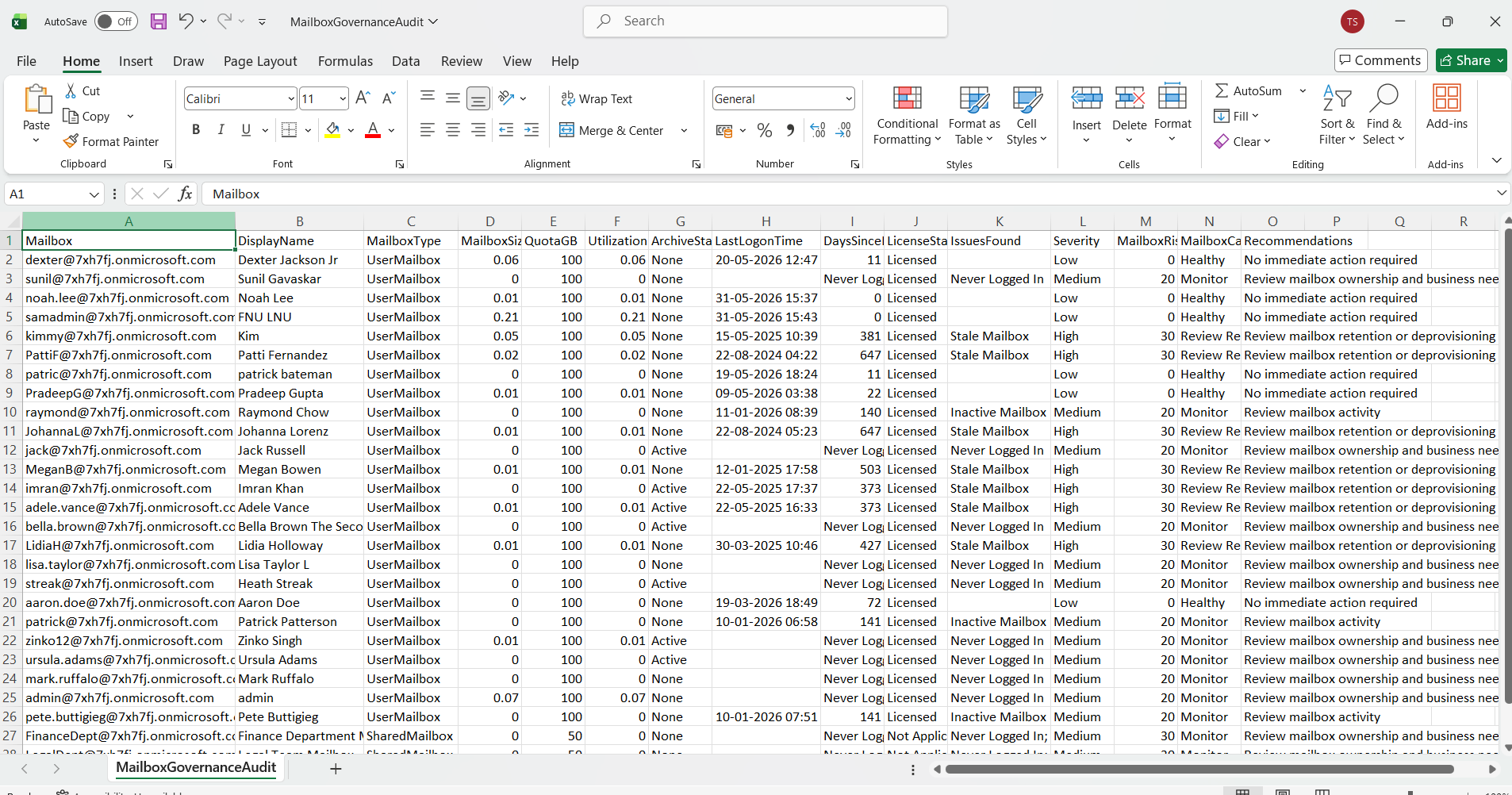
Sample Mailbox Governance Report
The generated CSV report contains detailed governance information for every mailbox reviewed.
Example:
| Mailbox | MailboxSizeGB | UtilizationPercent | ArchiveStatus | DaysSinceLastLogon | LicenseStatus | Severity | MailboxRiskScore | MailboxCategory |
|---|---|---|---|---|---|---|---|---|
| ceo@contoso.com | 82.5 | 92 | None | 12 | Licensed | High | 60 | Review Required |
| finance@contoso.com | 45.2 | 48 | Active | 7 | Licensed | Low | 0 | Healthy |
| projects@contoso.com | 38.7 | 41 | None | 210 | Not Applicable | High | 60 | Review Required |
| olduser@contoso.com | 15.4 | 17 | None | 420 | Unlicensed | Critical | 80 | Critical Review Required |
| hr@contoso.com | 28.1 | 31 | Active | 95 | Licensed | Medium | 20 | Monitor |
Understanding the Report Columns
| Column | Description |
|---|---|
| Mailbox | User Principal Name of the mailbox |
| MailboxSizeGB | Current mailbox size in GB |
| QuotaGB | Configured mailbox quota |
| UtilizationPercent | Mailbox utilization percentage |
| ArchiveStatus | Archive mailbox state |
| LastLogonTime | Last recorded mailbox access |
| DaysSinceLastLogon | Number of days since mailbox activity |
| LicenseStatus | Licensed or unlicensed state |
| Severity | Governance severity classification |
| MailboxRiskScore | Governance risk score |
| MailboxCategory | Governance review category |
| Recommendations | Suggested administrative action |
The MailboxRiskScore and Severity values help administrators quickly identify which mailboxes should be reviewed first.
Why This Report Is More Useful Than a Traditional Mailbox Inventory
Traditional mailbox inventory scripts typically show:
- Mailbox name
- Mailbox size
- Quota
While useful, those reports do not indicate whether a mailbox actually requires administrative attention.
This governance-focused approach adds:
- Risk scoring
- Severity classifications
- Inactivity detection
- Archive recommendations
- Licensing visibility
- Governance guidance
allowing administrators to prioritize mailbox reviews based on actual risk rather than raw mailbox data alone.
How the Script Works
- Connects to Exchange Online and Microsoft Graph
- Exchange Online
- Microsoft Graph
- mailbox statistics
- mailbox configuration
- archive status
- licensing information
- email reporting functionality
- Verifies Exchange Online Connectivity
- failed mailbox queries
- incomplete governance reports
- Exchange Online session errors
- Retrieves Exchange Online Mailboxes
- User Mailboxes
- Shared Mailboxes
- ArchiveStatus
- ProhibitSendReceiveQuota
- Retrieves Mailbox Statistics
- Total mailbox size
- Last mailbox logon time
- Calculates Mailbox Utilization
- growing mailboxes
- storage risks
- quota management concerns
- Detects Inactive and Stale Mailboxes
- abandoned accounts
- dormant users
- unnecessary storage consumption
- governance review candidates
- Evaluates Archive Adoption
- improve archive adoption
- reduce mailbox growth
- improve long-term storage planning
- Identifies Shared Mailboxes
- ownership is often unclear
- they commonly grow unchecked
- they frequently remain active after business requirements change
- Determines Licensing Status
- Licensed users
- Unlicensed users
- licensing inconsistencies
- unexpected mailbox states
- governance anomalies
- Calculates MailboxRiskScore
- mailbox size ≥ 30 GB
- archive mailbox not enabled
- Severity Mapping
- Mailbox Categories
- Generates Governance Reports
- mailbox statistics
- utilization percentages
- archive status
- inactivity metrics
- severity
- risk score
- governance recommendations
- Emails Governance Summaries Automatically
- exports the CSV report
- generates an HTML summary
- attaches the governance report
- emails administrators
- total mailboxes audited
- critical mailboxes
- high-risk mailboxes
- inactive mailboxes
- archive review candidates
The script establishes authenticated sessions with:
Connect-ExchangeOnline
Connect-MgGraph
These connections provide access to:
required for the governance audit.
Before auditing begins, the script validates that an Exchange Online session is active using:
Get-ConnectionInformation
If the connection cannot be verified, the script exits to prevent incomplete or inaccurate results.
This helps avoid:
The script retrieves:
using:
Get-EXOMailbox
Additional properties are collected including:
These properties are later used to calculate governance risks and recommendations.
Mailbox statistics are retrieved using:
Get-MailboxStatistics
The script collects:
This information forms the foundation of the governance review.
The script calculates:
Mailbox Size ÷ Mailbox Quota × 100
to determine mailbox utilization percentage.
Example:
| Mailbox Size | Quota | Utilization |
|---|---|---|
| 85 GB | 100 GB | 85% |
This helps identify:
before users experience mailbox issues.
The script evaluates mailbox activity using:
LastLogonTime
Mailboxes are classified as:
| Condition | Classification |
|---|---|
| Never logged in | Never Logged In |
| 90+ days inactive | Inactive Mailbox |
| 180+ days inactive | Stale Mailbox |
These mailboxes often represent:
The script reviews:
ArchiveStatus
Mailboxes larger than 30 GB that do not have archive mailboxes enabled receive governance recommendations.
This helps organizations:
The script reviews:
RecipientTypeDetails
Shared mailboxes receive additional governance scrutiny because:
The report helps identify shared mailboxes that require review.
For user mailboxes, Microsoft Graph is used to determine whether licenses are assigned.
The script identifies:
using:
Get-MgUser
This helps detect:
across the tenant.
The MailboxRiskScore is designed to help administrators prioritize mailbox reviews.
The score increases when governance concerns are detected.
High Mailbox Utilization
If utilization exceeds 90%:
+40 Points
Reason:
Mailbox capacity is approaching critical levels.
Medium Mailbox Utilization
If utilization exceeds 70%:
+20 Points
Reason:
Mailbox growth should be monitored before reaching quota limits.
Archive Not Enabled
If:
the script adds:
+20 Points
Reason:
Archive adoption should be evaluated to control future growth.
Never Logged In
If mailbox activity cannot be found:
+20 Points
Reason:
The mailbox may be abandoned or require review.
Inactive Mailbox
If inactivity exceeds 90 days:
+20 Points
Reason:
Mailbox ownership and business need should be validated.
Stale Mailbox
If inactivity exceeds 180 days:
+30 Points
Reason:
Mailbox may be a candidate for retention review or deprovisioning.
Shared Mailbox
Shared mailboxes receive:
+10 Points
Reason:
Shared mailboxes often require additional governance oversight.
Unlicensed User Mailbox
If a user mailbox is found without a license:
+20 Points
Reason:
Unexpected licensing states should be reviewed.
MailboxRiskScore Summary
| Governance Condition | Risk Points |
|---|---|
| Medium Utilization (70%+) | 20 |
| High Utilization (90%+) | 40 |
| Archive Not Enabled | 20 |
| Never Logged In | 20 |
| Inactive Mailbox (90+ Days) | 20 |
| Stale Mailbox (180+ Days) | 30 |
| Shared Mailbox | 10 |
| Unlicensed User Mailbox | 20 |
The final score represents the cumulative governance risk associated with a mailbox.
The script converts MailboxRiskScore values into governance severity levels.
| Severity | Meaning |
|---|---|
| Low | Healthy mailbox with no major concerns |
| Medium | Mailbox should be monitored |
| High | Mailbox requires administrative review |
| Critical | Immediate review recommended |
Severity Escalation Rules
| Condition | Severity |
|---|---|
| No governance issues | Low |
| Medium utilization or inactivity | Medium |
| High utilization or stale mailbox | High |
| MailboxRiskScore ≥ 70 | Critical |
This makes it easy to prioritize mailbox remediation activities.
The script assigns governance categories:
| Category | Meaning |
|---|---|
| Healthy | No issues detected |
| Monitor | Medium-risk mailbox |
| Review Required | High-risk mailbox |
| Critical Review Required | Immediate action recommended |
These categories provide a simple way to consume large mailbox governance reports.
The script exports results using:
Export-Csv
The report includes:
This provides actionable governance intelligence instead of simple mailbox inventory data.
The script automatically:
The email contains:
This allows mailbox governance reviews to be fully automated.
Real-World Use Cases
- Mailbox Capacity Planning
- Archive Adoption Reviews
- Inactive Account Reviews
- Shared Mailbox Governance
- Licensing Governance
- Compliance Reviews
Identify mailboxes approaching quota limits before service disruptions occur.
Find large mailboxes that may benefit from archive mailbox enablement.
Identify dormant mailboxes for retention or cleanup decisions.
Review shared mailbox ownership and ongoing business need.
Detect user mailboxes with unexpected licensing conditions.
Generate governance reports for operational and compliance teams.
Automating Mailbox Governance Audits
This solution can be scheduled using:
- Azure Automation
- Windows Task Scheduler
- GitHub Actions
- Scheduled PowerShell Jobs
Running the audit monthly or quarterly helps maintain long-term mailbox health.
Possible Errors and Solutions
| Error | Cause | Solution |
|---|---|---|
| You must call Connect-ExchangeOnline before calling any other cmdlet | Exchange Online session is not active. | Reconnect using: Connect-ExchangeOnline |
| Insufficient privileges to complete the operation | Microsoft Graph permissions are missing. | Reconnect using: Connect-MgGraph -Scopes ` "User.Read.All", "Directory.Read.All", "Mail.Send" and ensure appropriate admin consent has been granted. |
| Cannot find a recipient that has identity | Mailbox object may no longer exist or may be in an inconsistent state. | Verify mailbox existence before re-running the audit. |
Conclusion
Mailbox governance extends far beyond mailbox size reporting. Administrators must continuously evaluate mailbox growth, inactivity, archive adoption, licensing status, and overall mailbox health to maintain a well-governed Microsoft 365 environment.
This PowerShell automation solution helps organizations:
- identify governance risks
- prioritize mailbox reviews
- improve archive adoption
- monitor mailbox growth
- review inactive mailboxes
- automate recurring governance audits
By incorporating MailboxRiskScore calculations, severity classifications, and governance recommendations, the script transforms mailbox inventory data into actionable governance intelligence that helps administrators proactively manage Exchange Online environments.