How to Connect to Microsoft SharePoint Using PowerShell
Managing SharePoint Online through the browser is fine for day-to-day administration, but when you need to automate repetitive tasks, bulk operations, or reporting, PowerShell becomes essential.
With SharePoint Online PowerShell, Microsoft 365 administrators can quickly connect to their SharePoint tenant, retrieve site collections, manage sharing settings, configure storage limits, and automate administrative tasks efficiently.
In this guide, you will learn how to:
- Install the Microsoft SharePoint Online PowerShell module
- Connect to SharePoint Online using PowerShell
- Verify the installation
- List all SharePoint Online sites
- Disconnect from the SharePoint PowerShell session
Important: Microsoft Graph PowerShell currently does not fully support SharePoint Online administration. While some SharePoint-related cmdlets exist in the beta Microsoft Graph PowerShell module, they are not considered production-ready yet. For stable and supported SharePoint administration automation, the Microsoft.Online.SharePoint.PowerShell module remains the recommended option.
Prerequisites
Before connecting to SharePoint Online using PowerShell, ensure the following requirements are met:
- SharePoint Administrator or Global Administrator Role
- SharePoint Administrator
- Global Administrator
- Windows PowerShell 5.1 or PowerShell 7+
- Windows PowerShell 5.1
- PowerShell 7+
- Internet Connectivity
- PowerShell Gallery Access
Your account should have one of the following roles:
Without sufficient permissions, connection attempts or administrative cmdlets may fail.
The SharePoint Online Management Shell works best with:
You can check your PowerShell version using:
$PSVersionTable.PSVersion
The PowerShell module connects directly to Microsoft 365 services, so internet access is required.
The module is installed from the PowerShell Gallery. Ensure PSGallery access is not blocked by proxy or firewall restrictions.
Installing Microsoft SharePoint PowerShell Module
Microsoft provides the Microsoft.Online.SharePoint.PowerShell module for managing SharePoint Online.
Run the following command to install the module:
Install-Module -Name Microsoft.Online.SharePoint.PowerShellIf prompted to trust the repository, type: A [Select to ALL] and press Enter.
Installing for Current User Only
If you do not have administrative privileges on your machine, use:
Install-Module -Name Microsoft.Online.SharePoint.PowerShell -Scope CurrentUserUpdating the SharePoint Online Module
To update the module later, run:
Update-Module Microsoft.Online.SharePoint.PowerShell
Connecting to Microsoft SharePoint PowerShell Module
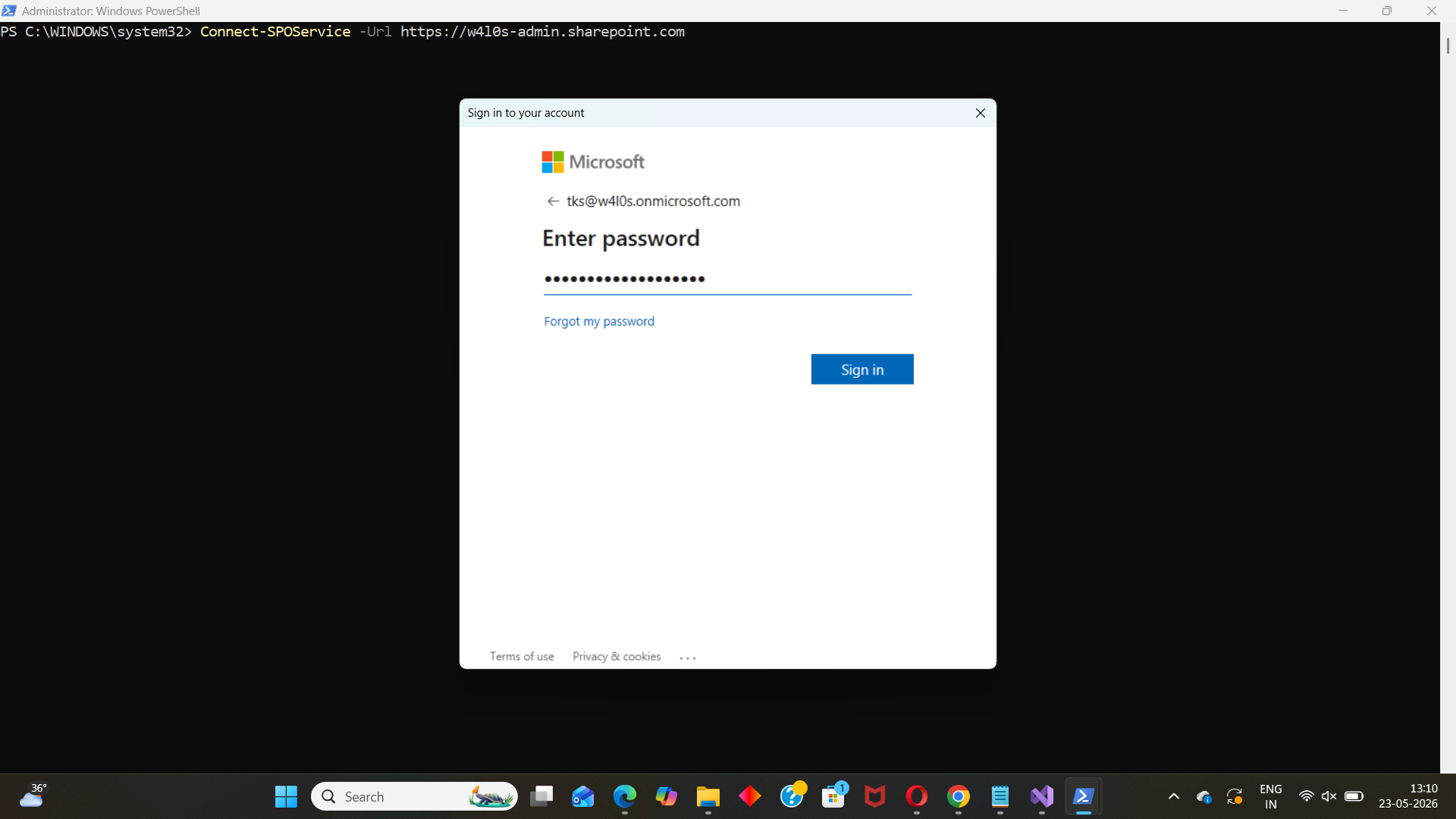
After installation, use the following cmdlet to connect to your SharePoint Online tenant:
Connect-SPOService -Url https://<tenant>-admin.sharepoint.comReplace <tenant> with your Microsoft 365 tenant name.
Example:
Connect-SPOService -Url https://contoso-admin.sharepoint.comAfter running the command:
- A Microsoft sign-in window appears.
- Enter your admin credentials.
- Complete MFA if required.
Once authenticated successfully, your PowerShell session will connect to SharePoint Online.
Common Mistake While Connecting
Many administrators accidentally connect using the regular SharePoint URL instead of the admin URL.
❌ Incorrect:
Connect-SPOService -Url https://contoso.sharepoint.com✅ Correct:
Connect-SPOService -Url https://contoso-admin.sharepoint.comThe -admin portion is mandatory.
Checking Whether Installation Was Successful or Not
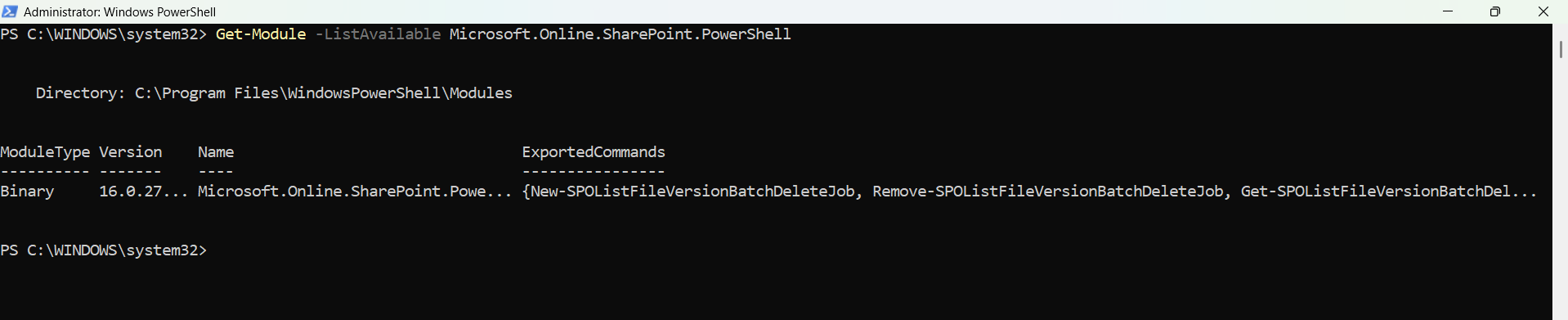
To verify whether the SharePoint Online PowerShell module is installed successfully, run:
Get-Module -ListAvailable Microsoft.Online.SharePoint.PowerShellIf installed correctly, PowerShell displays module details similar to:
Checking for SharePoint Cmdlets
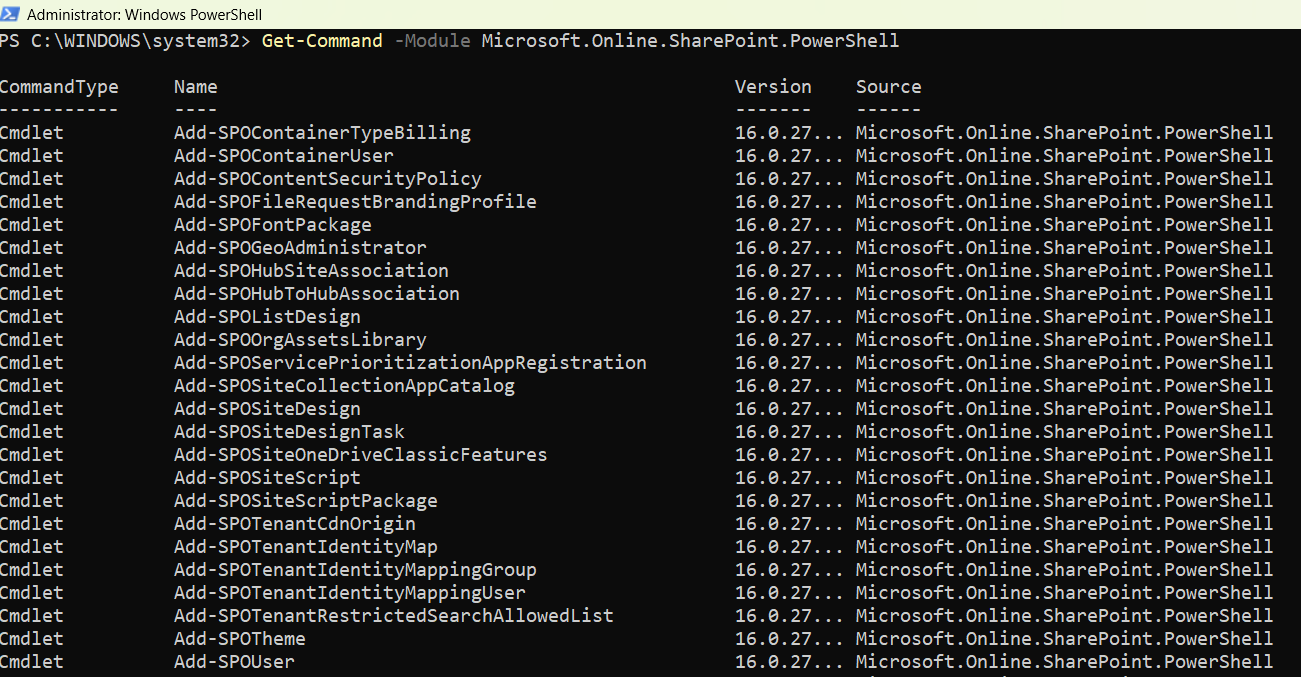
You can also check available SharePoint cmdlets using:
Get-Command -Module Microsoft.Online.SharePoint.PowerShellThis lists all SharePoint Online PowerShell commands available in the module.
Listing All Your Tenant SharePoint Sites
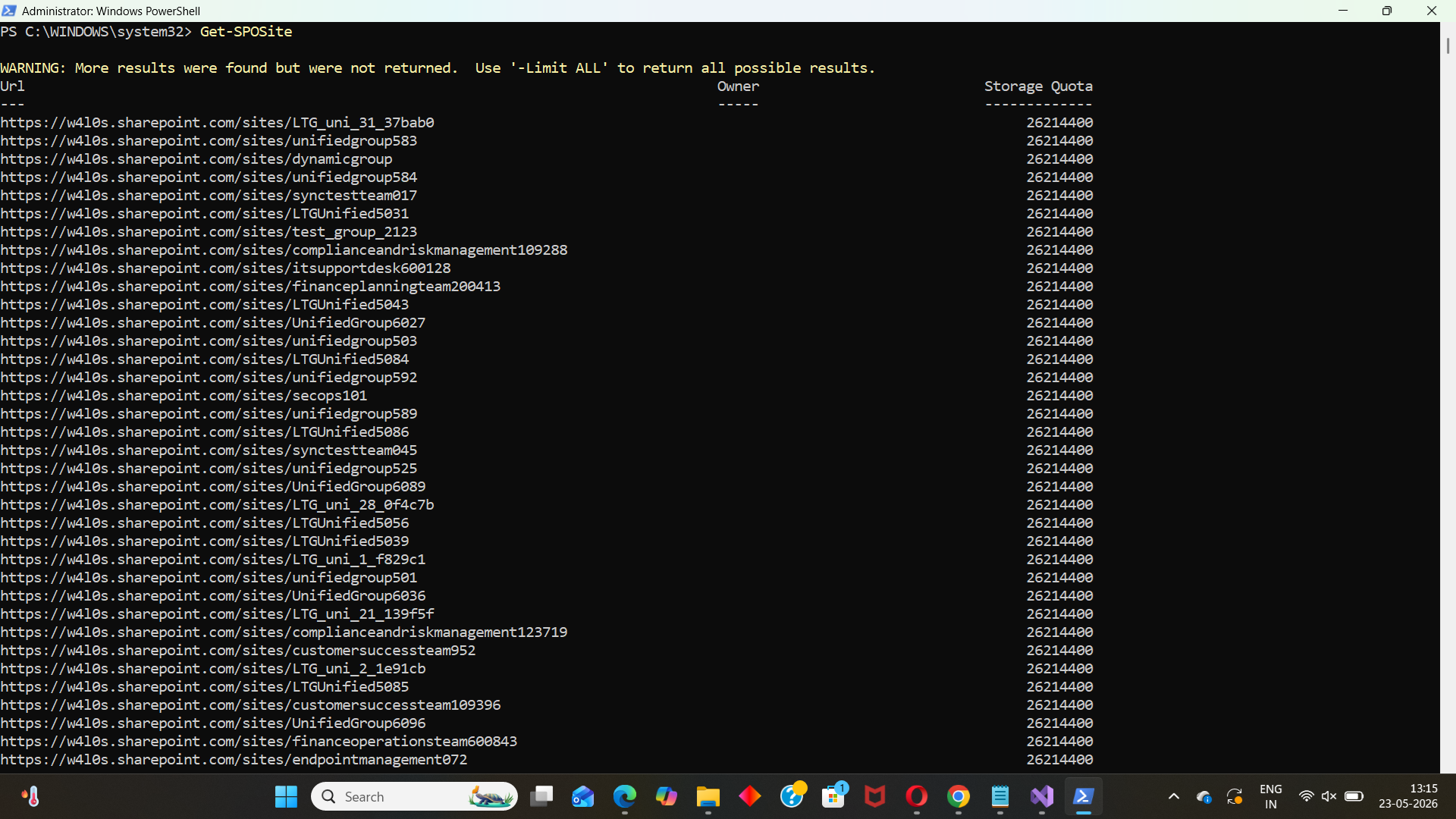
Once connected, you can retrieve all SharePoint Online site collections using:
Get-SPOSiteThis command displays details such as:
- Site URL
- Owner
- Storage quota
- Storage usage
- Sharing capability
- Template
Export All SharePoint Sites to CSV
For reporting purposes, administrators often export site details to CSV:
Get-SPOSite | Select-Object Url, Owner, StorageUsageCurrent, Template |
Export-Csv "C:\Reports\SharePointSites.csv" -NoTypeInformation
This creates a SharePoint Online site inventory report.
Disconnecting from Microsoft SharePoint PowerShell Module
After completing administrative tasks, disconnect the PowerShell session using:
Disconnect-SPOServiceDisconnecting is considered a good security practice, especially on shared or administrative systems.
Why SharePoint Online PowerShell Is Still Important
Many Microsoft 365 administrators wonder whether Microsoft Graph PowerShell can fully replace the SharePoint Online Management Shell.
Currently:
- Microsoft Graph PowerShell does not fully support SharePoint administration
- Some SharePoint-related cmdlets exist only in the beta Graph module
- Beta cmdlets are subject to changes and are not production-ready
Because of this, the Microsoft.Online.SharePoint.PowerShell module remains the primary and supported option for SharePoint Online automation.
For tasks such as:
- Site management
- Storage administration
- Sharing configuration
- Site collection management
- SharePoint reporting
the SharePoint Online Management Shell is still the recommended solution.
Frequently Asked Questions
- What is the SharePoint Online PowerShell module?
- Which cmdlet connects to SharePoint Online?
- Can I manage SharePoint Online using Microsoft Graph PowerShell?
- What permissions are required to connect to SharePoint Online PowerShell?
- How do I list all SharePoint Online sites?
- How do I disconnect from SharePoint Online PowerShell?
The SharePoint Online PowerShell module is a Microsoft-provided PowerShell module used to manage SharePoint Online administrative tasks.
The following cmdlet connects to SharePoint Online: Connect-SPOService
Not fully. SharePoint administration cmdlets in Microsoft Graph PowerShell are currently limited and mostly available only in beta versions.
You typically need: SharePoint Administrator role or Global Administrator role
Use: Get-SPOSite
Use: Disconnect-SPOService
Conclusion
The SharePoint Online Management Shell remains one of the most important PowerShell modules for Microsoft 365 administrators. Whether you want to retrieve SharePoint site collections, automate reporting, configure sharing settings, or manage SharePoint storage, PowerShell significantly simplifies administration.
Although Microsoft Graph PowerShell is becoming the standard for many Microsoft 365 workloads, SharePoint Online administration still primarily relies on the Microsoft.Online.SharePoint.PowerShell module because Graph-based SharePoint management cmdlets are still limited and not production-ready.
For administrators looking to automate SharePoint Online efficiently today, the SharePoint Online PowerShell module remains the best-supported and most reliable option.
Did You Know? Managing Microsoft 365 applications is even easier with automation. Try our Graph PowerShell scripts to automate tasks like generating reports, cleaning up inactive Teams, or assigning licenses efficiently.
Ready to get the most out of Microsoft 365 tools? Explore our free Microsoft 365 administration tools to simplify your administrative tasks and boost productivity.