Prerequisites for Connecting to Exchange Online PowerShell
Before connecting to Exchange Online PowerShell, ensure the following requirements are met:
- PowerShell 5.1 or PowerShell 7+
- ExchangeOnlineManagement module installed
- Microsoft 365 account with Exchange administrative permissions
- Modern authentication enabled
- Internet connectivity to Microsoft 365 services
Install Exchange Online PowerShell Module
Install-Module ExchangeOnlineManagementVerify Installed Module
Get-Module ExchangeOnlineManagement -ListAvailableInstalling the ExchangeOnlineManagement PowerShell Module
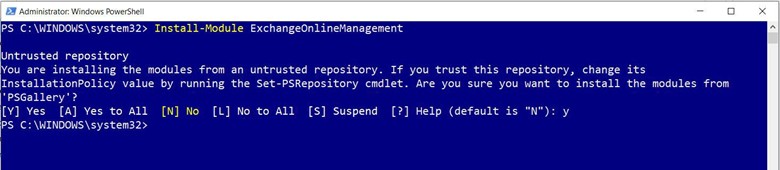
From your PowerShell console, run the Install-Module ExchangeOnlineManagement command as an administrator, as shown in Figure 1. This installs the Exchange Online management module.
Note: When you install a PowerShell module, you must confirm the installation by entering Y or A as the response, as shown in the image.
Checking Whether the Installation Was Successful
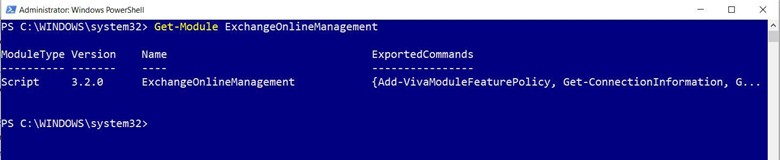
Run the Get-Module ExchangeOnlineManagement command. If your installation was successful, you’ll get back the newly installed ExchangeOnlineManagement module’s details, as shown in the image.
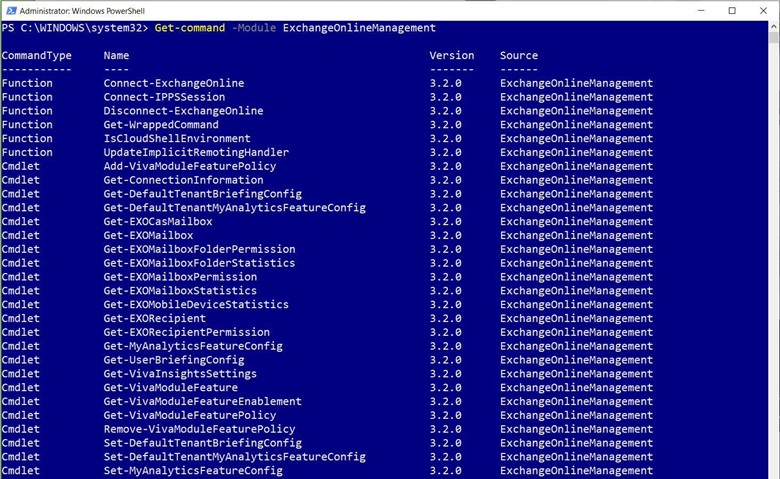
If you want to explore all the cmdlets associated with the newly installed ExchangeOnlineManagement PowerShell module, run the Get-command -Module ExchangeOnlineManagement cmdlet, as shown in the image.
Connecting to Exchange Online
To connect to Microsoft 365 Exchange Online:
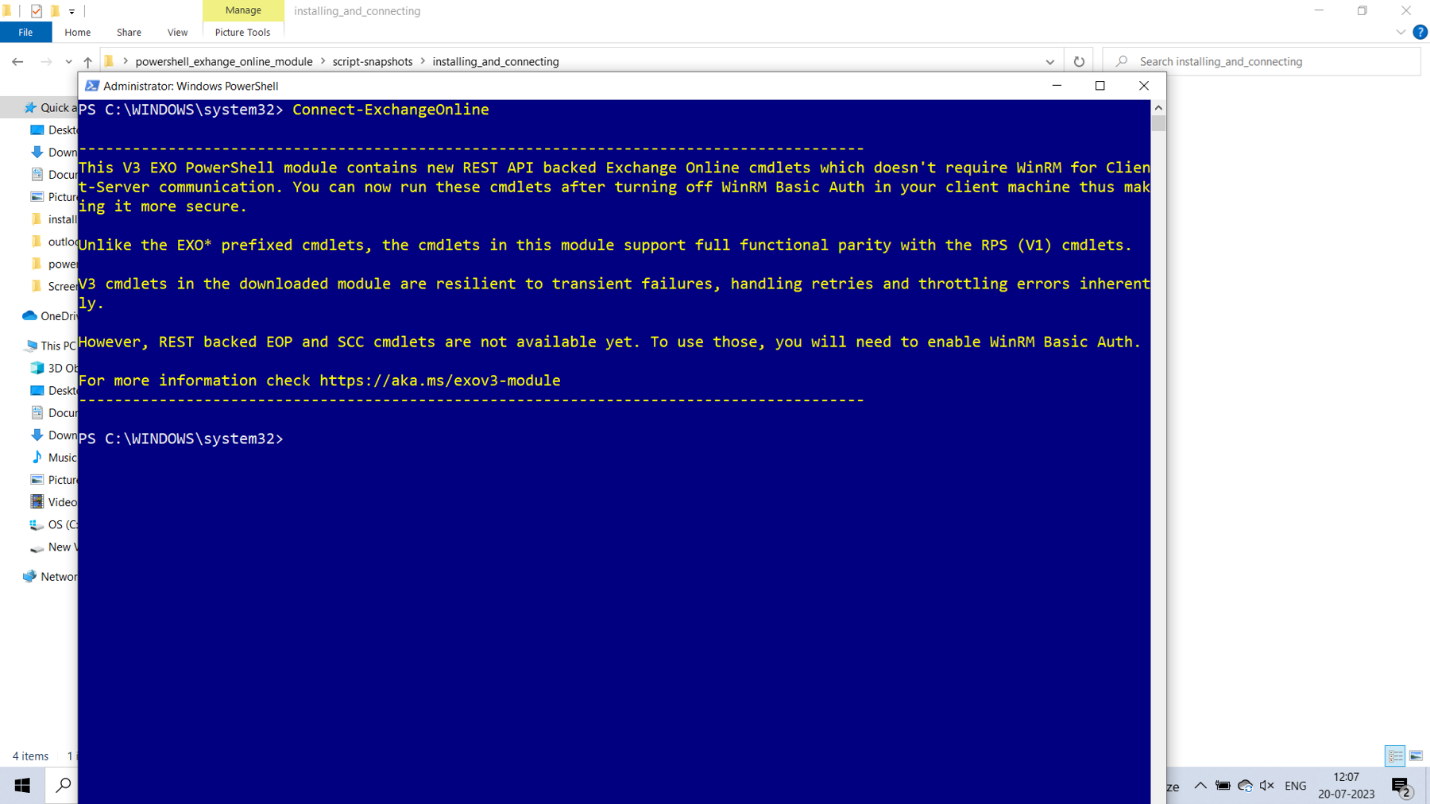
Run the Connect-ExchangeOnline command. This opens the credentials prompt, as shown in the image.
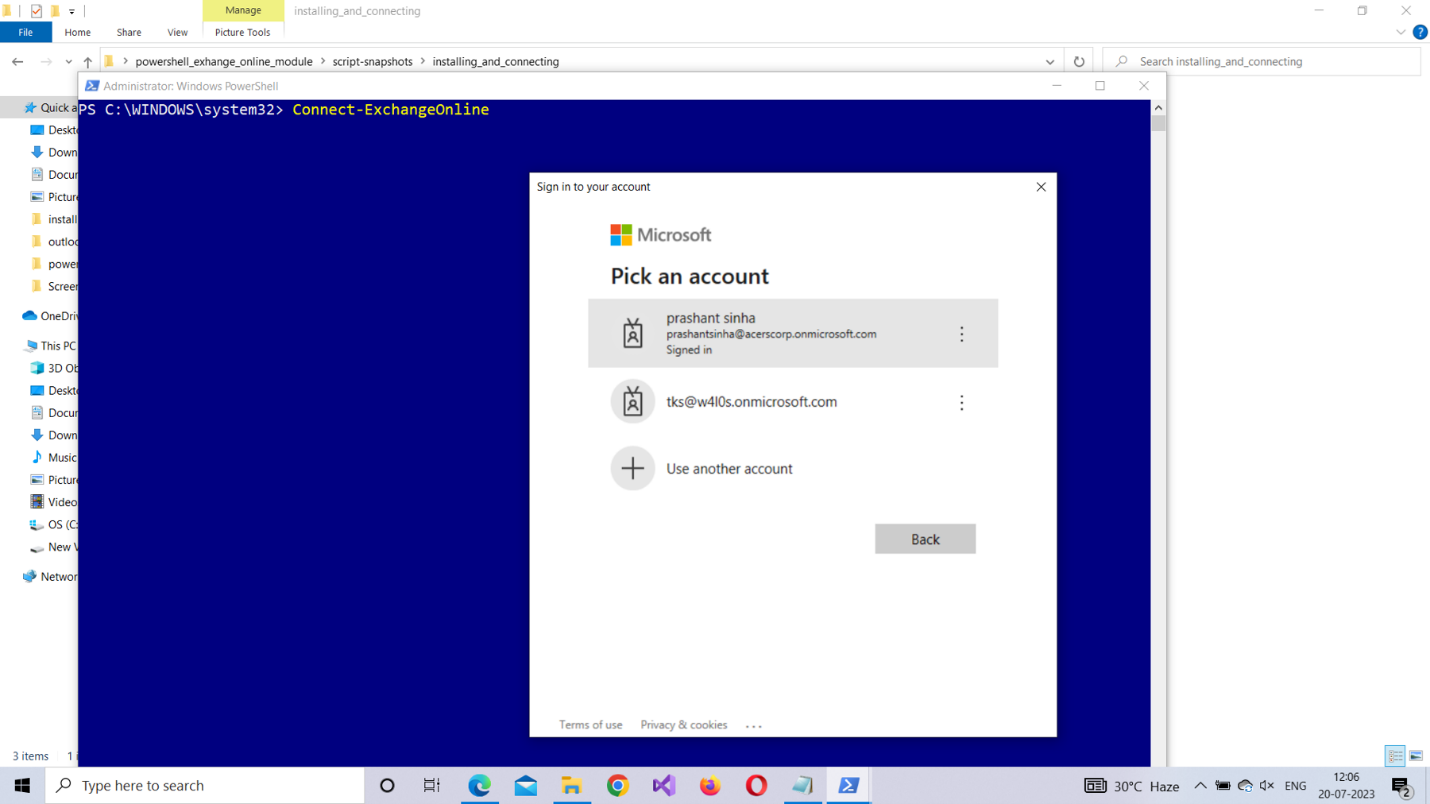
Enter your Microsoft 365 credentials, and then click Enter. You’ll be connected to Microsoft 365 Exchange Online, as shown in the image.
Connect Using Certificate-Based Authentication
Connect-ExchangeOnline `
-AppId "<ApplicationID>" `
-CertificateThumbprint "<CertificateThumbprint>" `
-Organization "contoso.onmicrosoft.com"
Ideal for automation scripts and scheduled tasks.
Checking Whether the Connection was Successful
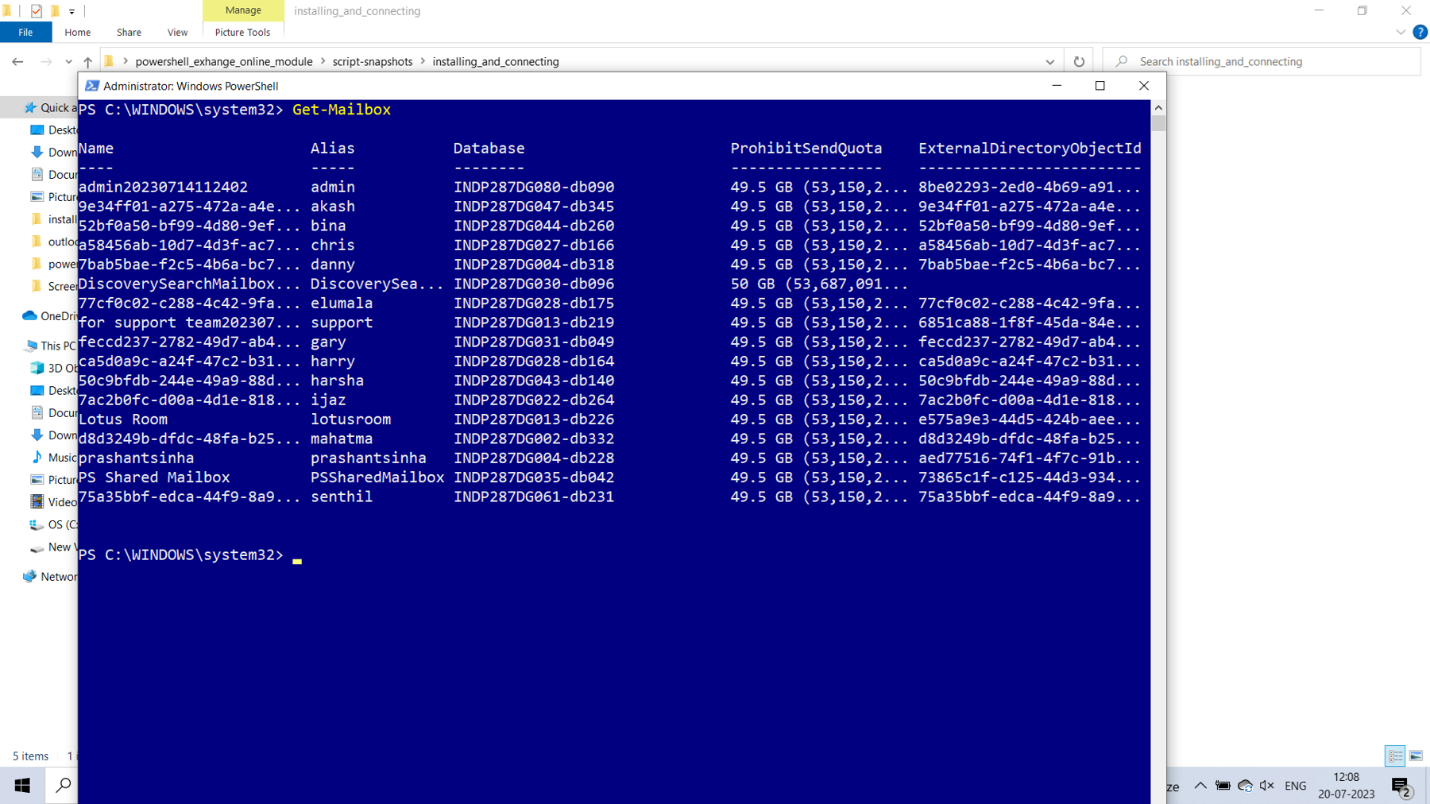
Run the Get-Mailbox command. Doing so will list all the mailboxes available in your Microsoft 365 tenant, as shown in the image.
Disconnecting Exchange Online
It’s best practice to be aware of how you can disconnect from a PowerShell module. The command for disconnecting from Microsoft 365 Exchange Online is Disconnect-ExchangeOnline, as shown in the image.

Common Exchange Online PowerShell Tasks
After connecting successfully, administrators can perform tasks such as:
| Task | Cmdlet |
|---|---|
| Retrieve Mailboxes | Get-EXOMailbox |
| Check Mailbox Statistics | Get-EXOMailboxStatistics -Identity user@contoso.com |
| Retrieve Mail Flow Rules | Get-TransportRule |
| View Distribution Groups | Get-DistributionGroup |
Possible Errors You Might Face
Here are some errors you might face and ways to rectify them:
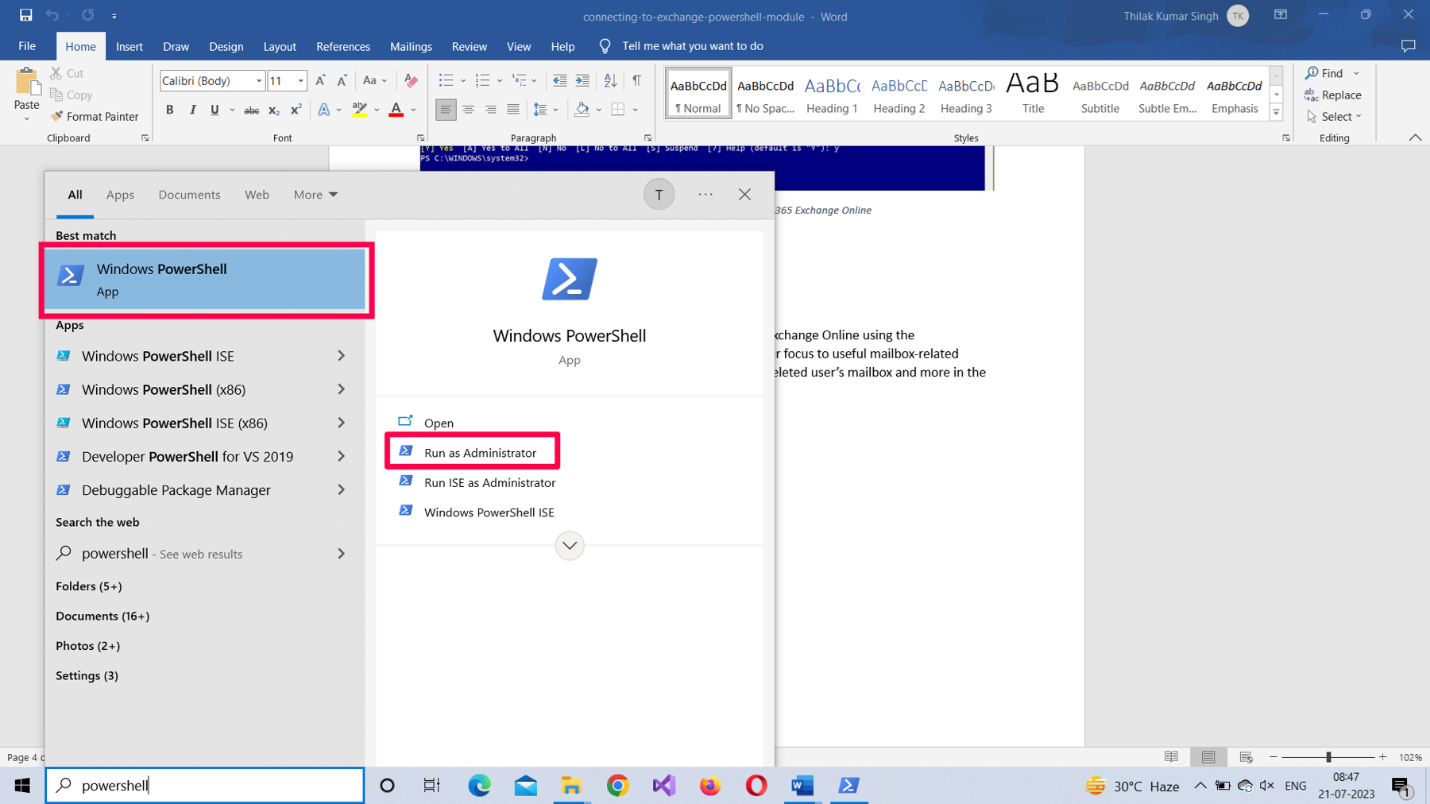
- Not running your shell as administrator: Select the PowerShell program from the Windows start menu, and then choose Run as Administrator, as shown in Figure 8.
- Set the execution policy to restricted mode: The execution policy setting determines the script execution rights for the current user. If you are logging in for the first time, chances are this is set to Restricted mode. Ensure that the execution policy is set to RemoteSigned, which allows you to run scripts. The command for doing so is Set-ExecutionPolicy RemoteSigned
- Typos in your PowerShell script: You can have typos even when you’re copying/pasting scripts. Save your scripts in separate .ps1 files, and then run them. This not only saves time but also prevents your script from encountering unnecessary errors.
- Providing incorrect login credentials: Ensure that you get your credentials right to prevent yourself from running into this embarrassing error.
Note: To check your script execution rights, run the Get-ExecutionPolicy command.
Frequently Asked Questions
- What module is required for Exchange Online PowerShell?
- Does Exchange Online PowerShell support MFA?
- Can Exchange Online PowerShell be automated?
- Is Basic Authentication supported?
- Which PowerShell versions are supported?
The ExchangeOnlineManagement module is required.
Yes. Modern authentication with MFA is fully supported.
Yes. Certificate-based authentication enables unattended automation.
Microsoft has deprecated Basic Authentication for Exchange Online PowerShell.
PowerShell 5.1 and PowerShell 7+ are supported.
Conclusion
Auditing Conditional Access policies is not just a best practice—it’s essential for compliance, security, and operational clarity. With Graph PowerShell, you gain full visibility into who did what, and when. Whether you're investigating changes, ensuring governance, or just documenting actions, these scripts have you covered.
Start auditing today—and make Conditional Access truly accountable.
Exchange Online PowerShell vs Exchange Admin Center
| Feature | Exchange Online PowerShell | Exchange Admin Center |
|---|---|---|
| Bulk management | Excellent | Limited |
| Automation | Yes | No |
| GUI-based management | No | Yes |
| Reporting | Advanced | Basic |
| Scripting support | Yes | No |
| Scheduled tasks | Yes | Limited |
New: User Management Graph PowerShell Toolkit
Simplify user tasks like bulk creation, updates, password resets, deletions, license checks, and more — all from one place.
Launch Toolkit