Adding Members to Channels Using Teams Admin Center
Microsoft Teams channels are where real collaboration happens. Whether it’s a Standard channel for day-to-day teamwork or a Private channel for focused discussions, adding the right members ensures smooth communication and productivity.
In this guide, we’ll walk through who Microsoft Teams channel members are, how to add them using the Teams Admin Center, and how to do the same using Graph PowerShell.
Who are Microsoft Teams Channel Members?
Microsoft Teams Channel Members are users who have access to a specific channel within a Team.
Depending on the channel type:
- Standard Channels
- All team members automatically have access.
- Membership is inherited from the parent Team.
- Private Channels
- Membership is controlled separately from the Team.
- Only selected users (from the parent Team) can access the channel.
- Requires explicit member addition.
- Shared Channels
- Can include users from other Teams or even external organizations.
- Membership is managed independently.
Channel members can:
- Participate in conversations
- Share files
- Join channel meetings
- Collaborate on channel-specific tasks
Proper channel membership management ensures data security and targeted collaboration.
How to Add Microsoft Teams Channel Members?
There are two primary ways to add members to a channel:
- Using the Teams Admin Center
- Using Microsoft Graph PowerShell
Let’s walk through both approaches.
Using Teams Admin Center
Follow these steps to add members to a Private or Shared Channel using the Teams Admin Center:
- Sign in to the Microsoft Teams Admin Center using https://admin.teams.microsoft.com.
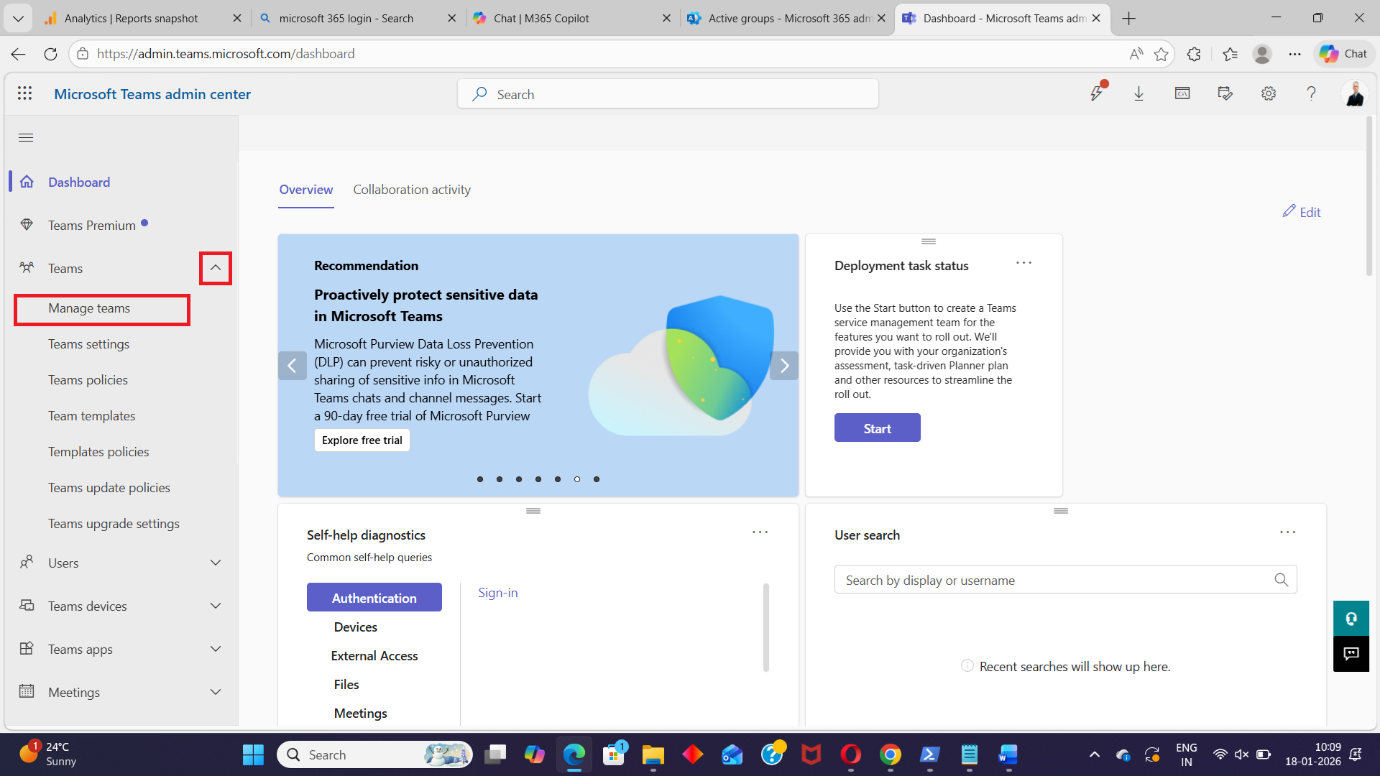
- Navigate to Teams in the left-hand menu. Click on Manage Teams.
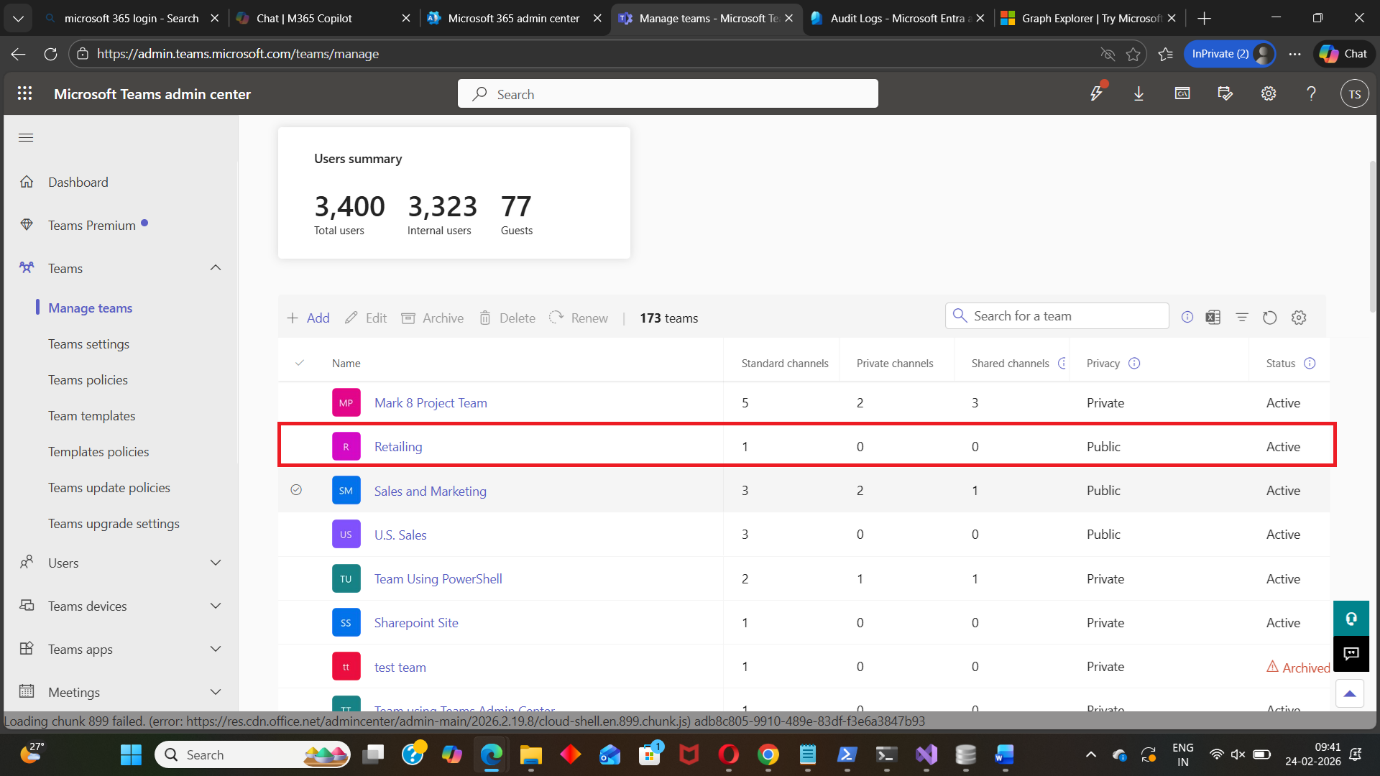
- Search and select the required Team.
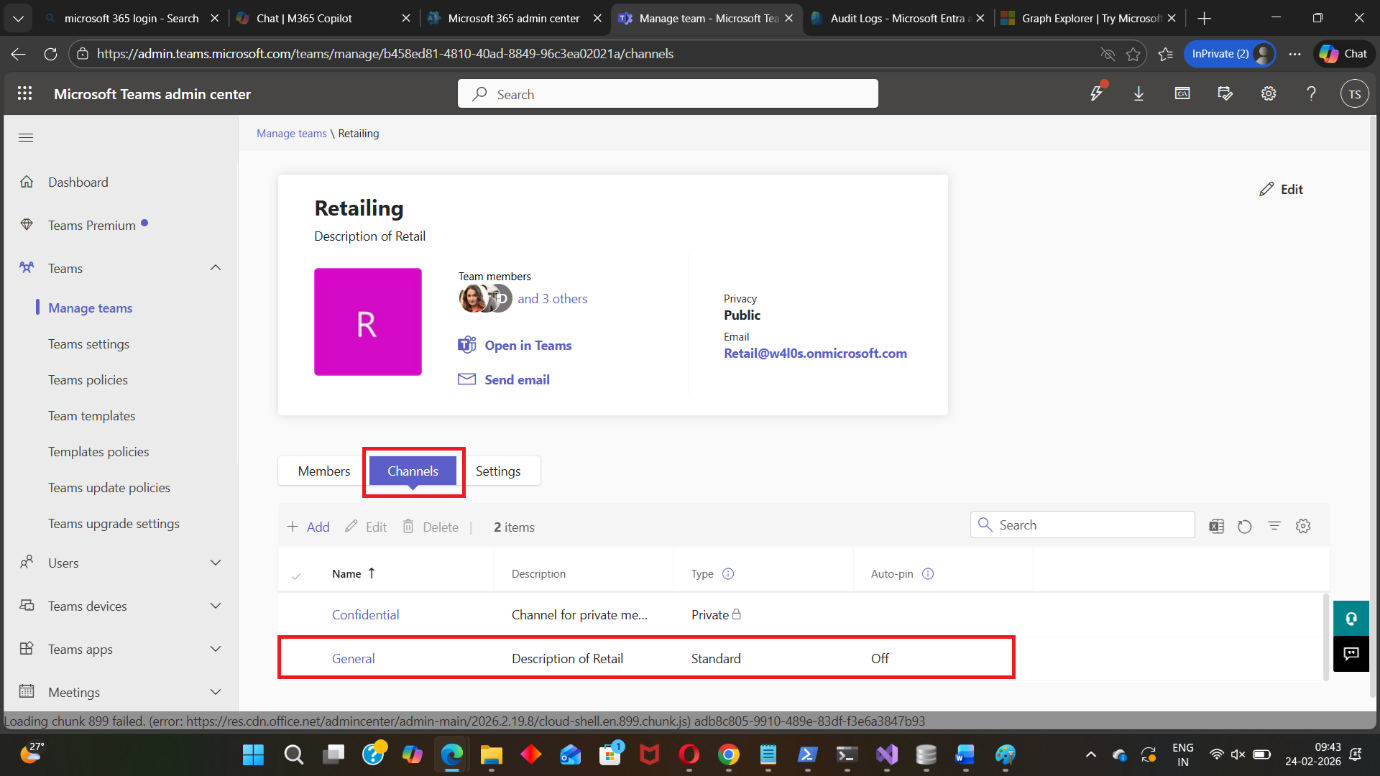
- Go to the Channels tab. Select the desired Private or Shared Channel.
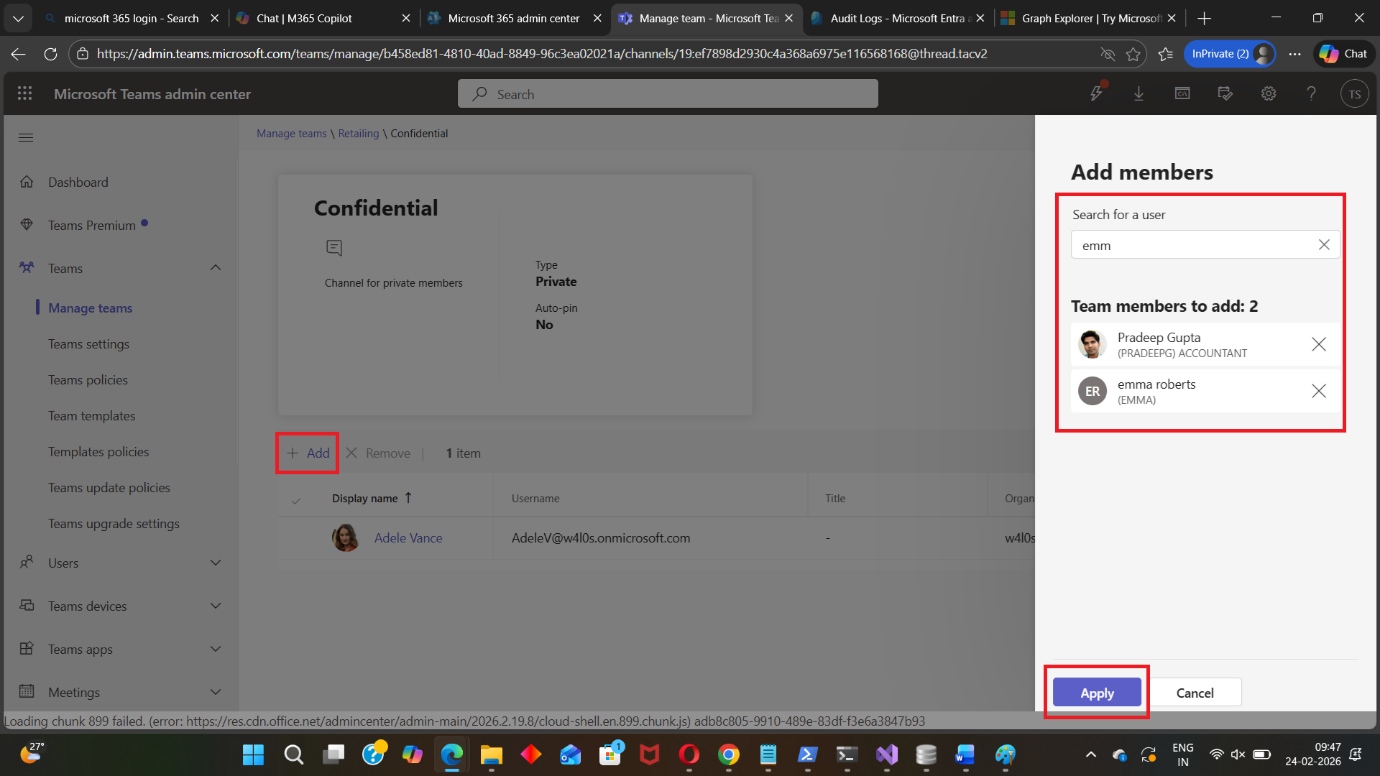
- Select Add. Search for the user(s) you want to add. Click Apply.
- Click Apply.
Notes:
- You can only add users who are already members of the parent Team (for Private Channels).
- To assign channel ownership to members, select the channel (from Teams app) by clicking on the … icon >> select Manage Team >> go to Members >> assign owner role to the channel member.
Using Graph PowerShell
Administrators who prefer automation or bulk operations can use Microsoft Graph PowerShell to add members to a channel.
Step 1: Connect to Microsoft Graph
Connect-MgGraph -Scopes ChannelMember.ReadWrite.All, Group.ReadWrite.AllStep 2: Add a Member to a Channel
Use the New-MgTeamChannelMember cmdlet with the required -BodyParameter format:
$Params = @{
    "@odata.type" = "#microsoft.graph.aadUserConversationMember"
    roles = @()  # Leave empty for Member role
    "user@odata.bind" = "https://graph.microsoft.com/v1.0/users('USER-ID-GUID')"
}

New-MgTeamChannelMember `
    -TeamId "TEAM-ID-GUID" `
    -ChannelId "CHANNEL-ID-GUID" `
    -BodyParameter $Params
Adding a Channel Owner
To add the user as a channel owner:
$Params = @{
    "@odata.type" = "#microsoft.graph.aadUserConversationMember"
    roles = @("owner")
    "user@odata.bind" = "https://graph.microsoft.com/v1.0/users('USER-ID-GUID')"
}

New-MgTeamChannelMember `
    -TeamId "TEAM-ID-GUID" `
    -ChannelId "CHANNEL-ID-GUID" `
    -BodyParameter $Params
Key Points
- TeamId → The Group ID of the Team
- ChannelId → The Channel ID
- USER-ID-GUID → Azure AD Object ID of the user
- roles = @() → Member
- roles = @("owner") → Channel Owner
This method is especially useful for:
- Bulk member additions
- Automated provisioning
- Script-based channel management
Conclusion
Managing channel membership in Microsoft Teams is essential for maintaining secure and effective collaboration.
- The Teams Admin Center provides a simple, GUI-based method ideal for occasional updates.
- Graph PowerShell offers automation, scalability, and flexibility for administrators managing large environments.
By understanding both approaches, you can choose the right method based on your organization’s size, automation requirements, and administrative preferences.
Efficient channel membership management ensures that the right people have access to the right conversations — and that’s what makes Teams truly powerful.
Did You Know? Managing Microsoft 365 applications is even easier with automation. Try our Graph PowerShell scripts to automate tasks like generating reports, cleaning up inactive Teams, or assigning licenses efficiently.
Ready to get the most out of Microsoft 365 tools? Explore our free Microsoft 365 administration tools to simplify your administrative tasks and boost productivity.