4 Useful New-MgGroup Scripts for Microsoft 365 Administrators
Creating groups in Microsoft 365 is a common task for administrators. Whether you’re setting up collaboration spaces (Microsoft 365 Groups) or managing access (Security Groups), doing it manually can take time.
With the New-MgGroup cmdlet, you can quickly create groups using PowerShell — even in bulk.
In this article, we’ll walk through 4 practical scripts to help you create both Unified (M365) Groups and Security Groups with ease.
Prerequisites
Connect to Microsoft Graph before running the scripts:
Connect-MgGraph -Scopes "Group.ReadWrite.All"Create a Single Unified Group (Microsoft 365 Group)
Bulk Create Unified Groups from CSV
Create a Single Security Group
Bulk Create Security Groups from CSV
Unified Groups are used for collaboration (Teams, Outlook, SharePoint).
$params = @{
  displayName     = "Marketing Team"
  description     = "Group for Marketing Collaboration"
  mailEnabled     = $true
  mailNickname    = "marketingteam"
  securityEnabled = $false
  groupTypes      = @("Unified")
}
New-MgGroup -BodyParameter $params
👉 Use case
Create a team for collaboration with shared mailbox, calendar, and Teams integration.
This is extremely useful when setting up multiple teams at once.
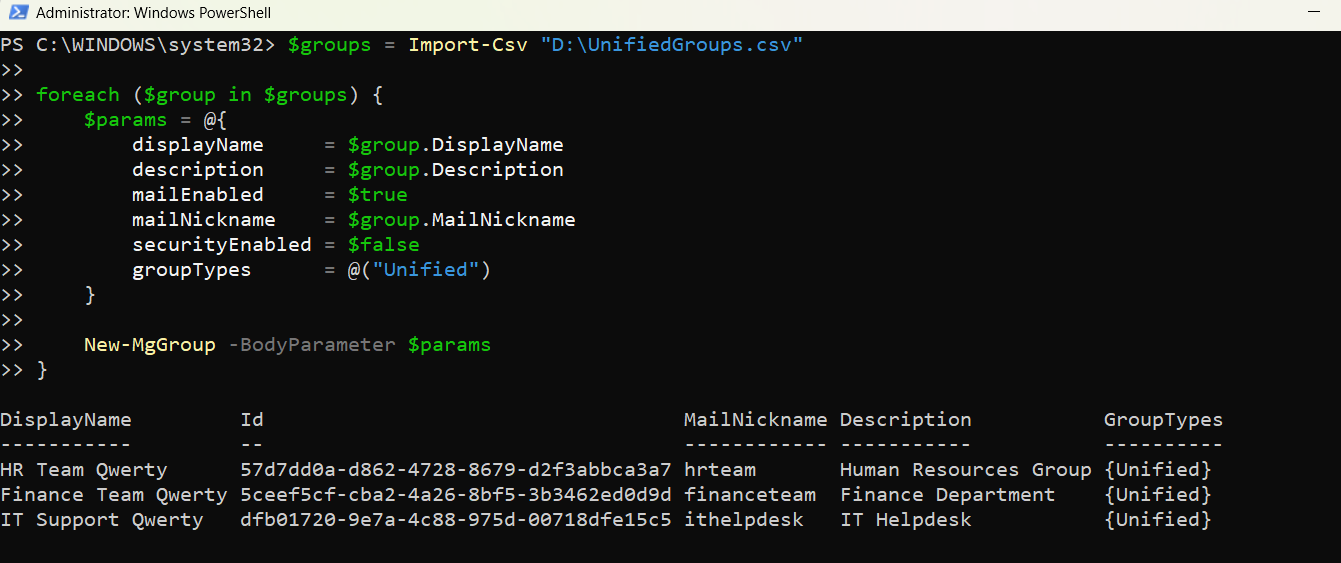
Sample CSV (UnifiedGroups.csv)
DisplayName,Description,MailNickname
HR Team,Human Resources Group,hrteam
Finance Team,Finance Department,financeteam
IT Support,IT Helpdesk,ithelpdesk
Script
$groups = Import-Csv "C:\Scripts\UnifiedGroups.csv"

foreach ($group in $groups) {
  $params = @{
    displayName     = $group.DisplayName
    description     = $group.Description
    mailEnabled     = $true
    mailNickname    = $group.MailNickname
    securityEnabled = $false
    groupTypes      = @("Unified")
  }
  New-MgGroup -BodyParameter $params
}
👉 Use case: Mass onboarding of teams during organizational restructuring or migration.
Security Groups are typically used for permissions and access control.
$params = @{
    displayName     = "VPN Access Group"
    description     = "Users with VPN access"
    mailEnabled     = $false
    mailNickname    = "vpnaccess"
    securityEnabled = $true
}

New-MgGroup -BodyParameter $params
👉 Use case:
Control access to applications, VPN, or SharePoint resources.
Perfect for setting up access-based groups in bulk.
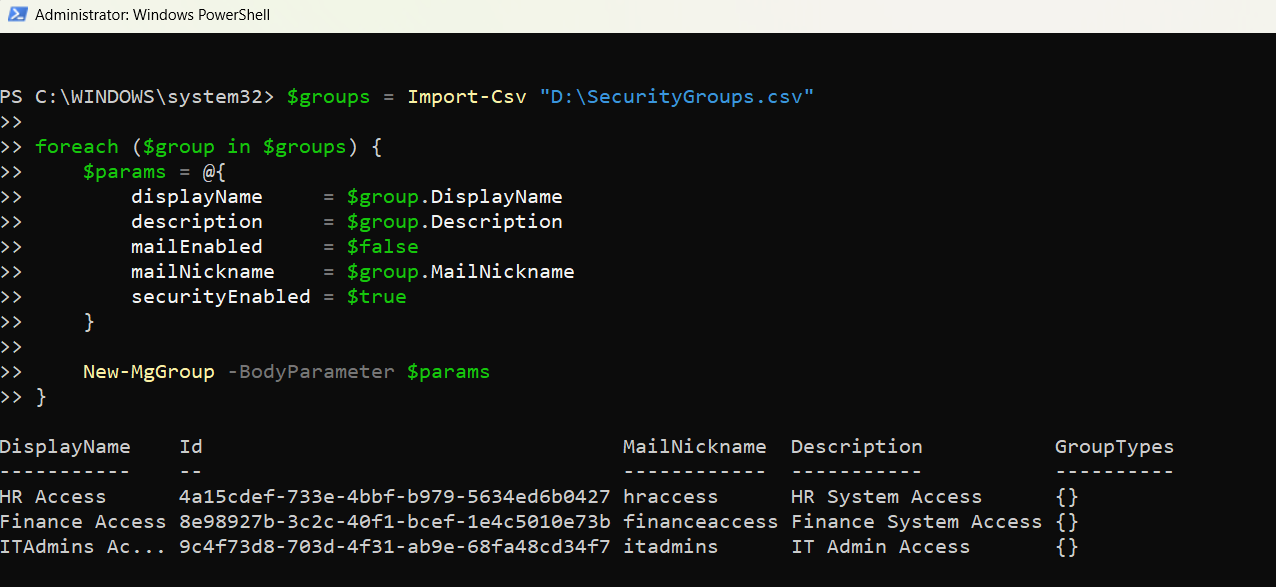
Sample CSV (SecurityGroups.csv)
DisplayName,Description,MailNickname
HR Access,HR System Access,hraccess
Finance Access,Finance System Access,financeaccess
IT Admins,IT Admin Access,itadmins
Script
$groups = Import-Csv "C:\Scripts\SecurityGroups.csv"

foreach ($group in $groups) {
    $params = @{
        displayName     = $group.DisplayName
        description     = $group.Description
        mailEnabled     = $false
        mailNickname    = $group.MailNickname
        securityEnabled = $true
    }

    New-MgGroup -BodyParameter $params
}
👉 Use case:
Quickly provision access groups for applications or internal systems.
Tips for Using New-MgGroup
- Always use -BodyParameter with a hashtable (recommended approach).
- Unified Groups require:
- mailEnabled = $true
- securityEnabled = $false
- groupTypes = @("Unified")
- Security Groups require:
- mailEnabled = $false
- securityEnabled = $true
- Ensure mailNickname is unique across the tenant.
Common Error to Watch For
| Error | Cause | solution |
| Another object with the same value for property mailNickname already exists | Duplicate mailNickname value. | Use a unique nickname for each group (consider adding numbers or prefixes). |
Conclusion
The New-MgGroup cmdlet makes group creation simple and scalable. Whether you're creating a single group or hundreds using CSV, PowerShell saves time and reduces manual effort.
Start with single group creation to understand the structure, then move to bulk scripts for real productivity gains.
Did You Know? Managing Microsoft 365 applications is even easier with automation. Try our Graph PowerShell scripts to automate tasks like generating reports, cleaning up inactive Teams, or assigning licenses efficiently.
Ready to get the most out of Microsoft 365 tools? Explore our free Microsoft 365 administration tools to simplify your administrative tasks and boost productivity.