10 Useful Get-MgUser Scripts for Microsoft 365 Administrators
Managing users is a core responsibility for every Microsoft 365 administrator. Whether you need a full user list or want to find specific users based on conditions, the Get-MgUser cmdlet is your go-to tool.
In this article, we’ll look at 10 simple and practical scripts using Get-MgUser that you can start using right away.
Prerequisites
Connect to Microsoft Graph before running the scripts:
Connect-MgGraph -Scopes "User.Read.All"Get-MgUser Scripts
- Get All Users
- Get Specific User Details
- Get Only Selected Properties
- Get Disabled Users
- Get Users from a Specific Department
- Get Licensed Users
- Get Unlicensed Users
- Get User Manager
- Get User Managers of a Department
- Bonus: Export Users to CSV
This is the most basic and widely used command.
Get-MgUser -All👉 Use case
Get a complete list of users in your tenant.
You can fetch details for a single user using their UPN or User ID.
Get-MgUser -UserId "user@domain.com"👉 Use case: Quickly check user properties like display name, mail, and more.
By default, not all properties are returned. You can explicitly request what you need.
Get-MgUser -All -Property DisplayName,UserPrincipalName,Department👉 Use case:
Generate clean reports with only relevant fields.
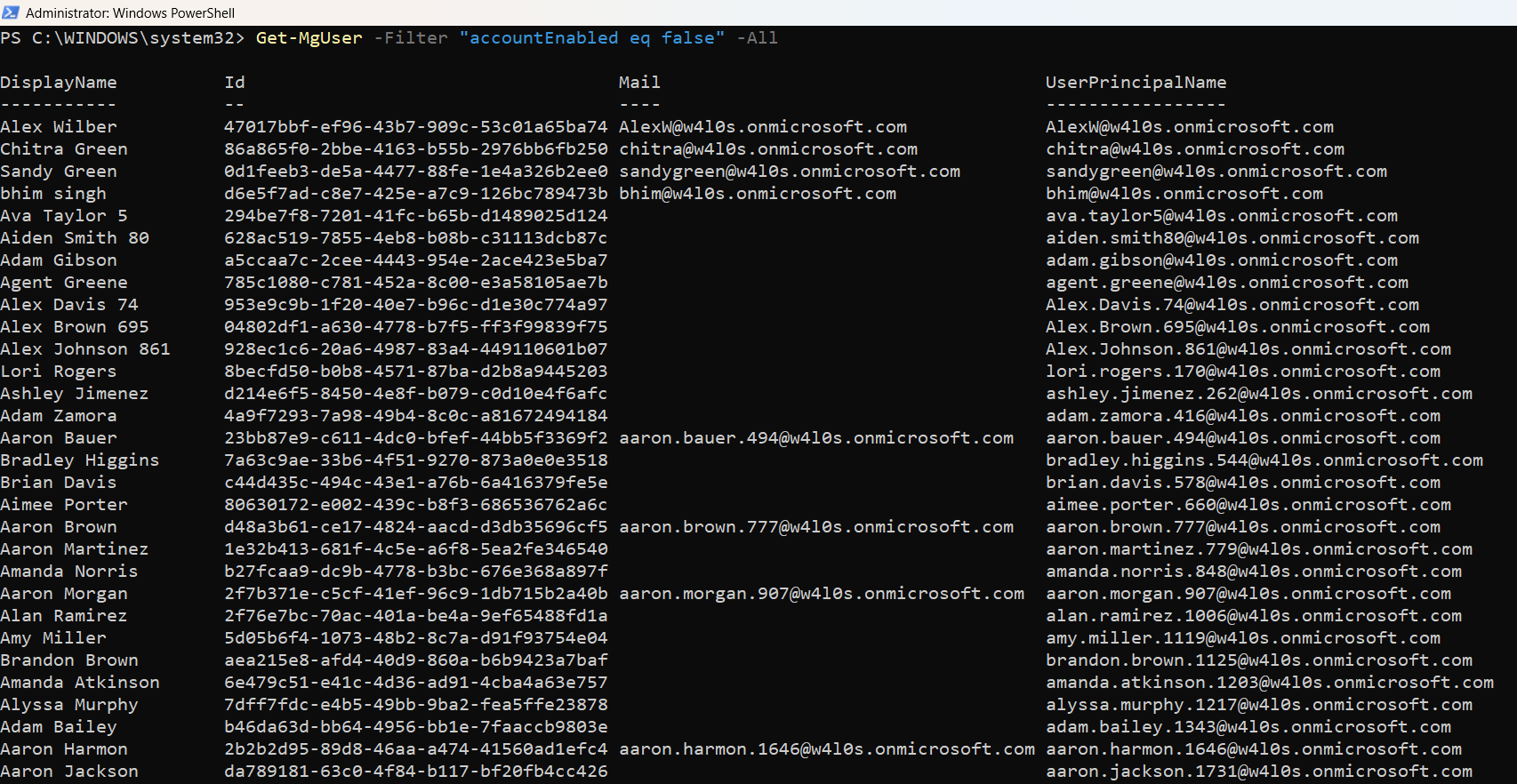
Filter users based on conditions like account status.
Get-MgUser -Filter "accountEnabled eq false" -All👉 Use case:
Identify users who are disabled but still exist in the tenant.
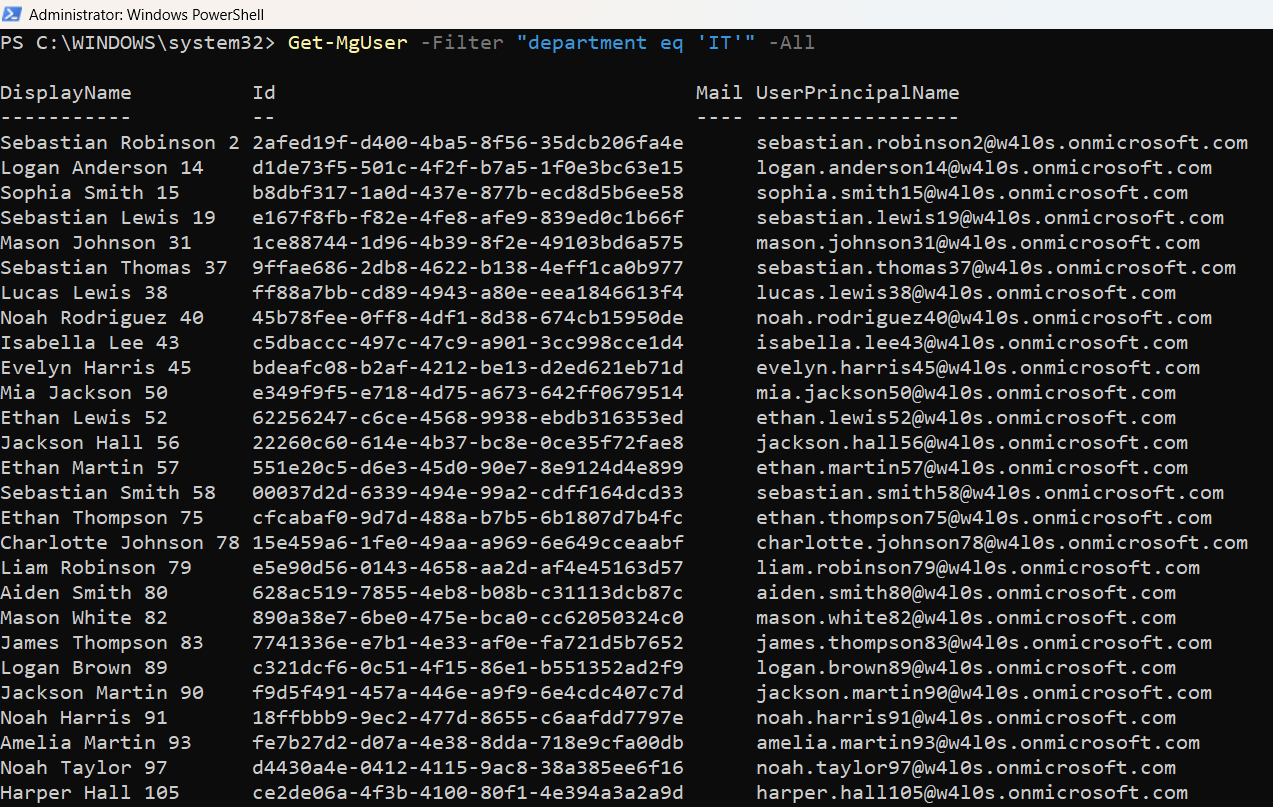
You can filter users based on attributes like department.
Get-MgUser -Filter "department eq 'IT'" -All👉 Use case:
Fetch users belonging to a specific team or department.
You can filter only for licensed users using assignedLicenses property.
Get-MgUser -All -Filter "assignedLicenses/`$count ne 0 and userType eq 'Member'" -ConsistencyLevel eventual -CountVariable RecordsUse case:
Fetch only users with a valid license.

You can also filter for users without a license using assignedLicenses property.
Get-MgUser -All -Filter "assignedLicenses/`$count eq 0 and userType eq 'Member'" -ConsistencyLevel eventual -CountVariable Records👉 Use case:
Fetch users without a license.
You can find out a user’s manager by combining Get-MgUserManager with Get-MgUser cmdlet.
$managerId = (Get-MgUserManager -UserId "Gilchrist@7xh7fj.onmicrosoft.com").Id
$manager = Get-MgUser -UserId $managerId
$manager | Select-Object Id, DisplayName, UserPrincipalName, Mail
👉 Use case:
Fetch manager details of a user.

You can also find out managers of users across a department by combining Get-MgUserManager with Get-MgUser.
$users = Get-MgUser -Filter "Department eq 'Sales'" -All
foreach ($user in $users) {
    $managerId = (Get-MgUserManager -UserId $user.Id).Id
    $manager = Get-MgUser -UserId $managerId
[PSCustomObject]@{
UserId = $user.UserPrincipalName
ManagerId = $manager.Id
ManagerDisplayName = $manager.DisplayName
ManagerUPN = $manager.UserPrincipalName
ManagerMail = $manager.Mail
   }
}
👉 Use case:
Fetch user managers within a given department.
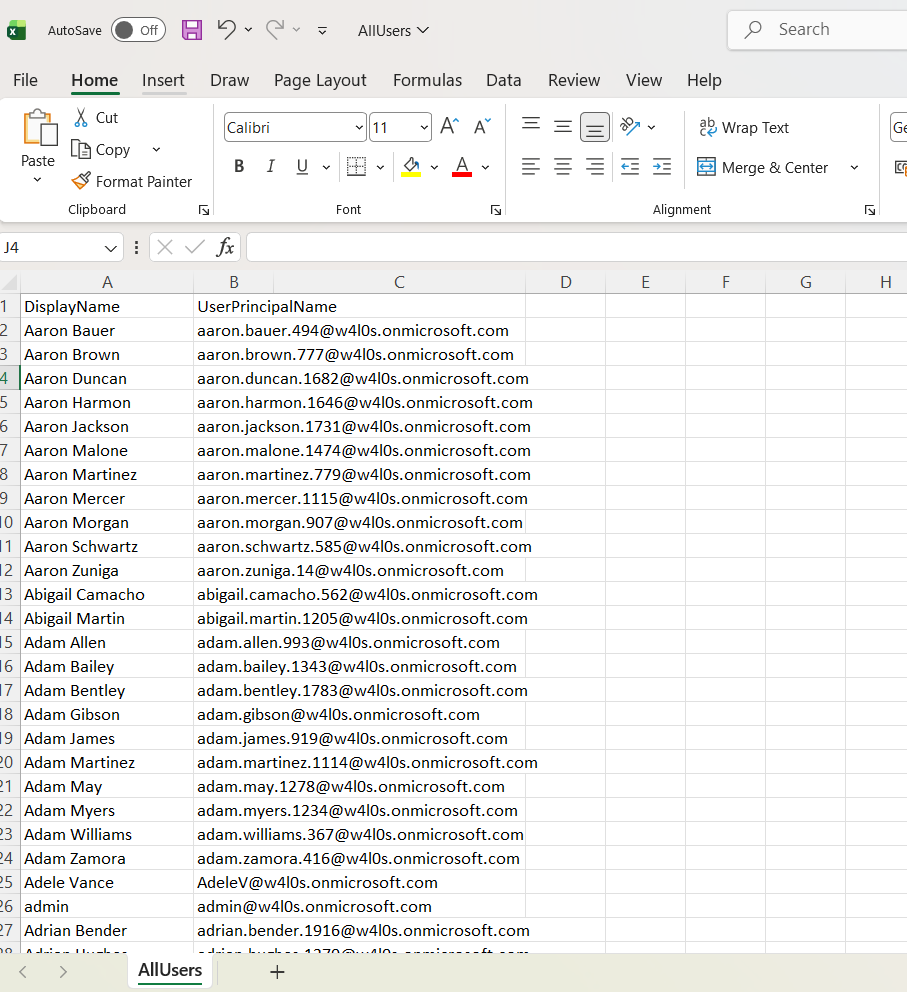
Exporting data is extremely useful for reporting and audits.
Get-MgUser -All -Property DisplayName,UserPrincipalName |
Select-Object DisplayName,UserPrincipalName |
Export-Csv "C:\Scripts\AllUsers.csv" -NoTypeInformation
👉 Use case:
Create reports for audits, HR, or management.
Tips for Using Get-MgUser
- Use -All to retrieve all users (default returns limited results).
- Use -Filter for server-side filtering (faster and efficient).
- Use -Property to reduce unnecessary data.
- Combine with Select-Object for clean output.
Common Error to Watch For
| Error | Cause | solution |
| Invalid filter clause | Incorrect syntax in the -Filter parameter. | Ensure proper OData format: "accountEnabled eq false" |
Frequently Asked Questions
- Can I filter by multiple attributes while using Get-MgUser?
- Can I export additional properties to CSV?
- Is Get-MgUser faster than Get-AzureADUser?
- Can I run these scripts in Azure Automation?
Yes, using OData syntax (e.g., department eq 'IT' and accountEnabled eq true).
Yes, specify them in -Property and Select-Object.
Yes, it uses Microsoft Graph, which is the recommended modern API.
Yes, with proper authentication setup.
Conclusion
The Get-MgUser cmdlet is one of the most important tools in your M365 PowerShell toolkit. From fetching all users to filtering specific groups, it helps you quickly access the data you need.
Start with simple commands and gradually explore filtering and exporting — that’s where the real power lies.
Did You Know? Managing Microsoft 365 applications is even easier with automation. Try our Graph PowerShell scripts to automate tasks like generating reports, cleaning up inactive Teams, or assigning licenses efficiently.
Ready to get the most out of Microsoft 365 tools? Explore our free Microsoft 365 administration tools to simplify your administrative tasks and boost productivity.